iOS Today 810 Transcript
Please be advised that this transcript is AI-generated and may not be word-for-word. Time codes refer to the approximate times in the ad-free version of the show.
Mikah Sargent [00:00:00]:
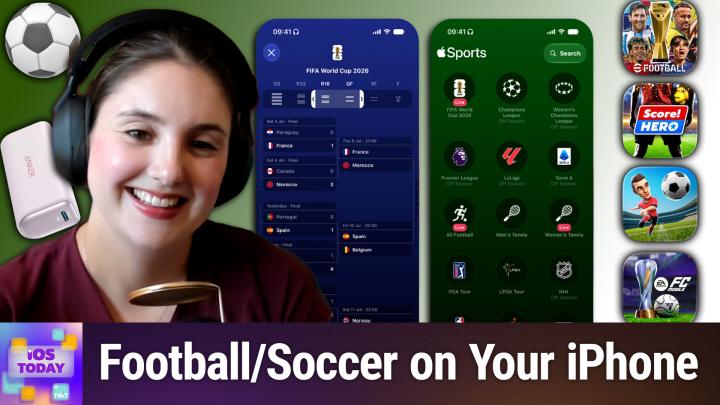
Coming up on iOS today, we have seen the flying soccer balls or footballs as they were. And so we're going to be talking about the World Cup. Stay tuned for this episode of iOS today.
Rosemary Orchard [00:00:16]:
Podcasts you love from people you trust.
Mikah Sargent [00:00:20]:
This is twit. This is iOS today episode 810 with Rosemary Orchard and me, Micah Sargent. Recorded Tuesday, July 7th, 2026 for Thursday, July 9th, 2026 following the World Cup. Hello and welcome to iOS today. This is the show where we Talk all things iOS, iPadOS, WatchOS, HomePod, OS and all the older OSs that Apple has to offer us. I am one of your hosts. My name is Micah Sargent.
Rosemary Orchard [00:00:54]:
And my name is Rizmary Orchid. And I feel like I should pre warn folks that I am not a hugely sporty person, which has made me have to lot of research for today's episode. So, you know, we'll see, we'll see what happens.
Mikah Sargent [00:01:09]:
We appreciate it that you're of course where I am in Portland, very close to Seattle where some of the World cup stuff was taking place. And right now with this event going on, I've seen a lot of different apps and games and, and other things devoted to the World Cup. I think that Apple made it kind of difficult to avo the World cup stuff given its, its options when it comes to kind of following along with sports. The company of course has over time gotten deals and other agreements in place that allow for it to show and stream much of the, especially in the the soccer or football world. A lot of that content. This of course now by Fox, but regardless, there are plenty of ways that you along with not just soccer, not just football, but also other sports as well. And so we thought we'd talk a little bit about following the World cup, but I think in general kind of following along with what is going on in the sports world. Rosemary, would you like to tell us about the first app today?
Rosemary Orchard [00:02:25]:
Yeah, the first app is free. We love free. And not only that, no subscriptions at all, has live activities, has a whole bunch of features that may or may not be because it's made by Apple. I'm not convinced that it's like, you know, the iWork suite where they've got a whole team of people working on this. It might just be like a couple of people and however many interns get pulled into it every year. But the Apple sports app is free and it works really well. It keeps me informed of when things that are relevant to other people in my life who really love sports are happening. And yeah, I I find that the Apple sports app is pretty great at the moment.
Rosemary Orchard [00:03:06]:
They have a feature at the top which shows you World Cup 20, 26 fixtures, which you can tap to view, and then it pops up and it shows you what's going on. So you can see, you know, recent things. You can expand out to go to all the previous matches and things like that. Because, of course, this is a fixture list where, uh, not. You don't. Not everybody plays everyone, but they have groups and everybody in those groups plays each other and people go through to the next round. And that's kind of the limit of my knowledge here. But I do know that more goals is good because if you score more than the other team, then that.
Rosemary Orchard [00:03:42]:
That is kind of the deciding factor, or at least so I've been reliably informed. Yeah, I. I do like this. I think that it's. It's really nice the way that they have set this up so that you can see, for example, in the quarterfinals, I'm guessing that's what QF stands for. Can see Norway is going to be playing against England. And then after that, because that match is yet to be played, it says TBD because obviously the winner of that game and the winner of whoever wins out of Argentina versus Egypt and Switzerland versus. Oh, I've forgotten what COL stands for.
Rosemary Orchard [00:04:19]:
Is that Colombia?
Mikah Sargent [00:04:20]:
Maybe.
Rosemary Orchard [00:04:21]:
But either way, you know, they're going to be doing pretty well. Let me see. Was I right? It was Colombia.
Mikah Sargent [00:04:26]:
Nice.
Rosemary Orchard [00:04:27]:
Yay. It's one of these things. Wherever I see these abbreviations, I'm like, oh, this is actually really good guessing game for do I recognize the abbreviation and the flag? So, yeah, this is a really great app. It works really well. It does significantly more than just football or soccer for the Americans in the room, which I'm guessing is most of our listeners. But there's all of the various leaks of things here. There's baseball, there's college football, there's basketball, Formula One, NASCAR. The NFL's here.
Rosemary Orchard [00:05:01]:
Tennis is here. Wimbledon is on at the moment. Thank you very much, Keith in the club to a discord for reminding me that Wimbledon is on at the moment. I need to go and eat some strawberries to celebrate this, obviously, because that's. That's what we do over here. We eat strawberries to celebrate tennis. Don't ask me how that happened. Doesn't really matter.
Rosemary Orchard [00:05:18]:
But it's really nice to be able to, you know, tap on something. If you use the search feature, then you can actually see what is currently live, as in there is an active event going on for it. So if I tap onto women's, then I can see currently that there was a quarter final going on and there is a quarter final going on, by the looks of it. So, yeah, it's. It's really good. I like the way that there are live activities for things. So, for example, if you are a Formula one fan, those races, there seemed to have been a big gap and then they came back and I was blissfully unaware that there had been a big gap. I got a live activity and went, oh, it's been a really long time since I saw that on my phone.
Rosemary Orchard [00:05:59]:
And it, it's really nice. It just pops up with that information. So you can keep on top of it. And you. If you're not into sports, you can make yourself sound like you're very aware of what's going on in the sports world by going, oh, yeah, so and so, just lapped so and so, right, and took the leader position in the Grand Prix, at which point everyone will be like, wow, you know so much. And I'll be there going, yeah, it's a car, it's got four wheels and a weird steering wheel. But it's one of these things where, you know, it depends on how much you love sports as to whether or not you, you want these things. But I, I highly recommend the Apple Sports app just because it's completely free and it's got so much good data in and you can tie it into Apple TV as well.
Rosemary Orchard [00:06:42]:
So if those, if the thing that you're interested in watching is then available through Apple TV to watch, it will just hook everything up and there you go. It will be recommended for you, which is definitely something that is very worthwhile having. So if you would like sports scores, if you would like details of ongoing matches and potentially to watch whatever the sports ball thing is, be that with or without a ball, Apple Sports is a great app for you.
Mikah Sargent [00:07:09]:
I do have one. Buyer beware. When the Apple Sports app first launched, of course, tried it out to test it, see how it worked and turned it on. And there are many places across the system, mostly on your Apple tv, where you have the ability to toggle on or off sports updates. And when you do, make sure that in the Apple Sports app, you also toggle off sports updates, otherwise they will continue to show up across the system, even if you may not want them. So just something to be aware of as you are making use of that app now, if you want to forgive me for sounding like a bit of a, of a, like 90s Advertisement but if you want to get in on the action, then there may be an opportunity for you to play some games. One of those is from EA Electronic Arts and it is called EA Sports FC Soccer Mobile 26. As you can imagine, this is a game where you are essentially playing the World Cup.
Mikah Sargent [00:08:18]:
It is a game that lets you do in app purchases to get virtual currency and then you are able to use that to get kind of in game items. It is supposed to be, you know, your opportunity to kind of play this world tournament and see if your team can win, you can play against other people. So it's actual PvP and online games and there are actual. These are like, these are real people that have different leagues and so it's kind of cool all of the competition that can take place in this game and you know, graphics are what they are for a mobile game. Not great, but not the point. I think. So yeah, that's something worth checking out as well from Electronic Arts. There's also on the Apple Arcade side of things, a little game called Mini Football Legends which is a little bit like the other game that we just talked about.
Mikah Sargent [00:09:31]:
But in this case it reminds me, I don't know how universal this reference is, but I used to play these backyard games and so they were a video game, but it was backyard baseball, backyard soccer. And the design of this game reminds me a lot of that. But it is just another way to play soccer, to play football in a. In the case of Apple Arcade, of course we know that that is a subscription service, but it does give you the ability to play without all of the free to play mechanics that you will get from some of the other games include, excuse me, including those in app purchases that we just talked about with the EA Sports FC Soccer mobile game.
Rosemary Orchard [00:10:15]:
Yes, Apple Arcade games are also available offline, which could be very useful if you are looking for a game that can just be played wherever, whenever, because of course not everyone always has a permanently excellent Internet connection for these things.
Mikah Sargent [00:10:31]:
Now there's another game or there's another app here on the list called Score Hero. Could you tell us a little bit about that one?
Rosemary Orchard [00:10:38]:
Yes. So scorehero, you are a player and you sort of solve puzzles of like how which is the best path to do and things like that. To level up it is free to play with the option of purchasing Hero Bucks bucks bux to, you know, get fancy kit and things like that. So if you want to change your kit to be a pink soccer kit, you can, you can purchase things to make that easier. But essentially you need like your goal is to start off at a lower level and to get better and better and better over time so that you can then choose to join other teams later on. I played this for. I unfortunately did not have a particularly long lunch break today, but I was playing it for five minutes and thought it was interesting. It's.
Rosemary Orchard [00:11:26]:
It's not my kind of game, unfortunately. I'm. I am so out of the world of sports that this didn't have that base level appeal for me. But I do see that this could be really interesting if you are at least more open than I am to enjoying sports, including things like football and soccer. So yeah, it was a very cool concept. Sadly not for me personally, but it's free to download and give a try and from what I could tell, it obviously encourages you to purchase the in app purchases, but I did not feel a particular need to in the 5, 10 minutes I was playing it for.
Mikah Sargent [00:12:05]:
There's also a really easy way to stay up to date with what's going on in the the World cup games right now, and that is via Apple News. So with the Apple News app, when you decide to add sports to like if you download the sports app and you say keep me apprised of the situation, it will nicely go kind of go and reach out across all of your different Apple stuff and surface that where it can be found. And so one of those places that it can be found is the Apple News app. And so you can follow the category of, of the World cup but you can also just read more about kind of the state of things. So it's a very easy way. In fact, if you launch the news app, there's a section devoted to the World cup at the moment. It has scores and schedules, it has notifications to help you keep apprised of what's going on. You can see, as Rosemary mentioned, you know who's going to facing off against one another.
Mikah Sargent [00:13:17]:
We're waiting for the Saturday games now as the others have all but been sorted. It looks like it's between. Oh yeah, yeah, you said. Switzerland and Colombia right now are facing off to determine which two teams will move on to go up against each other in the quarterfinals. So all very exciting, but that specific category can keep you apprised of what's happening in the World Cup. And then to round things out, one last little game that you can play. It's called I shouldn't say little because it's a very large game. It's put out by Konami.
Mikah Sargent [00:14:00]:
It is e Football and they call it the authentic soccer game. E football is a soccer or football game that lets you play, if you can believe it. You can play with these different players. It's kind of a card collecting game a little bit. It is a, it's you know, a match versus others game. And then you can do all sorts of things like customize your stadium. You're able to actually keep up to date with the news of what's going on. And yes, there are loot boxes, there are E Football coins, there are all of those aspects.
Mikah Sargent [00:14:45]:
But what's wild is it's a very popular, popular game that a lot of people, a lot of people play. I was, I was surprised at just how much attention E football got. You can sign top players, you can change your game plan, you can play as Messi, you can play as other all timers. And it also has a smart assist feature that can help you out if you're feeling like, oof, I'm not quite getting there with my, my gameplay. So those are some of the games and of course ways to keep track of the World Cup. I'd be curious to hear if any of you out there are using the, using any of these means of keeping track of the World Cup. If you're following along with the World cup, what you're doing, you can email us. IowaD WWIT TV is how you get in touch.
Mikah Sargent [00:15:39]:
Moving along to the news, there is finally a, an opportunity if people are using the betas of Apple's software. Finally the ability to use a, use Siri to communicate with third party apps. Do you want to tell us a little bit about that, Rosemary?
Rosemary Orchard [00:16:02]:
Yeah. So this is something that I think everybody has been after for a while, say being able to talk to Siri in your phone and say, hey, like what's the battery level of my car? At which point if you can then go, oh, you've got like three car apps installed on your device. Be that because you didn't uninstall them or whatever, and they expose these app intents which let us talk to that. And it goes, oh hey cool, do you want to grab this from the Tesla app or whatever app it is that is appropriate. I just know that the Tesla one specifically exposes process, which is why I'm using as my example. And then once you've done that, obviously it learns that and it has that information. And this is incredible because it means that as time goes on, if you use particular lists for grocery, particular apps or groceries or things like that, then you can say like hey, what was that thing that I just added to my grocery list? And it'll go, oh, it was bananas. The last thing you added was bananas to your grocery list.
Rosemary Orchard [00:17:00]:
And I think that this, this is just a really great way of being able to truly turn your phone into your personal assistant in the best way. Because, yeah, I mean, I don't know about you folks, but I ended up originally with an ipod touch. I couldn't afford an iPhone originally because I wanted a pda. Yes. I was that dorky as a kid that I wanted a pda. I wanted a personal digital assistant to, like, help me figure things out. And that sent me down a whole rabbit hole of getting things done with David Allen, Omnifocus and Kinkless, GTD and all of those things. Because, yeah, I am that kind of nerd.
Rosemary Orchard [00:17:40]:
I'm sorry I've got the credentials for it, but I. Yeah, I just think that this is, you know, this is what people really want. If you think back to the first Iron man film with Jarvis and the way that Tony Stark communicates with Jarvis and Jarvis is like, oh, and this is happening. And you know, when, you know, the, the woman wakes up and it's. It displays all the information on screen and gives her all the information about the day. This is what people think AI is for. And you know, whether or not it is for that there's many uses for it, but it being able to just understand, oh, cool, now I need to go and, you know, peek into this information from this app. Yeah.
Rosemary Orchard [00:18:21]:
The fact that the apps and Siri AI can interface and correctly expose this data, this is actually what Shortcuts is all about. Shortcuts is about making this data available to other systems, be that a shortcut or be that actually control center actions or action buttons or various things. But having all the information be available everywhere, that is what all this is about. And I'm very excited to see this because this also means better app intents, more shortcut support. Woo. Not that I have a particular thing that I really love, but I just think that this is so cool and I'm really glad that we're seeing it this early in the beta.
Mikah Sargent [00:19:00]:
Yeah, me too. I mean, because honestly, this was one of the things that I felt was an important aspect of what Siri AI could be. And so knowing that we're actually starting to see these trials, that means that we'll start to see software that is making use of it as well. And we will be able to then test that out and make sure that it's going knowing how we want it to go. And I think I've talked about this before. I have been as of late doing my best to when there's something that I need to get done or figure out. Normally I would not go to Siri for the answer. And I've been trying to do a better job of asking Siri instead of just assuming that it can't do it.
Mikah Sargent [00:19:51]:
And so the other day I was having a conversation, we were trying to remember a fruit drink that we would have growing up and it ended up being there's a beverage. There were these beverages called belly washers. But I described it to just out loud to Siri and said what could this possibly be? I will say it did get that answer wrong, but what was cool about it was how much context it was able to hold on to. And so even though I didn't get what I wanted out of it, I was still pretty impressed with how well Siri understood as I was continuing to talk. I've also a number of times now set calendar events, like multiple calendar events. I have had it not only adjust lights in the living room but also turn off a television. So I just said, you know, set the lights to this and turn off the tv. And that used to be a thing that was a lot more difficult to do.
Mikah Sargent [00:20:51]:
We've been told that it could do that before, but I my experience was always that it, it would get hung up on that. And so I'm seeing some genuine improvements that I was not expecting. And what I find fascinating is I'm constantly thinking about how frightening it must be for a company that likes to live in the sort of black and white space and not in the gray area. But AI, Generative AI is a gray area. And so it's very much like it's not as predictable, I would argue, as Apple would like for something to be. And so figuring out how to use something like Generative AI and still get the results that the company would want from the system for its users has been a really interesting thing. And I think they have done a good job thus far of the training that's taken place. And I have to give credit where credit is due to Google, Google as well for the work that it has done with Gemini, which of course plays a role in all of this new Siri AI as well.
Mikah Sargent [00:22:04]:
So very exciting to see more possible functionality from Siri AI and looking forward to continuing to put it through its paces as we figure out kind of what's next with this. Rosemary, remind me, I know that the EU has trouble with Siri AI. Are you now able to access it where you are in the uk? You're muted or somehow muted. It's not showing in zoom that you're muted though. Yeah, it's not zoom that's got you. Oh, there we go. Yeah, you're back now.
Rosemary Orchard [00:23:04]:
Yeah. So I now have access to Siri AI. It enabled for me after a while. I guess I was just late on the list because I waited until an episode of iOS today to show people have to opt into that feature or sign up to try it out rather. But yeah, I'm now into it. It seems to be working pretty well for me. I need to find some apps with integrations that solve problems that I have now, so we'll have to wait and see what I end up doing there.
Mikah Sargent [00:23:31]:
It's making me want to be more of a developer just so I can test these features. You know what I mean? Make an app that makes use of these features. Very cool stuff. All right, moving right along, we've got some feedback that comes in from Ben. Ben writes, Dear Micah and Rosemary, I am a long time listener to iOS today. Thanks Ben. Below will be my responses to how I use my Apple devices. So we've asked in the past about how people are using their devices, what apps are using, what services.
Mikah Sargent [00:24:02]:
We love to hear about this. We love the opportunity to get to share it too, because sometimes you get inspired and you go, oh, I want to do that. So Ben says one in regard to third party apps, as far as third party apps are concerned, I enjoy using Libby Hoopla and Flipster from my local library. They are wonderful to use with Voiceover and I love being able to access my local library directly from my Mac iPhone and iPad whenever I want to use my local library. My favorite features of my Apple device are Apple music, which I love listening to and switching between my devices with my AirPods. I also love using Voiceover on my Apple devices and switching between voices on the fly using the voice rotor and flicking between the different voice options. For example, if I'm reading an article on the web or the Apple magazine and Flipster, I will use one of the Siri voices to read the information. I also have to agree with Rosemary that Continuity is one of my favorite Apple features.
Mikah Sargent [00:24:56]:
I agree, it's one of mine as well. As far as accessories go, I really enjoy being caseless interesting and not having cases on my iPhone, my iPad or Mac. But I do have a watch charger and a spare iPhone charger in my bag and I really enjoy having those with me in case I need to charge at work or on the go. I look forward to lots more episodes of this wonderful show. Your fan, Ben. Ben, thank you for writing in and sharing with us your setup. It's always fascinating to hear how people are using their devices and it sounds like voiceover is a really important feature for you, which is very cool as well. Let's go ahead and move on to I can.
Mikah Sargent [00:25:33]:
I can hear the music. It's time for Shortcuts Corner. Foreign. This is Shortcuts Corner, the part of the show where you write in with your shortcuts requests. And Rosemary Orchard, our shortcuts expert, provides a response. This week's Shortcuts Corner request comes in from Jack, who writes, hi, Mike and Rosemary. Is it possible to get a text and or an email whenever there is a charge on my Apple credit card? My understanding at this time is me getting a notification on my iPad and iPhone, but sometimes I don't see them or I won't until I am using my device. Device.
Mikah Sargent [00:26:12]:
I've tried setting it up but it isn't working. Thank you, Jack.
Rosemary Orchard [00:26:18]:
Yes, so this is a really great question because there are many ways to try to solve this problem. Now I am using the next version of iOS or I can just ask Siri to create a shortcut for me. But because obviously we're in the summer beta period where a lot of people don't have access to these features, I'm actually going to create an automation shortcut is if you're running the normal version of iOS twice, iOS 26. Sorry. Oh, gosh, all these numbers are so confusing. Micah, if you're running iOS 26, then you need to create the shortcut from the automation tab. If you're using iOS 27, then you create a shortcut and then there's an automation section at the top. So as we scroll down, we have the option for a wallet trigger and you can say, hey, when any card is tapped, I'm going to use my Apple account here.
Rosemary Orchard [00:27:08]:
And then, um, you can say, you know, you can choose categories. I've got any category. You can choose a particular merchant. Got any merchant there. And then you know you can have it do an action. So I'm going to send an email and you can expand this to show the compose sheet. You want to make sure that's off. Um, and then you need a message.
Rosemary Orchard [00:27:33]:
Now I'm actually going to use a text action in here to make it easier for everyone to see what that message is going to be. And so I'm going to select the variable of the transaction and then if I tap on that, then I can see. Okay, so I can see the merchant and I'm just going to put some of this information in here because we're going to need multiple things here. So I've got the merchant and the amount and then sometimes there can be a little bit more information there. So I will also put the name. And now obviously, because Jack, you want this for a specific card, this part isn't so relevant. But I will add on the transaction or from the transaction information which card or pass this was because that is, you know, important for other people to have. I'm also just gonna throw the whole transaction in here.
Rosemary Orchard [00:28:32]:
Now, I don't happen to have a card reader where I can process transaction on my desk, so you're gonna have to take me of my word that this works. But then you, you can, you can just say, hey, you know, I'm gonna send this off. You select the recipient that you want to send this to. Please don't use iOS today. At TWiT TV we do get so much email at the moment of people who are emailing us going, hi, I. I.O.S. is not our first name. I, I think you folks know our first name by now.
Rosemary Orchard [00:29:01]:
Uh, but yeah, so you can send this email off to whoever you like. You can put whatever you want in the subject. Uh, I would recommend having something there. Uh, my personal preference is to put something in like square brackets. So I could put like open square bracket Apple card transaction close square bracket. Uh, this would be if I lived in a country that had Apple Card. Uh, I don't have Apple Card as an option over here. Uh, but there we go.
Rosemary Orchard [00:29:26]:
That is how you do that. And then it just automatically sends the email. The trick is you need to make sure the show compose sheet is off in your email. And I would recommend the email because that way you can access it on any device you like, even ones that are not on Apple platforms. But that could be very useful should you need to loop your account or something similar.
Mikah Sargent [00:29:51]:
Nice. Awesome, Jack, thank you so much for writing in. If you have shortcuts corner requests out there, iOS today is how you get in touch to round things out. Today we've got our app caps. These are the apps or gadgets we're using now, I've been using for some time, are excited to use that. We want to share with all of you. My app cap this week is something that I have. I came across, I think it was on Instagram.
Mikah Sargent [00:30:19]:
It got me, I was scrolling through and there was this creator who wanted to make a low cost way to use the iPhone camera as a microscope. There are loads of different like microscopes that you can buy that are digital and they're essentially just zoomed in cameras. It's not quite the same thing but they're all very expensive and this person wanted to make an accessible and sustainable option and did so by essentially creating this little plastic card. And what you do is you just slide it over the top of your phone lens and then you can put little slides on it and see what's on your phone. It goes over the front facing camera of your phone and it's currently this is the thing about goes out of stock quite a bit. But when it's in stock then that's whenever I was able to purchase one and I am waiting for it to arrive it' here in a, in like a week. But I was very excited about it when I got the message saying hey, you've got what you or you know it's going to come. And so I wanted to share it with you all today because I can't wait to.
Mikah Sargent [00:31:38]:
I don't know, I'll probably like run a swab against Henry's cheek and then put that on the little slide and look and see what's, what's going on in there. So I'm really excited about this. Just the idea of having a little microscope that I could carry around with me is fun. You can look at an ant up close. You can and again like look at little, little dirt particles. I just when I was a kid had a little microscope. Loved it. Can't wait to have this.
Mikah Sargent [00:32:07]:
Very much looking forward to it. So yes, that is the Makeroscope by jaramake which has times 125 magnification. Very exciting stuff. All right Rosemary, tell us about your appcap.
Rosemary Orchard [00:32:23]:
All right Micah. My app cap have is one I nearly bought when I had a lightning iPhone when Anker came out with this and they, they had a lightning version of this I believe that's no longer available. But this is the Anker Nano Power bank. It's a 22.5 watt charger with a built in folding USB C so it doesn't actually stick out all the time and it's got a little button on the end so that you can see how charged it is. It's got USB C here to charge it it. This device is so good that I don't just own it in pink, I also own it in blue as somewhere else in this house. It is also in light green, which I know. Yeah.
Rosemary Orchard [00:33:02]:
See, I had a feeling that was going to get you, Micah. It also comes in pale green. Yes. This is genuinely so good. I have bought three of these. Now, admittedly, the green one was a present for my other half because his favorite color, Micah, is also green. Yes. So I'm keeping more of an eye out for green things.
Rosemary Orchard [00:33:21]:
But honestly, this is so good because it is super compact, it charges really quickly. Like your phone won't lie completely flat on the table with this, like, sticking in the end. But also it will charge really quickly. And I. It's one of these things. I have a love hate relationship with MagSafe Chargers. I have so many MagSafe Chargers. They're great.
Rosemary Orchard [00:33:41]:
But wireless energy transfer is inherently flawed because like, you, you lose things with wires. With wireless. Sorry, you, you lose less with a wire. You. You always lose a little bit of energy in the transfer process, but you tend to lose more with wireless because of the heat that it generates. Even QI2Mag safe is not perfect. It's really good. It's just not perfect.
Rosemary Orchard [00:34:07]:
And also occasionally you'll come across somebody who doesn't have a mag safe phone or they've got a case on their phone that isn't mag safe and you've let them a MagSafe B. Having these around is just such a lifesaver. Like, they are tiny. They fit in as long as my clothing has pockets. Every single piece of clothing that I've checked that has a pocket, these fit in because they're so small, they don't weigh a huge amount. But yeah, they're. They're really great devices. They're 5,000 milliamp hours, which isn't the biggest, but it's generally enough to keep you going.
Rosemary Orchard [00:34:38]:
They come in black, they come in white, they come in blue, pink and green. So, yeah, they are, I want to say, $27 if you buy them full price price. But of course, keep an eye out. Anchor often have sales, Amazon often have sales, as do other places. But these are just great little devices to keep around. And you'd be surprised at how many people I've ended up lending one of these to just to like get them over it. Ah, I've only got 15% battery left. I still have to get home and my train tickets on my phone and things like that.
Rosemary Orchard [00:35:08]:
So being able to just lend somebody one of these for an hour or so and then have them go, oh, I've got loads of batteries now, thank you, is always a nice feature. So, yeah, Highly recommend these. I have two on my desk because I'm a dork, but also they're really good. So highly recommend.
Mikah Sargent [00:35:24]:
Nice. Yeah. I love the idea again of just being able to go, you know, I can help you out with that. You need some charge. I've got it. It's just so nice to be able to do. And it comes in green, so. Double trouble, folks.
Mikah Sargent [00:35:40]:
That that is going to bring us to the end of this episode of iOS today. That is that on that Rosemary. If people would like to follow you online and check out all the great work you're doing, where should they go to do so?
Rosemary Orchard [00:35:52]:
The best place to go is rosemaryshire.com and that's got links to apps, books, podcasts that I am or have been involved in and of course also links to all my social media which the only thing not included is discord because you can find me hanging out in the club Twit live chat during the show or the I Today forum after the show. Micah, where can folks find you?
Mikah Sargent [00:36:12]:
If you're looking to follow me online, I'm ikasargent on many social media network or you can go to Chihuahua Coffee. That's C H I H u a H u a coffee where I've got links to the places I'm most active online. We thank you so much for being here today and we'll see you again next week for another episode of iOS today. Bye bye.