iOS Today 796 Transcript
Please be advised that this transcript is AI-generated and may not be word-for-word. Time codes refer to the approximate times in the ad-free version of the show.
Mikah Sargent [00:00:00]:
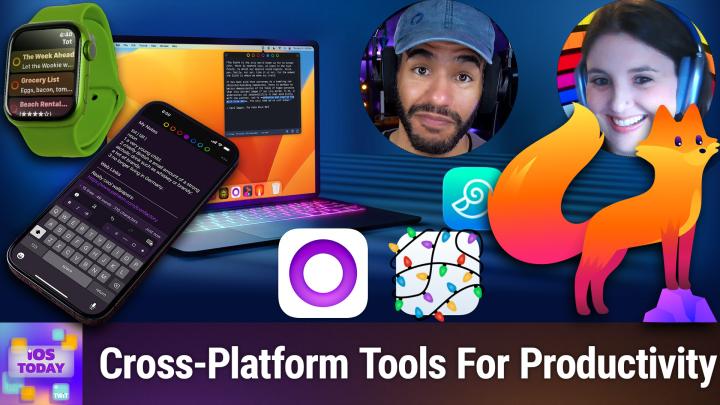
Coming up on iOS today, Rosemary Orchard and I, Micah Sargent, talk about apps that, you know, have their place on other platforms, but work just as well with iOS and iPados. Stay tuned.
Rosemary Orchard [00:00:16]:
Podcasts you love from people you trust.
Mikah Sargent [00:00:21]:
This is Twit. This is iOS Today, episode 796 with Rosemary Orchard and me, Micah Sargent. Recorded Tuesday, March 31, 2026 for Thursday, April 2, 2026. Apps from other platforms. Hello, and welcome to iOS Today, the show. We talk all things iOS, iPados, WatchOS, HomePod, OS and all the other OSes that Apple has on offer. We love to help you make the most of your devices by telling you what you should do with them. I am one of your hosts.
Mikah Sargent [00:00:59]:
My name is Micah Sargent.
Rosemary Orchard [00:01:02]:
And my name is Rosemary Orchard. And I'm very happy to be here because I figured, why not have another episode of iOS today because we don't have enough of those, and especially this one. Talk about apps that have migrated to other platforms, because how well have our apps migrated? It's really interesting to find which ones I actually really use all day, every day.
Mikah Sargent [00:01:24]:
Yeah. When it comes to platform, what agnosticism, I guess, would be the entire thing. You have this ability, right, to kind of try out the apps that you like and see if you can use them on places where you might otherwise not expect. Right. Where maybe before you had found another app to fill in the blanks. And over time, we've seen some of these apps kind of make their ways to different platforms. In some cases, it's just a matter of a developer being able to check a little checkbox. That's a joke.
Mikah Sargent [00:02:05]:
All the developers out there screaming because it does take a little bit more work than that at the very least. But regardless, this is a great opportunity to talk about that. And I think we get to kick things off today, Rosemary, with something that is perhaps not. When I see the name of this app, it always makes me go, is this too complicated for me just from the name of it? And then you show me the things that it can do and I go, I need this. So tell us about the first pick that's on your list.
Rosemary Orchard [00:02:36]:
Well, the first pick that's on my list was originally a Mac application, and it has made its way to iOS, which is, you know, of course, the way that many apps have gone over time. And it's called devonthink To Go three. And the idea of the To Go version, it's the one that you put in your pocket, right? So. So dev and think can be a complex application. It does not need to be a complex application. So for example, it has the option to have multiple databases and so on. I would advise the vast majority of people not to overcomplicate things. Start with one database and then from there you can throw files into Devontake.
Rosemary Orchard [00:03:14]:
And I'm saying files rather than documents because you can put all sorts of things in here. So you can see a couple of my different groups. Groups are akin to folders. So I've got cooking, Dungeons and Dragons exercises, Fire Finance, some indexed folders. I'll get back to that in a bit. Just general life reference manuals. This is like the thing that I end up referencing all the time because I'm there going, oh yeah, my Akara water leak sensor says it's running low on battery. What kind of battery does it have? And then I can open this and figure out, okay, this is how I replace the battery, and so on and so forth.
Rosemary Orchard [00:03:46]:
And it's a CR2032 battery. And I can see that right there. The other thing that I can also do here is, is I could search for. If I search for the word valve, I am probably, hopefully going to get a whole bunch of answers. Bingo. I have got a whole bunch of answers because I've got a whole bunch of manuals in here. So I can see, okay, you know, I've got a problem with the valve on my washing machine. Bingo.
Rosemary Orchard [00:04:09]:
I can see water inlet valve that needs to be connected. Okay, it might not be that, that particular reference to it, but you know, whatever it is, when I'm searching for a problem, I can go, ah, yes, there is water on the floor of my kitchen because my washing machine is in the kitchen. Just for a bunch of people who are there going, why is there water on the floor in the kitchen? She's looking at washing machine manual. My washing machine's in my kitchen. It's quite common in the uk and so, you know, I can go, cool. It's probably a problem with my washing machine. That's what I was using most recently. I'm gonna have a look through here.
Rosemary Orchard [00:04:39]:
The water supply valve may be clogged. Okay, that could be an issue if there's no water going into the machine or, you know, there's not much foam, there's loads of foam, things like that. You know, I can just see everything here. And the beauty of this means I can just go, ah, yes, this is the problem I'm trying to solve and I can search for it. So Dev and think can do a whole bunch of things and it can get super in Depth. It can do things called indexing folders. So you can just have a folder of files in icloud drive or something and go, cool. I want you to add all of these in, but I don't want you to, like, take them from where they are.
Rosemary Orchard [00:05:14]:
I want them to stay in the place that I originally put them in whatever file organization system I have, but also add them to devonthink. Or you can just import all your files into devonthink and put everything in there, which, you know, is a lovely way to go for things. And so, yeah, I find it's quite useful to go, oh, yeah, there's a bunch of things that I might want to print. You know, I've got a bunch of things here, finance things. I've got bank statements and so on, Dungeons and Dragons, there's a whole bunch of things there. Cooking. I have started putting recipes in here. As you can see, I've not done a huge amount with that, but.
Rosemary Orchard [00:05:47]:
But you can put so many kinds of things in here. And, you know, if I fancy making lime cordial or lime syrup, I've got a recipe and I just wrote it up because I created a file right here in devonthink. It's just a text file and that's it. Super simple. But I love the fact that it's on the Mac, so I can sit down and be like, cool, I'm going to drag in a whole bunch of files. I've got all these manuals and stuff. I'm going to dump them in here. You don't even have to rename them because the search is really good.
Rosemary Orchard [00:06:14]:
And if it's a PDF, it'll even do its best to try to read all of the work words in it. If it's not one of the PDFs where it's actually already got optical character recognition in there, if, you know, if it's just a scanned file, then it will still do its best to try and read everything, which is so useful. So, yeah, Devon, think to go. But also, Devonthank3 on the Mac is just a fabulous piece of software and I highly recommend it.
Mikah Sargent [00:06:41]:
The next app where we'll take a look at in just a moment, but I do want to take a quick break. All right, let's head back to the show with even more. We are talking this week about apps that have either migrated from other platforms or to other platforms that work well for us. And one app that I want to talk about is one that I have used for a while. And it's funny because there are so many other options out there. But for some reason, this little tool got stuck in my sort of muscle memory and it has never left. And I'm happy about it because it works how I need it to. This is an app called Tot.
Mikah Sargent [00:07:28]:
It's a tiny text editor and you can find it at Tot Rocks. This little app, which has both the Tot for Mac and then the Tot Pocket, get it like Hot Pocket for your phone, will let you take notes and have them sync between devices. Now, the cool thing about Tot as this sort of little text companion is that you can do some basic customization with your text. But more importantly, the main thing about it is it's just kind of a place to drop off some text and then pick it up wherever you need to. So again, it syncs between your, your Mac and your and your phone, just like the Notes app. Just like if you were to use a text edit document that you pulled up in the Files app. It's honestly, and I mean this with, with all the kindness of my heart, it's not special, but it works for me and it works for me for what I need it to do. And that is simply for it to sync to just little bits of text between my different devices.
Mikah Sargent [00:08:49]:
And so every week for the podcast that I do on Wednesdays with Dan Moran, I, or every other week, I should say, when I am in charge of bringing guests on, I have a little bit of text saved in here that has the link to the spreadsheet and the link to be able to hop on the call and that is all that is required. And I just pull it from, from Tot and drop it elsewhere. And you know, as I said, there are hundreds of other apps out there that it could be. So it's so funny to me that this is the one or it's not funny to me. I'm surprised with myself that I have stuck with this for so long. But I think that that speaks to the quality of this app. And so, yes, consider checking out Tot and knowing that you have this ability to on one dev, kind of drop your notes and then pick them up very easily, very clearly, very simply on that other device. I should also mention that this app is made by Icon Factory or the Icon Factory, which is a fantastic company.
Mikah Sargent [00:09:58]:
No, I think it is just Icon Factory, which is a fantastic company that is not only a design company, but also makes a few apps like Todd. So that is my suggestion for one of the cool apps that you can to kind of keep your stuff synced between your two devices or between your multiple devices. Rosemary, what's next on your list?
Rosemary Orchard [00:10:31]:
So next on my list is drafts, because much like Micah, I often need to just dump some text down somewhere. It might be that I got an email and the link in it is just not working or something. And so I want to put it in nap that can actually recognize links. It might be that I just need to, I don't know, jot down the measurements of a blind for the front bedroom. You know, because that is one of the notes that I have right here. It just says, front bedroom blind drop 95 cm, widths 170 cm. And believe it or not, I've actually ordered that blind so I can now delete that. But I've been using drafts for years for all sorts of things.
Rosemary Orchard [00:11:12]:
Now, the thing that I like about drafts is there are actions where I can do things like say, hey, I want to sort of this draft like content. So I've written a list of things and I just want to want to sort it please, which is great. And there's many different options here. So I can say, hey, I want to just sort the list items in here. I would like to send the contents of this draft as a message to someone. So, for example, I could send this to Micah. Wouldn't be particularly helpful because Micah properly measures things in inches, not centimeters, and doesn't have the same front bedroom as I do, therefore doesn't need the same blind information. But you never know if he was buying my house, maybe, but he's not.
Rosemary Orchard [00:11:55]:
So, yeah, there's. There's all sorts of things that you can do with drafts. And one of the reasons why I love drafts is there is a community of nerds around drafts. Now, you don't have to be a software developer or a programmer of any kind to write and create your own drafts actions. Because these nerds have created so many drafts actions and custom themes and all sorts for you that you can just use those if you want to use drafts beyond how the basic drafts works, one of the ways I do use drafts a lot is when my phone goes into driving focus mode, it changes my watch face. My watch face then has a drafts button on it. So I'm actually using the extra large text watch face with the single complication, which is just drafts. So I tap on that and then I can just dictate something into my watch so I don't have to do like the hey, Siri thing or anything.
Rosemary Orchard [00:12:45]:
And quite frankly, I can just pick it up and I can just bulk my nose to my watch without, like doing anything else if I need to. And that is just a really great way. Where I'm at traffic lights go, oh, I must remember that I need to buy a chocolate syrup. And then I can write that down. And then when I get to wherever I'm going, I do just quickly have a look at the drafts that I've dictated while I'm driving, while I've been driving and go, oh, yeah, this is a thing. Cool. I'm going to put that in the right place. Because drafts is not necessarily designed for a place to be where text lives.
Rosemary Orchard [00:13:17]:
It can be a place where text lives, but it's the place where text starts. That's the original idea behind drafts of I just want to write this down and then I can send it as a message, as an email, I can put it into reminders, whatever. And that for me is what I do a lot with drafts. I also use it for ephemeral things. So, for example, a packing list. I will probably not use that same packing list again. So I have a default packing list which I generate using a series of actions and drafts, and I sort them and do all sorts of things like that. And then when I'm done, it's gone, it's fine.
Rosemary Orchard [00:13:51]:
And it'll, you know, I can recreate it later. But Dross has got all sorts of things like tagging and, you know, things like that if you want to get fancy with it. Or you can keep it really simple and just have it as a stack of digital post it notes that comes around everywhere. It's on your watch, it's on the iPhone, it's on the iPad. And the most recent addition to all of that was the Mac, which I still find myself being impressed at Dross on Mac because Agile Tortoise, the creator behind Dross, is an excellent developer, but draws for Mac just continually makes me go, oh, this feels really good in the best way possible.
Mikah Sargent [00:14:31]:
All right, moving right along here, there are some other options. Whenever it comes to being able to kind of again, move between one platform to another and be able to have a similar experience. And I think this next one is a darling in the community and is certainly one that I encourage people to at least check out. I often find myself using this app when I am trying to go to a website and something just isn't working on the website and I'm going, okay, there's got to be something going on in Safari that's causing this to not work. And when I do that, I know that I need to find a different sort of rendering option and at the same time do my best to avoid Chrome when possible. And so where do we turn, Rosemary, if Safari is just not doing it for us and we need another place to go and browse the web?
Rosemary Orchard [00:15:39]:
Well, in my case, Micah, that's Firefox. One of the reasons why I like Firefox, unfortunately I can't use it like this anymore because of the changes to security policy at work. But one of the ways I like to do it was actually I had Firefox signed into my work Firefox account so I'd have access to my open tabs and my browser bookmarks and things like that so that I could actually use Firefox on my phone and just quickly check on that thing that I had forgotten to finish off at work after work or something like that. And Firefox, folks, is just a great browser. I have a recipe for Cuban prawn pasta open here in it just to show you folks, it's a web browser, it works, I like it. But yeah, it, it's got a bit of a different layout to Safari. So the plus button, you know, is a different place here you can see the tabs a little bit differently. It's got private, it's got sync and all of those things as well.
Rosemary Orchard [00:16:33]:
There are some other things in here so you could explicitly navigate to the desktop site. You can do that in Safari as well. I find that it tends to if, if something's not working in Safari, it sometimes won't work in Firefox Mobile. But then if I switch to the desktop mode, it will work. And then there's also things like being able to explicitly say, hey, turn on website dark mode for me please. Like, you know, force it, save this as a PDF. You can do that through Safari. It's just a little bit more hidden and you know, all of those things that you might want to use.
Rosemary Orchard [00:17:06]:
And if you're using Firefox as your desktop browser, you should try Firefox as your mobile browser too, because they are designed to sync together. They are a very nice combination. And now browsers have become first class citizens on iOS, so you can set them as a default. There's no reason not to try it at the very least. And I personally do really enjoy Firefox.
Mikah Sargent [00:17:29]:
Also a big fan of Firefox. I think this is where I will mention that if you have to, if Safari is failing you, if Firefox is failing you, you can also turn to Chrome. It is, I have found for people who like Chrome, They've had a really good experience using chrome between their iOS, iPadOS and macOS devices. Google does do a good job of keeping these apps updated and taking advantage of new platform options when they come, and so I do appreciate the kind of functionality that you can get from Chrome, even on an Apple device. Gasp. Before we head into the rest of the show, I would love it if we could round things off with a little bit of silly, a little bit of fun, a little bit of. I won't even say what that word is. It gives too much of a hint.
Mikah Sargent [00:18:32]:
Rosemary, what's your final pick here?
Rosemary Orchard [00:18:35]:
Well, we've got to extend the festivities, Micah, with festivities because festivities started on the mech and the idea of the mech app was to add like sparkling twinkle three lights to your menu bar for the festive season. Whatever kind of festival you might be celebrating or, you know, just getting around the winter blues, you can add festivities to your Mac. And last year it came out on iOS as well. I'm not going to bother opening the app because there's not a huge amount that I can actually show you for configuration. Basically, you can have fun little widgets with pretty Christmas lights or, you know, sparkling fairy lights to them. And I. And much more. Honestly, the.
Rosemary Orchard [00:19:19]:
The app is so great, I 100% recommend checking it out. And yeah, it's, it's just, it's a little bit of a silly gimmick, but in the best way that a silly gimmick can exist because it's just a lovely app. So, yeah, 10 out of 10 to Simon stovering for creating the app, first of all for Mac and then second of all for iOS and bringing it out last year because it definitely has a place on my phone seasonally at any rate. And I'm sure at some point I will end up just leaving it on that 365 days a year or 366 days in Leap years.
Mikah Sargent [00:19:53]:
All right, now this is the time where I remind you that if you have any apps that you like to use that you feel are great apps from other platforms, you can always email us. IowaD WWIT TV is how you get in touch. Those are some of the apps that we have used that we think are great and we will move to the news. All right, we are back from the break, joined by the wonderful Rosemary Orchard for today's episode of iOS. Today, I wanted to mention that Apple has officially announced wwdc, the Worldwide Developers Conference will be returning the week of June 8th. As many of you know, the WWDC event kicks off every year with a keynote. And during that keynote we learn about Apple's plans for its platform. Very exciting stuff.
Mikah Sargent [00:20:51]:
This is our opportunity to see what Apple is going to bring to the table in terms of its next versions of iOS, iPadOS, et cetera. Rosemary, obviously we always get excited around this time. Is there anything right now that you are particularly looking for or is it simply just a matter of, hey, let's see what they do?
Rosemary Orchard [00:21:22]:
What I'm actually looking for is something that is. It's one of those sort of like discrete clues. So years and years ago, Apple came out with basically a layout system. So it would be like, hey, instead of positioning this button exactly 2 pixels to the right and 2 pixels down from the top left hand side of the screen, place it in the top left hand side of the screen with a buffer, blah, blah, blah. And basically what they were doing is they were trying to suggest that you use their layout framework to make your life easy. And so a bunch of developers hopped on board, a bunch of developers didn't, and just continued doing things the way that they would wanted to do things, which was fair enough. And then a while later, Apple came out with different sizes of iPads and it was like, ah, cool. Actually, no, it was split screen.
Rosemary Orchard [00:22:11]:
That was what they came out. They came out with split screen, which meant that instead of having the whole 9 inches of iPad screen, you had half of it. But also your app went from landscape to portrait. And people that had used the app layout stuff, they didn't get it completely for free, but it was a lot easier for them to update to using that new layout than it was for the people that had continued to say, hey, put it exactly over here, put this exactly over here, and so on and so forth instead of using relative measurements essentially. And what I'm looking for is something like that that gives us more of a hint for an iPhone fold. Because I have a feeling that, I mean, I'm sure they're playing with one internally and I'm sure they've got a whole bunch of ways to get software working and so on and so forth. But I'm really interested to see, you know, how they can try to make things take advantage of that. If that is a thing that comes.
Rosemary Orchard [00:23:09]:
I don't know if it will happen. But yeah, I'm looking for anything that kind of gives us a clue as to what the next hardware is going to be. Because I think we're all really excited about the idea of an iPhone fold. I don't know if I'D like it in reality, but I'm certainly interested in the idea of it.
Mikah Sargent [00:23:24]:
I am interested in seeing, in seeing Apple's latest sort of commentary on its AI offerings, frankly, to see where the company is headed and how it positions itself and what the plan is over time. And I think that that's something that, you know, we've been kind of wanting to see for a while now and we'll have to see if this is the time for it to do so and you know, perhaps follow up on what was at one point a very heavily marketed and advertised set of FE features that no longer seem to be part of the, that seem to be center front of mind for these, for the developers. So that will be fun. In any case, that is the news. And now it is time for us to head into what. Oh, I think, yeah, yeah, I can hear the music. It's time for Shortcuts Corner. Welcome, welcome, welcome to Shortcuts Corner.
Mikah Sargent [00:24:57]:
The part of the show where you write in with your shortcuts requests and Rosemary Orchard, our shortcuts expert, provides a response. John has written in and had this to say is there a way to be prompted to start one of workouts when I leave home? For example, when I leave home my Apple Watch will ask me whether to start a walk or a bicycle ride. John so essentially a location based automation that or maybe location based. There are many ways to pull this off that will give John the option to start one of two workouts. Can it be done? Let's check in with Rosemary.
Rosemary Orchard [00:25:38]:
So the answer to this is yes, it can be done and there's a number of different ways to do this. I'm gonna start by just showing folks the the easy way on the iPhone with no additional apps because that is most of the time what people actually want. Now the downside of this is it won't actually ping the Apple Watch. So you'd have to get out your phone to actually do this. But we'll get to that part in a minute. So what we're going to do here is we're going to in the Shortcuts app there's an automation tab and then you tap on the plus at the top and then you can say hey, when I leave and then you can specify with a time range. So if you say hey, I don't want it to pop up. If I leave after 11pm that's fine and I'm just going to choose a location.
Rosemary Orchard [00:26:21]:
So I'm going to choose that lovely Apple Store as a nice option. And then this is the part that deviates from what I normally tell people. You don't want this, this to run immediately because this is going to require you to interact with your phone because you're going to have to choose what kind of workout it is. So we're going to say run after confirmation. And then I'm going to create a new shortcut. And I'm just going to use a menu action. And I am specifically using a menu action because we need a choice of what to do. So we are going to put in a walk, and then I'll just put in bike ride.
Rosemary Orchard [00:27:03]:
Oh, road. We're not talking microphones here. We're talking cycling. And then we want to start a workout. And here we go. So what we can do is we can do start workout. Oh, shortcuts has just crashed on me. That's unusual.
Rosemary Orchard [00:27:16]:
This is my fault for running. This is my fault for running beta software. It does occasionally happen. There we go. I can just pop back in and continue editing. So try adding this again. And start workout. There we go.
Rosemary Orchard [00:27:30]:
So you need to make sure that it gets access to all of this. So you could turn that on. And I'm just going to duplicate that a second and then I will tweak this to say, okay, so our first option is walking. So there should be outdoor walk. There we go. And then there should be cycling. Is it under outdoor cycling? Outdoor cycle. There we go.
Rosemary Orchard [00:27:56]:
And I've chosen to start these with an open goal because you don't necessarily want to limit yourself to something like a duration of 15 minutes. So I have just set it up like that and that's it. So now whenever I leave that particular Apple store, it's going to ask me to run my shortcut. And then when I tap on it, then it will ask me to choose what the. What what I want to do. Do I want to walk or bike ride? And then I can. It will start one of those two automatically based on what I choose. Now, the advantage of doing it this way is if you don't want to start a workout, it's really simple.
Rosemary Orchard [00:28:29]:
You just don't interact with it at all. Now, personally, I found and had to borrow a bicycle to test this, that if you just start walking or start cycling or yeah, either of those. The Apple Watch is smart enough that after a little while it picks up on it and says, hey, it seems like you're doing this. Would you like to start a workout? And it accurately backtracks it to when you start it. So you may actually find this is not necessary. But if you do want this, and you specifically want it to pop up a notification on your Apple Watch, that is where this is going to get a bit trickier because what you're going to need to do is you're going to need to create a shortcut which mimics everything that I've got here. But then you're going to need to do the automation and instead use something like Push cut and a get contents of URL action to specifically ping your Apple Watch with the notification, which can then run the shortcut. And the Apple Watch is a little bit tricky.
Rosemary Orchard [00:29:29]:
I've been messing around with this for a chunk of yesterday and today trying to get this to work. And sometimes it worked, sometimes it didn't. And this is not down to Push cut or I tried pushover. I tried a number of things. It's not down to anything in particular. It's down to the limitations of the Apple Watch and shortcuts on the Apple Watch. Shortcuts on the Apple Watch is awkward. If I just put this shortcut on my Apple Watch and run it manually, it works.
Rosemary Orchard [00:29:53]:
But then I have to do something else with the location. So when I leave my home, I have to, like, turn off a focus mode and therefore use that focus mode as the trigger to change my watch face. And it gets messy in all sorts of ways. So I hope, John, you're comfortable pulling your iPhone out of your pocket so that you can just tap on a couple of things and then your workout will get started. But this is how I would do it.
Mikah Sargent [00:30:22]:
Alrighty, folks, that brings us nearly to the end of this episode of iOS today. But that means it's time for us to share our app caps. These are the apps or gadgets that we're using now or have been using for some time that we think are great, great and want to share with all of you. I'll go first. I won't be able to show you this because it's in use right now, but we'll be able to show you. Excuse me, the product page for Akara's presence sensor. Now, Acara has made several different presence sensors over time and I've been very impressed with the. With the way that Akara does presence detection because they have figured out a way to combine both the sort of standard infrared that we've had for a long time where it's looking for body warmth, or rather the difference in warmth between a body and the rest of the room, and millimeter wave radar, and I've had in the past an Aqara Presence sensor that was just mmwave.
Mikah Sargent [00:31:28]:
And then Aqara came out with this multisensor. And the great thing about it is it just works better. So you get more, you get more, it gets more data and it can use that data to better determine if someone is in the room. I have one set up in my office such that when I open the door to my office, it detects that I have come in and it, you know, makes adjustments to the lighting based on the time of day. But the most important part is that it does not turn anything off unless I am actually truly out of the room. And that's, I think, what makes the Aqara, especially these multi sensors, so great, is that they can rely on multiple means of input to determine if a person has truly left a space. And so right now, Apple is selling the Aqara presence multisensor for just under $50. And it is a fantastic little device.
Mikah Sargent [00:32:33]:
If you are looking for a way to track presence in a room, this is one way to. One good way to make that happen. All right, Rosemary, tell us about your app cap this week.
Rosemary Orchard [00:32:46]:
Well, now we are all officially in summertime in the northern hemisphere. I can't take responsibility for the southern hemisphere or the whole actual clocks changing thing. If your country doesn't change clocks, it might still be spring for you, it might still be autumn. It doesn't matter. It is time for us to, you know, have a different reason for getting outside. And one of my reasons for this is Pokemon Go. So, yeah, it's one of those things where it's kind of silly. I'm not going to go into too much detail on here because if I spend too much time on the map, then it's going to show Fox exactly where I am.
Rosemary Orchard [00:33:20]:
But yeah, it's, it's great. There are routes that you can follow. You can be trying to catch Pokemons or Poketoos, as they sometimes get called, going around. There are places that you can go to showcase your Pokemon, so you can enter your Pokemon into competitions. You can battle with your Pokemon and the game is free. There are in app purchases that you can buy to, you know, get extra things, you know, pokeballs and things like that if you want to. But honestly, just by getting out and about and spinning pokestops and, you know, catching Pokemon and so on, there's a lot you can do. There's so many challenges and it's just great fun.
Rosemary Orchard [00:33:58]:
I love it. I've really been enjoying it. And of course, you know, if there are any kids in your family who don't yet have their own devices. It can be quite good to be like, oh, hey, shall we see if we can hatch this egg? And you walk over here. It's like 2km to hatch an egg, for example, or there's different lengths for different eggs. So, you know, you can go on a little walk together as a group and try and hatch an egg and then see what it is. And if you don't like it, well, you can just walk home and hatch another egg on the way. Yeah, I really enjoy it.
Rosemary Orchard [00:34:29]:
It, it's great fun and I'm learning a lot about Pokemon, which is not something I ever really thought I would do, but it's a lot of fun, so I highly recommend it. It's a great way to get outside and enjoy the world that is out there, especially as over here, it's springtime.
Mikah Sargent [00:34:48]:
All right, well, folks, that is that. We have reached the end of this episode of iOS today. All that's left is to say goodbye to you all. And of course, thank you so much for being here with us today. We will be back next week with another episode. If you have Questions for us, IowaD WWIT TV is how you get in touch Rosemary Orchard. If people would like to follow you and stay up to date with the work that you do, where should they go to do so?
Rosemary Orchard [00:35:15]:
Well, the best place to go is rosemaryorchard.com, which has got links to all of my apps, books and all the other places that you can find me online, including social media. So apart from, of course, the Club Discord, because there's people chatting in there right now. We had a little brief diversion earlier to chat about baking, which was great fun. And yeah, there's all sorts going on and I really enjoyed seeing what questions people have. I think one of them we're actually going to turn into a full episode in not too distant future. Micah, where can folks find you if
Mikah Sargent [00:35:44]:
you're looking to get in touch with me? You can find me ikasargent on many a social media network or you can head to Chihuahua Coffee, that's C H I H U A H U a Coffee, where I've got links to the places I'm most active online. Thank you so much for being here with us today. Goodbye and everyone, and we will see you again next week.