iOS Today 766 Transcript
Please be advised this transcript is AI-generated and may not be word for word. Time codes refer to the approximate times in the ad-supported version of the show.
00:00 - Mikah Sargent (Host)
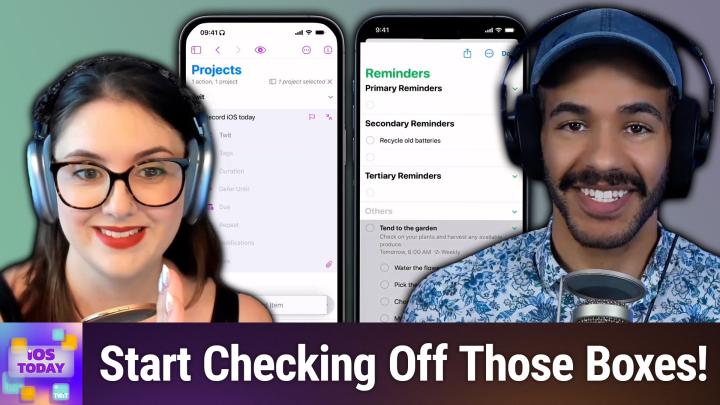
Coming up on iOS Today, rosemary Orchard and I, micah Sargent, talk about task and project management. Check off those boxes as you complete your tasks. Stay tuned for iOS Today Podcasts you love From people you trust. This is Twit. This is iOS Today, episode 766, recorded Tuesday August 19th 2025, for Thursday August 21st 2025. Task and project management. Hello and welcome to iOS Today, the show where we talk all things iOS, ipados, watchos, homepodos and all the OSs that Apple has to offer, plus the devices that run those various operating systems. Our job here, our goal here at least, is to help you make the most of your devices by telling you about cool stuff you can do with them. I am one of your hosts. My name is Micah Sargent.
01:06 - Rosemary Orchard (Host)
And my name is Rosemary Orchard, and.
01:07 - Mikah Sargent (Host)
I'm ready to get started and check all those things off, micah, yes indeedy.
01:10
So this episode is about doing sort of going from the basics right, of being able to, you know, make a to-do list and simply go, okay, I've done that thing, I've done that thing, I've done that thing, and kind of break it out into a more powerful system of managing different steps of a project, or sort of even getting, I think, the projects in huge steps.
01:53
I think of them in sort of you know, do this thing, do this thing, and then the project is done, and then it feels incredibly daunting and then it feels that it feels like it's something that I can't do as well as I would be able to if I just thought of it in these smaller steps that actually make it up and go oh wow, this is actually much simpler if I just do this and I do this and I do this, and then suddenly that big step is done and it turns out that's a hack for anybody to use. If only we could convince ourselves to do it. And I think in some ways, some of these apps help to pull that off, and I think that that's why many a nerd will make use of certain apps for this.
02:37 - Rosemary Orchard (Host)
So yeah, yeah, yeah yeah. It's one of these things I have learned through the power of a great system called getting things done, which I know it's. It's a marmite system. Some people love it, some people hate it, but there are a couple of things I've taken away from that, like the two minute rule. If it, you can do it right now, like it's not going to make you late for other things, you've got all the tools and everything already out and you can do it in less than two minutes. Don't put it in a system to do it later, just do it now. And also, what is the next step? Because, for example, a project like clean bathroom, for some of you, that may be super simple, it may be really easy. You may be able to just go bam, okay, cool, I got it.
03:16
Sometimes, however, the thing called clean bathroom that that is a whole bunch of stuff and, in particular, if I'm doing something like cleaning my shower, I use a steam cleaner to clean my shower, which you know. Pro tip, if you have a steam cleaner and a shower, steam cleaners are great for cleaning your shower. But one of the things that I have found over time is that the best thing for me to do is to be able to see what other things I can also do with that particular tool, to see what other things I can also do with that particular tool. And one of the things that I really love using for this as an application is OmniFocus. Now, unfortunately, I thought I'd set this up. I can't show OmniFocus right now because it's got all of my personal tasks in. But one of the things I love about OmniFocus for me, not only does it have tags so I can tag something with steam cleaner, so I can look and see, oh, is anything available to steam clean aside from my shower, for example? And I can be like, ah, yes, okay, well, I'll also clean my oven while I'm at it, etc. I can also see those projects or those tasks by area which I also use tags for. Projects or those tasks, uh, by area, which I also use tags for. But I can also defer them so that I don't immediately see clean oven right after I've checked off cleaning my oven.
04:33
Um, and a defer date is just one of those things. Uh, that makes my life so much easier, because what I what I can do is I can essentially say, hey, I cannot do this action before this date. For example, I'm going on a trip next week and I'm flying as part of that trip. Well, I can, fortunately, get my boarding passes 30 days out, but a lot of the time, you cannot get your boarding pass or do an online check-in until 24 to 48 hours before your flight. So I need a reminder that says, hey, you can do this now, and I don't want to constantly popping up and being in my face going, hey, don't forget, get your boarding pass. Hey, get your boarding pass, get your boarding pass, because I cannot take that action. So I use the defer date heavily in OmniFocus to get all of those actions. I also really love the repeat systems, where you can have all of the different repeat intervals and set things up in seemingly weird but really wonderful ways, so I can say hey, on the third Thursday of every month, remind me to do this. Every second Tuesday, remind me to do this.
05:36
You know, for iOS today, and one of the things I love about it and this is something that came around, I think it was in OmniF, focus 3 is uh, your due date can be assigned to a particular time zone because uh, twit for the folks who don't know, uh, does everything based on west coast time in the us, so san francisco based time, um, and you know, oregon portland, that sort of area. They're all in the same time zone. I live in the uk. Believe it or not. We have different time zones and at two points of the year we have very different time zones because the clocks move forward or backwards differently in the uk versus the us, but because my due date for all of the ios today things is set to pacific time. Everything just appears automatically at the same time.
06:23
Now what I what I can do is I will just create here in OmniFocus for folks, a brand new project and I'll just call it Twit, and then I will pop into that project and then I can show everybody some of the things that you could do. So this is a project called Twit. I apologize for the incorrect capitalization. I need to get autoc of the things that you could do. So this is a project called Twit. I apologize for the incorrect capitalization. I need to get autocorrect on that on my phone. But now I can add an action like record iOS today. Okay, and this is an action inside of this project and I have here my tags, my defer date, my due date and a note. Now I can actually customize this so that I can say what it is that I would like to see in this area, so I can have my estimated duration. So if I say, oh, this task usually takes me about five minutes, like, for example, doing my makeup for iOS today, I have the estimated time in there as 15 minutes, because that gives me five minutes for getting distracted whilst looking for the correct lipstick color, and then the rest of the time to actually do my makeup, I can have a completion date.
07:32
This is more useful in a perspective or a view where you are specifically looking at completed tasks, the repeat notifications, because you have custom notifications. You can show whether or not to decide whether or not to your notes, how many tags to show whether or not a full project path could be shown, because you can have folders to nest your projects and hide project if it's redundant. This goes back to perspectives now. Perspectives are a custom view where you can say, hey, I want to see everything tagged with, for example, podcasting and cleaning the. Those two don't actually have a Venn diagram of an overlap. So instead of saying and I could actually say, or, in my case, so I want to see anything related to podcasting or cleaning the house, and they'll get anything that's tagged with either of those or both of those. And that's really useful for my supermarket shopping lists, because I have different supermarket shopping lists for different shops. So I've got one here for Aldi and one here for little, and I can see anything in those tagged with ld or just a generic supermarket tag, um.
08:30
But back in this project view, I have record ios today and I can just add another um one which would be, uh, chat to micah about the show, um, and then I can say, hey, you know what this project? I actually have to do everything in order, okay, and at the moment this project is parallel, so all of these actions are running together at the same time. But instead I want to say this project is not a parallel project. This is a sequential project which means item one, when it is done, enables item two and, when it is done, enables item three. Blah, blah, blah, and then on top of that there is a complete with last action option, and I use this all the time. So, basically, for any project where I'm like, hey, once I've checked off all of the actions in it, I'm done. I don't want the extra step of saying, hey, the project is still hanging around, I just want it marked as done.
09:28
You also have statuses, so you can say, hey, I want this project to be on hold, which will remove it for many statuses. You can say that you have completed it, which will complete all of the actions inside of it, and then you can also drop it, which is not the same as deleting. A dropped project will still show up when you search for it, but it basically means that you have said no, actually, I have these plans. I've changed my mind. It's dropped and there is a possibility that you could bring it back later, but you don't have to.
10:01
So notifications for the project are where this gets really interesting. So, record iOS today. I'm going to pop in a due date ready for the next iOS today recording, which should be the 2nd of September at 5 pm our time. And then, when it comes to the notifications for this, I can see it's automatically added a notification for when it's due, but I can add notification for a very specific date or time, which would basically be like hey, you said that you wanted a reminder on Monday at 3 pm for this, or I can say, hey, I would like a notification relative to its due date. So I could say, hey, remind me a week before, three days, two days, 30 minutes, whatever it is you like, but all of these are just really great options. That makes OmniFocus an excellent task manager for me.
10:51
And the thing about task management and I'm going to say this, if you have, if you're looking for something, you do need to give it a good, solid try, but you need to find the task manager that works for you. I personally absolutely love OmniFocus. It works for me. The fact that their app icon is purple definitely plays into it, um, but I've been using omni focus for years, since omni focus 2 um, and it's available on iphone, ipad, apple watch, um, mac and also as a separate subscription on the web as well, which is very cool, which makes it worthwhile. But I know, at least in the past, micah, you have been a big fan of Things. Would you like to tell us about that app?
11:33 - Mikah Sargent (Host)
Yeah. So this kind of boils down to, I think, flavor, taste, what you are after, and ultimately, again, as Rosemary's pointed out, it's about the one you end up using, right, and that's the most important thing. Things 3 is arguably a lot like many of the other task management apps. I think any of them that have been around for a long time have at some point received awards for being a great app that you can use for management, and by that I mean things OmniFocus. Some of these apps that have been around for a while have at some point received an editor's choice or an app store award or a design award, because they have stuck with the platform and adapted over time, and so I'm not going to go into a long review of what things look like, because I think it boils down to kind of design choices rather than functionality, and so you can get a lot of the same stuff in things as you would find in some of these other task management systems, and so, in its current rendition, it is in Things 3. I'll show you, though, the Reminders app, just to show you what is possible with something that is built into your phone before you decide. Okay, now I've become a task manager, a task organizer, a project creator, and I want to step into something more robust. That's whenever OmniFocus and Things 3 can come into your life.
13:23
But here we are in the reminders app and the first thing we can do, of course, is create a new reminder. Now this reminder could be called tend to the garden, and this is just a reminder that you know you've got to check on your plants and harvest any available produce, for example. Now there are a bunch of things to know. Whenever you create a reminder. There is a details section and a list option. The list option lets you pop it into a different list. Now, this might be, in this case, going into the reminders list option. The list option lets you pop it into a different list. Now, this might be, in this case, going into the reminders list or the groceries list. This is a reminder and so I'm putting into the reminders list, but details allows us to set up a bunch of stuff.
14:16
So, first and foremost, we can say I want to be reminded at a specific, at a specific date, and so let's say tomorrow and a specific time. Tomorrow, when I wake up in the morning at 6 am for doing my garden tasks or maybe you do them at night, after the sun has started to go down. You can also set up an early reminder. So what that does is it says this is the date and time that the reminder is set to happen. But really what you're asking for is this is when the thing needs to be done. Let me know ahead of time five minutes before, 15 minutes before, et cetera and then you can set up a repeat, which is great. So daily, for example, or on weekdays, or perhaps this is just something that you need to do once a week, so it will happen every single week.
15:07
You can add your tags, like you find in other project management and task management apps. You can set up a location. So what that does is it says when you are leaving or when you are arriving at a location. That's when this reminder should go off. And then the last option there is when messaging, which is a really cool reminder. That kind of looks at when you pop into a specific message conversation and will tell you hey, remember you wanted to talk to this person about this. So you could say, when I have a conversation with my uncle, remind me to ask him to put me in his will. That could be an option for you to ask him to put me in his will. That could be an option for you. You can flag a message to make it important if you're a flag kind of person. If you are instead a priority kind of person, then priority is there as well. So that's just kind of up to you on how you see these terms and what makes sense to you as far as priorities go. And then you can add an image and a URL. So this might be a photo of the beautiful garden that you have, right, and so we'll choose add and this goes into our scheduled list up at the top and also into our all list. If we tap on scheduled, we can see this tend to the garden option and we can hop into it to see a little bit more information there, and then we can mark it as completed. We could change the due date if we want to. You're again able to add different priorities to it as needed, and then you also have the option to select multiple reminders to remove.
16:47
I love this option for me. I'm very much a physical person, and so there is a print option If you have a list that you want to kind of check off in person. If that helps you remember things, as it does me, that is very helpful. And so I can see I don't have any reminders for today but tomorrow, because I said weekly, on Wednesday, 10 to the garden. In theory you would be doing it more often than that. You are able to then go in and make that change. So once you have created the reminder, you have those options of being able to set the date, the time when it pops up, how it pops up.
17:26
But now there's another option and this is the last part of reminders that makes it in line with some of the more powerful applications. There's now a subtasks option. You can tap on subtasks and add little tasks into it. So I can do water the flowers, whoops, and then I can do pick the produce, and then I can do check for pests and I can do make an offering to mother nature, and all of these become subtasks, little reminders within this main task that need to be completed as part of what you're doing. So then you are able to see those different subtasks and check those off, and upon checking all of them off, the main task of 10 to the garden is completed. So you could sort of see making a bit of a project right there in the reminders app.
18:41
But again, the more powerful apps that are made to kind of help you and assist you in creating true projects, I think, are what you find by way of OmniFocus, by way of Things 3, by way of some of the more powerful applications. Again, if you're like me, try some stuff out, see what works. Sometimes it works for a while and then it doesn't after a while. For me, and I'll go back and forth so for me, reminders ends up being a lot of what I need. But knowing that those other tools are out there to when I'm sort of in an era of power user, right then I can hop into those and do even more.
19:23
So that's a look at, I think, some of the main apps that people are using when it comes to task and project management. But, as always, I want to remind you that you can email us iostoday at twittv if there are app or project managers that you use that you think you know. Whoa, how could you fail to mention a Tasker app or whatever it happens to be, and let us know what you think is a great app? Or, if you use one of these, tell us about how you're using it, ios Today at twittv. All right With that. It is time to move on to the news, and we've got a little bit of news out of the UK. Rosemary, tell us about it.
20:10 - Rosemary Orchard (Host)
Yeah, so the UK government has once again been demonstrating their technological ineptitude by requesting a backdoor is, essentially, it's some usually some sort of government organization saying hey, we know this data is super, super secure. Can you let us see it please? And everybody else going, you know, you know that even if the door says stuff, only anybody can go through the door right, like, as long as they know the key and they can figure out how to get into it. So, yeah, the UK government has reportedly and I've seen this reported across multiple websites today, as we record this, on the 19th of August but they have reportedly withdrawn their demand to access encrypted iCloud user data, and so that is a great thing, because this would reduce security, not just for uk users but for everybody around the world.
21:09
If there is a backdoor that it's just going to be hammered by hackers, um, and people trying to do nefarious things, and possibly also people trying to do good things, but possibly not the best way, um, and it just causes greater security risks for everybody. Uh, but yes, according to people who spoke to the Financial Times, the UK hasn't actually rescinded the order yet, and I've been trying to keep an eye on it today before I record and I have not seen that. But, yeah, unofficially it is apparently not going to happen, which is really good. So, yes, watch the space, I guess, but hopefully, fingers crossed, this will remain the case, that there will not be a backdoor, because at the moment, your iCloud data is encrypted, which means you need one of your devices to get into your iCloud data, which, honestly, that's the best way to do it.
22:01 - Mikah Sargent (Host)
The second bit of news was a late-breaking story on Thursday, so I ended up covering it on Tech News Weekly this past Thursday. It is now Tuesday, august 19th, but for the iOS Today crowd, if you had an Apple Watch Series 9, series 10, or Ultra 2 that shipped after and now I have lost the date of course after a specific date that I am having trouble finding but if you had an Apple Watch that fell within a specific time, it meant that, due to an ongoing patent dispute with Mossimo, you were unable to use the blood oxygen sensor and functionality built into the Apple Watch. It was the only way for Apple to continue to sell the models in the US. Now, because of the way that it was all set up and the way that it worked, things got a little complicated and Apple ended up working with the FTC directly to figure out a way to circumvent this import ban, this sales ban in the US, with the blood oxygen functionality intact. So, because of the way that the patent is worded and because of the way that the ban was worded and because of the way that the agreement was worded, apple was unable, as I said, to sell the Apple Watch with that blood oxygen sensor and functionality enabled. It figured out a way to go about doing that by essentially making the iPhone do the work that the Apple Watch once did, which means that by way of an update that many of you should have by this point especially those of you who listen to the show you're probably quick to get a new update iOS 18.6.1 and watchOS 11.6.1 will Apple would not call it this re-enable the feature, because that would imply that the feature that was banned is now available again. But that's essentially what's happening. But the way that Apple's going about doing it is putting all of the work onto the iPhone.
24:30
For the blood oxygen sensing, what does that mean? Well, the Mossimo patent surrounded the idea that a wearable that you have on your wrist is able to use its built-in sensors and lights to figure out what your current blood oxygen readout is, what your current blood oxygen measurement is. The patent does not relate to having an external device like a phone provide that reading. So Apple says, okay, we will use the sensors on the back of the watch, but the phone paired to the watch will do the measurement and calculation and provide that result in the respiratory section of the health app on the phone. What does that mean? It means that your Apple Watch itself, with that blood oxygen app, cannot display the measurement, but you can again go to the respiratory section of the health app and view that information there. The FTC has allowed this in its current state, in its current state. We know that within a few years, mossimo's patents will expire for this functionality, and so it could be that at that point, once again, your Apple Watch will be able to display the results.
25:58
But as it stands, this is the way that it happens. This, of course, is a US specific thing. This was because it was a US customs ruling. But yeah, if you have a watch that was unable to do blood oxygen measurement, it now will be able to again, although, as I said, that's not Apple's wording of it, because the phone is the one doing the measurement. Otherwise, that band would still be, in effect, clever and, I think, an example of how the legal system is quite something Letter of the law versus the spirit of the law. Yeah, that's an argument to I don't know for somebody else to make. I'm happy to have blood oxygen measurements back after quote unquote upgrading to the ultra two. Now my phone can tell me my blood oxygen measurements again. All right, that's all we've got for news this week.
27:03
Let's move on to feedback. Feedback up next. Bob has written in to say the following Hi iOS Today team. Hi Bob, this has been a problem for me for several years and different iOS versions, and I'm wondering if it's just me or are others seeing this as well? The problem is that my arriving home location reminder is very slow to activate Up to 10 minutes after I pass the geographic boundary where it should trigger. I've expanded the circle that marks my house location to the beginning of my block, which the app says is 820 feet away. The reminder doesn't go off until after I've walked that distance, plus another three to four minutes after I'm standing at my house. Your thoughts? I'm running iOS 18.6. Also, several years ago I sent feedback to Apple about this, but the behavior is still the same. Attached are two pictures of my snoozing cat Creamsicle plus one of the local deer that are eating my flowers. I think that's from Bob Impatience.
28:08 - Rosemary Orchard (Host)
They're a kind of flower, I believe.
28:10 - Mikah Sargent (Host)
Is it a flower? First of all, creamsicle is a lovely name for any animal and I can see why A very beautiful cream-colored cat.
28:21 - Rosemary Orchard (Host)
I don't even know what a creamsicle is, but I'm guessing it's some kind of like creamy orangey colored dessert.
28:28 - Mikah Sargent (Host)
Yep, that's exactly correct. It is an orange plus cream dessert. And that is what you have here with this cat, who is mostly cream but with beautiful touches of a gingery orange Very cute kitty, so yeah. Injury orange Very cute kitty, so yeah. And then there are the deer that are enjoying Bob's plants. Now let's talk about this problem. First and foremost, boy howdy, is that annoying.
29:00 - Rosemary Orchard (Host)
Apple. I mean, you say it's annoying, micah, but for years I had the opposite problem of the reminders would pop up way too early when I was like a good five minutes away from home, especially because I do a lot of walking and it would and then I would just forget all about it by the time I actually got home. So for some people this could actually be a feature, but clearly it's not the feature that Bob wants because it's not working as designed.
29:24 - Mikah Sargent (Host)
I think, bob, the first thing that I would love for you to check because I found this out I came to understand that this is something that us, outside of the sort of regularly using an understanding and making all sorts of changes to our tech the average everyday person is, in my experience, far more likely to be regularly running low power mode, and that is one of the first things that I would check, bob, is to make sure that you don't have low power mode turned on Now. You writing into iOS today tells me you're probably a little bit more technical. You listen to the show regularly. However, it could be something that you've forgotten, that you've enabled because, again, a lot I've, I've, literally I. You know somebody showing me something on their phone and I notice, oh, they've got low power, someone else, someone else, and I'm going. Is this just a thing ever? A lot of people want their battery life to last longer.
30:22 - Rosemary Orchard (Host)
A lot of people want their battery life to last to enable it. And then they also simultaneously complain that it's really slow for them to get emails, uh, which is a little weird, uh, because it's literally one of the things it does. Um, yeah, I, I had a suggestion related to what's popped up on my screen, which is, uh, under settings in general, there is a reset button. Uh, now, to be clear, I am not suggesting completely wiping your phone and starting over. That would be an absolute last resort. But your iPhone uses more than just GPS to tell you where it is. One of the things that it uses is your network settings, and it scans things like Wi-Fi networks around you and things like that to find out where you are, because essentially, it's basic triangulation. It knows, hey, if Wi-Fi network A is here, wi-fi network B is here and Wi-Fi network C is here, and you can see all three of these. You're somewhere in the middle of that area, and then those Wi-Fi networks are attached to approximate GPS locations and so on and so forth. So one thing that may be worthwhile is resetting your network settings. Now, this is a bit of a pain because you'd have to reconnect to all the different Wi-Fi networks that you use on a regular basis, but that can often clear out the cobwebs for a lot of random issues. Now there is also a button for resetting location and privacy settings. However, that one may not actually be the cause, because clearly, reminders has access to your location. It's just updating very slowly.
31:53
Another thing that I've thought of that I would like to suggest as a debug option, not as a regular solution to this issue, is create a shortcuts automation for two things. Things one for when you connect to your home wi-fi network, and a second trigger would be uh, when you get home, gps wise and just have it send you a notification, um, and just put, like you know, uh, shortcut test connected to wi-fi, connected home wi-fi shortcuts, shortcuts test at home and just see when those pop up in relation to reminders. Because if they pop up way before when you're expecting them to pop up, then that means that there's an issue with the location stuff in reminders rather than the location stuff on your phone. However, if they pop up at the same time, then it's the location stuff on your phone. But yeah, maybe nuking network settings is possibly the way to go there, because that is something that I would definitely try. It sounds really weird. I get that it's a weird option to suggest, but I think it could be the correct one.
32:58 - Mikah Sargent (Host)
Yeah, I think that's a great idea as well. That has solved a number of problems for people in the past. As Rosemary is pointing out, not only is your device Using those little bits of information sort of actively, but passively as well. It's collecting that data, it's holding onto that data and that's informing it going forward and so saying blast that cash is a great way to kind of start over there. All righty, I can hear the music. It's time for Shortcuts Corner.
33:49
This is Shortcuts Corner, the part of the show where you write in with your shortcuts requests and Rosemary Orchard, our shortcuts expert, provides a response. This request comes in from Dustin, who writes I have a question about using shortcuts slash automations with focus modes. My wife has recently started a new job which supplied an iPhone. I want to set up three focus modes for her Personal time, where it does nothing and is in low power mode, between 6 pm and 7 am. Office hours when she is at home between 7 a and 6pm. And client hours when she is out of the house. Between those times I've been trying to use automations and have set it up with some success, but it's not gracefully moving between the different modes as I would like when coming and going, it doesn't seem to do the auto switching, no matter what I try. Any advice from the shortcuts expert would be great. Dustin, Wow, this sounds a lot like Bob's problem. Location, location, Well yes and no.
34:44 - Rosemary Orchard (Host)
So my first question to Dustin is how have you set up these automations? Because I love shortcuts Okay, this is shortcuts corner but, as always, the first place I would start is the tool that you're actually trying to use, which is focus modes for these. So in settings, under focus modes, I found my personal focus mode, um, and here, um, I'm gonna add a schedule, so I'm gonna give it a time. I'll turn off, uh, saturday and sunday, because I'm presuming that your wife gets two days a week off. I sincerely hope so, and I'll just change the schedule time to 7am and at 6pm my phone is using 24 hour time, which is why it says 1800. And that's done, and then you can add another schedule. And here is where something that I would say is very important location, which is then your home location, okay. So this is quite useful because then, if your wife goes out and does some client work during the day and then returns home, it would then switch back to your personal or her office hours. Sorry, I'm using my personal mode for the office hours one, because the time-based trigger would be the same regardless. Um, so that's that, um, and then the client hours is when she's out of the house between those times.
36:06
So this is where it gets, uh, a little tricky, not necessarily in a bad way, um, so what I would do here, I would open shortcuts and I would create an automation. So what I would do here, I would open shortcuts and I would create an automation, okay, and I would say, hey, when I leave. And then here you choose your location. So I'll just use my current location here and don't worry, this is not my real address. And then you need to set the time range, but this is a little bit tricky. So 7 am to 6 pm, and again, you need to do the run immediately. But I'm guessing it's possible your wife may leave home early for some of these things. Possibly not. If she doesn't, then that's not an issue, but if she does, then I would set this to any time, and I'm going to show you why.
36:54
So what I will actually do here is create a new shortcut and what we need to do is get the date and format it. So I'm going to format the date and I'm going to use the current date here and, instead of using a particular date format, what I'm just going to do is I'm going to do custom, and this is one of my favorite little tricks that you can do with formatting the date in shortcuts, um. So it starts with ee, e and then a bunch of other characters. These all translate to something, but if you do five e's, then when you run this, it formats the date to one letter. So in english that means we've got tuesday and thursday both of those use t's, which happens to be the day the show records on and the day the show releases on um. But that also means that weekend days, s and s?
37:48
Um, and this works in many languages not all, sadly um but, uh, it works in english, and I'm guessing, uh, that you're probably native english speakers, um, and have your iphone set to english, uh, because a lot of the show is based in northern us and english is predominantly the primary language. They're not 100 of the time, but good chunk of the time, um. So here we go, we've got the date, we've formatted the date, and then we can just say hey, if and what I like to do here is hey, if this formatted date is this is an s, then I'm just going to do a stop shortcut, um, and that's it. That's all I will do there, because if it is that, then you don't want to do anything else you just want to say hey, stop, quit, go home.
38:31
And then everything underneath that is going okay. So we've said it's not saturday and sunday which are the days, I'm assuming that she has off um, and you know, we've already assumed that. Now what you can also do is you can format the current date again. Yes, I know there's a really good reason for this, and again we're going to do a custom one. But this time we are not using the day, we're using the hours, and what we want to do is just format it to hh. In capital letters. Lowercase would give us 12 hour time. But the problem with 12 hour time is there are two ones in a day.
39:08
Now, personally, I don't think that she should be working at 1 am. If her working hours at 7 am to 6 pm um, 1 am seems like a not a great time. But if she leaves the house with that phone at 1 am um, then I don't want this triggering. So we'll just do another format and then I'll just pop in another if action. So, and this time we'll say hey, if this format to date.
39:30
And then what we can do is, if we tap on this, it's not text, we want to change this to say, hey, this is a number, okay, so say if it is less than seven, oh. And then I'm going to add another condition by tapping the plus format to date. I need to tap on that again, change the type from text, scroll down to number and then say is greater than 18? Actually, no, we'll say it's greater than 17, because this way, yeah, that that works. Uh, greater than or equal to, uh, 18, uh, would be fine. Um, well, and then again I'm just going to copy this stop shortcut action and tap it's not pasting Shortcuts has crashed on me, excellent, so I would put the stop shortcut action inside of this. There we go. Cool, it caught up with me.
40:35 - Mikah Sargent (Host)
It just needed a moment to think it was a little panicked.
40:37 - Rosemary Orchard (Host)
It's there, going gosh rows, you're creating what seems like a really long shortcut, uh. But then all we need to do is use a focus mode, action, uh, to set our current focus and say, hey, turn on. And then I'm going to use personal as my example for this and we're going to just say, hey, turn personal on. Personal would be the equivalent of the office hours in your worst case, dustin, um. And then um, say hey, until time, for example 6 pm, and you can just type 6 pm in there, you don't need to get super precise, and it will automatically go up that 6 PM, the next 6 PM that's coming. So there we go. That is how I would do this Do 90% of the automations in the focus mode settings and then leave this one example of when she leaves the house to this.
41:34
Now, there are other ways of doing this. You could say, hey, get the current focus mode. And if the current focus mode is this, then do that. But then if she's turned the focus mode off by accident or something else, then that doesn't necessarily work perfectly, or if she is doing something a little outside of the realm of normality. But that is what I would do there. So hopefully this helps, dustin.
41:57 - Mikah Sargent (Host)
And that is often the case, right, that it comes down to just exactly which part you're doing. How you're doing it will make that difference on the system actually paying attention as it needs to when it needs to and making those changes. I've found that to be the case for a number of automations where it seems like the eyes are more focused on this automation system, with the other one kind of being prioritized a little bit less, and so, yeah, I think the expression you're looking for, micah, is when you have a hammer, everything looks like a nail.
42:34 - Rosemary Orchard (Host)
Sometimes you need to remember actually you have a whole toolbox. Everything looks like a nail Sometimes you need to remember actually you have a whole toolbox and you can use the whole toolbox. Just because there's a new shiny hammer doesn't mean that you have to use the new shiny hammer for all the things.
42:45 - Mikah Sargent (Host)
With that, let's head into our app caps. Our app caps are next. As we used to do and as we are once again doing, this is the part of the show the end of the show where we cap off the episode by talking about apps or gadgets we are using now or have used for some time that we think are super cool and want to share with all of you. The app that I want to share is a website, first and foremost, but it comes with a cool little app, and that is an app called Product Hunt. Now, I will say this Over time, due to the huge increase in AI-first stuff, I say that I say stuff instead of just products, because it's AI, everything right. Product Hunt is a lot of the time inundated with some AI this or some AI that, but mixed in amidst all of the AI cruft, there are occasionally really cool apps or services that come up from time to time. Product Hunt is a place where people who are launching new products be they apps or services, occasionally actual physical gadgets will post them here and people upvote them if they think they're cool, and each day, the rankings will show you what most people thought were cool, and I have found some really nifty apps and services on here over time that I still use to this day. So I wanted to talk a little bit about Product Hunt itself. So today, on August 19th, the list is still being created, but the top options here include an app called, or I should say, a service that includes an app called April, and it made me think about the people who had reached out before asking for a way to have their emails read out loud to them, because April is an AI system that lets you speak with your email, essentially, and work through your email that way. Again, most of the stuff that's on here today very much AI, but as you go through, you will occasionally find some cool stuff. There's this app called Mirror, which is an app that is aimed at helping you kind of better understand yourself. So it uses the different personality systems that are out there to kind of combine them together to give you a personality readout, for example. You also have something that, or occasionally, the Product Hunt editorial team will put out these different guides. So these are specifically tools to make your product accessible. So you can see some of the most popular tools that have been created for that specific purpose.
45:45
But you can scroll back and see the different options and different choices that have gained popularity on different dates. So let's scroll back to last Tuesday. We can see that the top option was an option called Recall, which is it looks like a service that lets you kind of figure out all of the stuff that you've read, watched or listened to and use that to have a conversation with it. So, again, it's an AI thing, but occasionally I'll find some really cool apps on here that I immediately go well, got to download that, got to figure out what that is. I think that's interesting and I think it's a great, almost a social media network, honestly, that is filled with cool stuff that people are announcing and I find that it's one of the places where I'll find something before I see it talked about elsewhere. So that's Product Hunt.
46:48
It's available entirely for free in the App Store. It has multiple login options. So if you want to kind of hold on to your account, if you decide you want to be an upvoter or a commenter, you need to create options. So if you want to kind of hold onto your account, if you need, if you decide you want to be an upvoter or a commenter, you need to create an account, but you can use your Apple ID, you can use, uh, I think, google accounts. You can use your X account, so lots of different options for actually creating a login there, uh, but yeah, a lot of fun to just scroll through and see what people are creating and you might find something that really speaks to you, and maybe literally. And yeah, this is how I have found those things in the past. So that is Product Hunt in the App Store. Rosemary, what's your app cap?
47:29 - Rosemary Orchard (Host)
Well, my app cap is an app I'm pretty certain. I've talked about it on the show before. It's kind of similar to an app that I mentioned offhand during our Safari episode, which was URL Linker, but this is not URL Linker. This is an app called Bridges, and its entire purpose is link formatting. So the purpose of Bridges is that you save links into it and then you can share those links back out. But it has a few more things in it than just that.
47:59
So I have, for example, here I have a section called podcasting, a folder called iOS Today, and there's one link in that folder which, believe it or not, is the iOS Today link over on the twittv website. So, to start with, at the bottom I can create a new folder and I could call this folder anything, and I could call this folder anything. So I could call this folder Micah, for example, I can change the color of the folder, so I could choose a nice dark green that makes me think of Micah, and then I can scroll down and have a look and see if there's any particular icon that I think represents Micah. There must be something good there. I'm going to go with that. It represents micah. Um, there must be something good there. Uh, I'm gonna go with that. It represents micah sharing all the information as he does on the twit network, um, and then above the folder name there is a section title.
48:47
This is entirely optional, but it means that you can have sections and then within those sections you can have folders and within those photos you can have links. But also you can not bother with folders. You can not bother those sections. You can have folders and within those folders you can have links. But also you can not bother with folders. You can not bother with sections and you can just have links. You can be as organized or as disorganized as you would like with Bridges. So that's adding a folder and now I can see person. Automatically sorts of a podcasting because it's alphabetically sorted. But I can also change that if I want to. And yes, then you can share things to this. But what I really like is you tap on link, it just opens, and this is great for bookmarks without using bookmarks in Safari.
49:31
So, for example, sometimes I just want a collection of links that are going to hang around for a while. I don't want them as a tab group necessarily, because then they'll just pop up in that list all the time when I'm working and I need to be able to add to them kind of easily. But I just want to keep them and then be able to move on. So the iOS Today folder. I can then copy everything in that folder as just a list of URLs. I could copy them as hyperlinks, which specifically makes them like tappable links, and then I can copy them as markdown. So just the square brackets at the start, the title end square bracket. Open round bracket. Url close round bracket. Copy them as HTML. So that's the triangle bracket, a space. Href equals blah, blah, blah. And then there's also copying as JSON, and I just think that this is really great. And then inside the folder I just tapped on the name of the folder, um, I have there's search as well. I should note um, and then I can copy each individual link as well, and there's also like a share and a transfer, so I can move it to a different folder if I want um and um. You know there's some formats options.
50:35
So if something, move it to a different folder if I want, and you know there's some formats options. So if something needs to be a little bit different for that one individual link, then you can go in and modify it. Yeah, yeah, you can do that. But you can also see and you can add notes to these things there's. I just I think that this is really great, uh, because, um, you can also it loads the favicon, which is the little icon that represents the site, um, and the hero image, which is whatever, the main image for that link that comes up when it's shared, most of the time is um and it it does that. So that then here, uh, in the actual app, I can see, and I can see this is not something that I spent any time on.
51:20
I literally opened the Twit website and I copied a link and then, boom, I opened this and I, because I was in the folder, I tapped on little plus and then, yeah, it popped up and it automatically filled out. I did tweak the title, but that's okay, I'm allowed to do that. But what you can do as well is, for example, if, like me, you have a 3D printer and you have a collection of things that you might need to print and you've decided that maybe OmniFocus not the best place for it could be better to put these somewhere else, then you can also use the share sheet to share these things into bridges, so you should be able to scroll down. And my phone's being a little bit funny right now because I just updated to the latest beta of iOS 26, which is always a great idea to do. But there we go.
52:13
I can share it to bridges and then I can choose which folder to add it to and I can add a note and it will just automatically fill all of that out. I can customize the title. But, yeah, that is Bridges. It's $1.99 to download and use. I should say I am using the test flight here and it looks like iOS 26, which is being worked on and will be ready, hopefully, shortly after iOS 26 releases. It does look a little different, but it's all working and it's so good. 10 out of 10 recommend Bridges. Link formatting by Jonathan Ruiz.
52:46 - Mikah Sargent (Host)
Yeah, I just purchased it. It is very clever, very good. Love it, love it. All. Right, folks. That brings us to the end of this episode of iOS Today.
52:55
I want to remind you all out there if you'd like to get ad-free episodes of our show, well, you can by joining Club Twit at twittv slash club twit. When you join the club $10 a month, $120 a year you will help support the work that we do here on the network. Joining the club gets you access to some pretty awesome benefits. First and foremost, you gain access to, as I mentioned, ad-free versions of all of our shows. You also gain access to the TwitPlus bonus feeds that have content you won't find anywhere else behind the scenes, before the show, after the show, there's also a news feed for news events, including tomorrow, lea Laporte and I covering the Made by Google event, available only to members of the club to chat with us live, et cetera, et cetera, and access to our club Twitch shows, including my crafting corner, show the hands, or rather the photography show.
53:48
We've got the book club and so much more, as well as access to the members only discord server, a fun place to go to chat with your fellow Club Twit members and those of us here at Twit. If all of that sounds good to you, plus a warm, fuzzy feeling, knowing you're helping to support the work that we do here, well, join the Club. Twittv slash Club. Twit is how you do so, rosemary Orchard. If people like to follow you online and check out all the great work you're doing, should they go to do so.
54:13 - Rosemary Orchard (Host)
The best place to go is rosebrewyouchardcom, which has got links to apps, books, podcasts and more, and also the social media sites. The one social media site that's not linked is Discord, because I do love hanging out in the club to Discord and seeing the questions people ask during the show, while we're doing live recording and also after the show. So, yeah, it's always great to hear from our listeners and, of course, you can also send us emails at iowasaday, at twittv, micah, where can folks find you?
54:41 - Mikah Sargent (Host)
If you're looking to follow me online, I'm at Micah Sargent on many a social media network where you can head to chihuahuacoffee. That's C-H-I-H-U-A-H-U-Acoffee, where I've got links to the places I'm most active online. Check out the other shows I have on this network, including Tech News Weekly, which records and publishes every Thursday, hands on Apple, which publishes on Thursdays, and hands on tech, which publishes on Sundays. Thanks so much for tuning in and we'll catch you again next week for another episode of iOS Today. Bye-bye.