iOS Today 762 Transcript
Please be advised this transcript is AI-generated and may not be word for word. Time codes refer to the approximate times in the ad-supported version of the show.
00:00 - Mikah Sargent (Host)
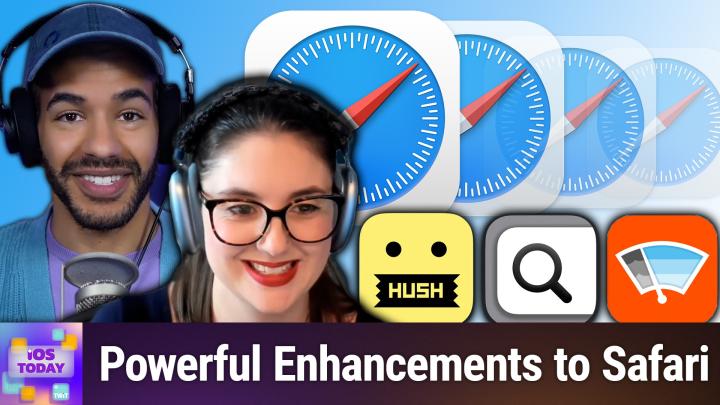
Coming up on iOS Today, rosemary Orchard and I, micah Sargent, talk about Safari extensions to improve your browsing experience. Stay tuned Podcasts you love From people you trust. This is Twit. This is iOS Today, episode 762, recorded Tuesday, july 22nd 2025, for Thursday July 24th 2025. Safari Extensions. Hello and welcome to iOS Today, the show where we talk all things iOS, ipados, watchos, homepodos and all the OSs Apple has to offer to you. We have to offer to you the opportunity to learn more about your various devices, to help you make the most of your apps, to help you make the most of your phone, your tablets, etc. I am one of your hosts. My name is Micah Sargent.
01:04 - Rosemary Orchard (Host)
And I am your other host. I am Rosemary Orchard and very happy to be here to extend everybody's possibilities with their iPhone and iPad today.
01:14 - Mikah Sargent (Host)
Absolutely so. This episode is about sort of adding on some functionality to your browsing experience. Now, apple added, along with many a browser maker, the ability to add extensions to your macOS Safari browser a long, long, long time ago. But as time progressed, uh, the company decided hey, you know, this should be something that you are able to use across your other devices as well. If you're using safari on your phone, if you're using safari on your ipad, those should be able to have extensions as well. And then, uh, they, the company, also added the functionality to sync your browsing extensions between your various devices so that if they're turned on on one, they can be turned on on another.
02:12
If you remove them, then you remove them on all of them, of course, with the ability to turn that functionality off. But Safari extensions can be, I think, quite powerful devices. Some of us just have them as simple ways to have our password manager in the browser if we use a third-party password manager, but that's not the extent of what is possible when it comes to browsing. Now, rosemary, I believe you and a listener in the chat both sort of made this first extension, brought it into my awareness, and it is an extension that I now use in place of one that I used to use. Can you tell us a little bit about Wiper?
03:07 - Rosemary Orchard (Host)
Yeah, so Wiper was first mentioned, I believe, by Dustin in April of this year during the show, and it is something to wipe away the ads as you browse the internet. So it's one of those apps that's really difficult to show off, because Wiper as an application doesn't do a whole lot. I've opened it up for the first time in a while and it's ready to refresh so I can tap on a refresh button where it's going to update the sources of things to block and to be aware of, and that's kind of it Done. It's up to date. If I go to more, then I can find out more about Kayleigh, the developer of this. There is a tip jar. There is some help for things like setting it up and extra and so on.
03:52
Basically, what this does is you go to a web page that would have ads on and they're gone. And it's one of those things where I was there going like, oh, I should open a web page and show it and I couldn't think of which websites have got ads because I don't see them. And that is the beauty of Wipe. What I will say is, if you open a web page so I'm just going to open my Safari here to go to DuckDuckGo, then sometimes web pages will load funny if you've got any kind of content blocker installed, and so if that is the case, then you can tap on the little puzzle piece in the address bar and then there is the option to turn off content blockers and it will just automatically reload the page. You can then do the same thing tapping on the reader slash puzzle icon to reload with content blockers, and this is also where you can see all of your extensions. So there is a wiper extra here which gives you some quick access to those help topics before where it shows you how to disable, how to quit and all those things. But honestly, it's just a really great way of just wiping the web clean. It's also something that I've installed for my parents and my grandmother, and my grandmother in particular.
05:10
Not great, remembering instructions for things like this is what to do if a website is being funny and doesn't work right, and she doesn't have any issues. So I mean, very occasionally websites get blocked, but that's because I turn on child protection on her reader, because she keeps tapping on random things that she sees on Google. But you know, wiper itself isn't blocking those. But yeah, it is really good at just keeping all of that gunk and stuff that appears on the web. Like I really thought pop-ups were a 90s thing, but it feels like they're coming back, like you start scrolling down a webpage and it'll throw up like a newsletter signup form or something like that, and that's just horrible. You don't want those. So yeah, wiper just helps get rid of all of it.
05:51 - Mikah Sargent (Host)
Yeah, and that's what I really like about Wiper. You talk about it's. You know it just does the thing. It's very simple, it works in the background, it just does what it needs to do and gets out of your way. I am going to name because I still think that it's a great app. It just ended up not being for me.
06:11
I used OneBlocker before this point and one of the things that bugged me about OneBlocker that was a reasonable functionality of the app is that when you install and enable OneBlocker, it has multiple instances within your Safari extensions menu. So it sort of separated each of the filter categories out into their own thing so that you could control those independently and also within the app you could control them. And having that many extensions could become kind of unwieldy when you're trying to look through and find others. And then I also had the issue where occasionally, web pages seemed like everything was fine and then I would go to do something and it wouldn't work. And then if I disabled extensions, then it would work.
07:04
And, as you mentioned with your grandmother, I have not had this issue as much with wiper. So I think that wiper is a little more delicate perhaps, um and and choosy about how it removes things, and that has been beneficial. So, you know, if you're using one blocker, that may still be the choice for you, and certainly if you're looking for having the option to make changes to how things are blocked and you're more of a power user, that's where I think one blocker is a great extension. Uh, but for me, wiper ended up being the simple solution that, yes, not only I could use, but I could recommend to friends and family as well as a choice for them. So, yeah, I really am impressed with what wiper is able to do yes, it's also worth noting wiper is a 199 one-time purchase.
07:56 - Rosemary Orchard (Host)
That's it. One blocker, which both of us were previously using, is 14.99 a year. Um, even the monthly is 2.99, which is more than wiper for lifetime. Now, personally, my philosophy is kaylee's made a really great app here. I make the point of popping in once a year or so and just doing one of the chip, the tip options, just to make sure they regularly get money, because I know it's not free to maintain apps. You know, every time apple updates something, developers have to go off and do a bunch of work to make sure the app still works like that. So yeah, I bet it is. It's nice that it's a $1.99 one-time purchase and that works with family sharing too, folks. So I bought it for me, I got it for free for both of my parents and that is really hard to say no to.
08:41 - Mikah Sargent (Host)
All right. Moving along to the next extension, I want to mention a really great app called Keyword Search. Now, there's not a lot to show with this one, but I can explain how it works. Keyword Search is this fantastic extension that knows that you go to different sites on the web and you search those sites, and the cool thing is, many of those sites have kind of a built-in pattern for how searching works. It's typically the website with sometimes it's like slash search question mark and then whatever words you're trying to search for and then whatever words you're trying to search for, and so what they have done is give the ability for you to search specific sites for content. So you know, typically, if I go up to the menu bar and I click and I type in something that's going to do for me a Google search, you have the choice of what search engine you're using. If I have keyword search enabled, it comes with these little built-in kind of text snippets to say don't search Google, search this instead. So, for example, for me, if I hit let's go with semicolon TW, and then I hit space and then I type in my search query, it actually uses Twit's websites search to search the Twit website, and that way I can find, like an old video that I did to see when was the last time I had somebody on the show or whatever. There are other ways of doing that, but that's just an example.
10:26
Another thing that I'm constantly looking at not constantly, but regularly, looking at AP Stylebook.
10:31
So I have a semicolon AP and I hit space and then I type in a search and it will properly go to the website and it will give me the ability to search for the AP.
10:46
You know, on the AP style book, what's great is all you have to do to add something is do a search functionality and then, where your term is supposed to go, you just type in three at signs and then the system interprets the extension, interprets that that is where the search query should go, and it does the right job of making sure that the terms that are put in are properly spaced for a URL.
11:21
So the one that I regularly use, constantly use, is one that I created for the Apple support page, because I am, of course, doing stuff all the time with Apple support for my different shows, and so I have semicolon ASUP and I type that in and hit space and type in a query and it just searches the Apple support database for the content that I'm looking for. So this is a really great way to quickly try to find content without having to go to the website first and then find the search functionality and then type it in. It ends up being a shortcut, I think, for a lot of people and, believe it or not, keyword search available for free in the App Store, so well worth checking out. Dan Morin, who I believe has been on this show before even, and has been on Tech News Weekly as well, turned me on like told me about this, and I just think it's a fabulous little extension.
12:26 - Rosemary Orchard (Host)
Yes, it's also a way to get better, slash, different search results. Because, for example, if I search for something on the Apple support website like I don't know shortcuts, guess what? One of the first things that comes up is Customizing keyboard shortcuts on macOS. Guess what I'm not looking for. Customizing keyboard shortcuts on macOS. I what I'm not looking for. Customizing keyboard shortcuts on macOS. I'm looking for the application named Shortcuts and its documentation, and that is much more difficult to find. So by searching through DuckDuckGo and just limiting my results to that, then I get much better search results, which makes me much happier. So I definitely recommend that.
13:02
But say, for example, you found the Apple support document that you're looking for and you start reading through it and you know some of these are really short, they're really to the point. There's like five steps and two pictures and it's like cool, done, I'm finished. Others, you open, for example, something to do with notes and you fall down a rabbit hole of all of the things that you could do with notes and you think I really must remember to come back to this later. What do you do? Uh, because I have been guilty, um, of definitely just going. I'll just leave that tab open. Uh, hi, I'm Rose and I have a large number of open tabs. It's a problem and I never remember to go back through them. I have them auto close after a while.
13:45
But for things that I actually want to read again later and I want to reference later, I use a great app, and also safari extension, called good links, and good links is 4.99 and all you do is you. You have your page in safari and you can just use that little puzzle icon and tap on the good links thing, or you can share and share to good links and you can add whatever it is, whatever article you want, into good links. One of the things I love about this is you can put your login details for certain websites, like, for example, if you have a subscription to the wall street journal um and you want to save wall street journal articles later. A lot of them are behind a paywall, so you could put your login details for that into good links and then it will still be able to download the article for you so that you can read it later, including offline, which is great. If you're planning on going somewhere on a plane or somewhere with spotty signal, then you can save things for later. So the way it works is very simple. You just open a web page and once you have that web page, then you tap on your little puzzle piece and then you just tap Good Links and then it pops up with all of the lovely information.
14:57
Now one thing I will say is, good Links also has extensions for other browsers, not just Safari. Definitely has a Firefox extension. I believe it has Chrome extension too, and so I can now save this article on Heligrids restrictions at UK airports. Am I planning on flying somewhere? Maybe? Yes, maybe I am, and yes, so I can pop in my tags. I could choose to mark it as read or add it to my start list, and it automatically populates the title and summary as well as the URL for you. So, yeah, yeah, definitely recommend good links and also, if you're watching the video, it has come up with some little purple things. By default, good links is red, but if you, if you pay for it, then you get to choose your color. So my good links is purple, but micah could have green if he wanted to.
15:42 - Mikah Sargent (Host)
Love. And then I think there's another one that goes really well with the good links there, because, okay, I want to mention too, there are some sites or some extensions that are kind of big, full-featured extensions that work as kind of you launch it and it's a homepage and it has all of these flashy images and you can have it, do quotes and this and that and the other. I don't know about you. I tend to avoid those because they kind of sort of take away from what I'm trying to do when I'm just trying to get to a webpage and get to what I'm after. These seem to be some of the most popular extensions mentioned whenever I look at different lists of extensions, but I tend to avoid those of extensions, but I tend to avoid those. I like this extension that you talk about for adding little notes to pages on the web. Can you tell us about that?
16:53 - Rosemary Orchard (Host)
Yeah. So if you've ever wanted to stick a physical post-it note on a website that just comes up whenever you open it again like I don't know, for example, you've got a discount code for a website or you need to remember to log in using this other form of single sign-on or something like that Then you can do that with Browser Note. So Browser Note is a Safari extension and tap on the little puzzle piece in Safari and I'll just scroll down I've got quite a few things here and I tap Browser Note and then it pops up and it says hey, enter your notes. And then there are some options. So I could put something really important here, like bananas question mark. Am I allowed to take bananas on the plane? The answer is depends on where you're flying. But then I can say, hey, do I want to see this on every page on, in this case, wwwgovuk, but this would be on every page on a domain. So if you say something on one of the particular podcast pages for iOS Today on the Twit website, you can say, hey, I want this to appear on every page on the Twit site, or I just want it to appear on this particular episode of iOS Today that I have open and then I can also say whether or not this note can be snoozed, which means that when I reopen the page then it will give me the option to hide it temporarily and then come back the next time I open it. So I'll just add this note. And now I've opened the web page and it says bananas question mark. And that's it. It's very simple. Because I've allowed it to be snoozed, I can just tap view website and continue on my merry way.
18:28
But this is really great if you've got like coupon codes or uh, you know, like, oh, yeah, like next time I order something from this website, my mom asked me to grab blah, blah, um or oh, don't forget that they have a sale coming up on this date and things like that.
18:42
I tend to use this for like things that I would buy, um and so on, and, yeah, just giving myself ideas of presents for people and so on, as I save it. But browser note it's just a great digital sticky note for websites and it's a really random thing that sometimes I need and most of the time I forget that it's there and then I hit a website that's got this set up on it where I've saved myself a note and I go, oh, ah, very useful. So yeah, yep, it's just a really nice way of remembering that you have all these little things set up to remind yourself. I can also say, if you open the app, this particular Safari extension has an app that does the thing and I can see govuk bananas question mark is a note, and if I tap on that then it opens the webpage that I saved on.
19:33 - Mikah Sargent (Host)
Uh, delightful. The other thing I want to mention um, this is just for, uh, for people who are if you're on your Mac um, I know I'm talking about the Mac on iOS today but, uh, while you have Safari open, you can uh click on Safari in, on Safari in the menu bar and choose Safari extensions, and that will take you to the sort of built-in sub store that is the Safari extensions store, and that has a bunch of suggestions. The app that I was thinking about earlier, that I am not a big fan of but always makes the lists, is an app called Momentum, or an extension called Momentum, and it is essentially like a yeah, a home base for your homepage, for your browser, and people use this across different browsers. Even I've tried it and it wasn't for me, but I wanted to mention it because I know that there are people out there who use that and very much like it. So Momentum was the other app as well that is available.
20:45
And then the last one that I actually want to mention is an app that aims to get rid of. Not it's, it's not a browser or it's not a um, it's not an ad blocker per se, but instead is a nag blocker, and it is, in fact, called Hush Nag Blocker, and its job is to get rid of those annoying cookie and privacy prompts at the bottom of the page or in the middle of the page or wherever they appear, and that's all it does. It just goes in and gets rid of those nags and blocks. Now, the cool thing about HushNagBlocker is that it has always promised and has continued to maintain that it does not use any third-party dependencies and it doesn't do crash tracking or anything like that, so it's very, very, very privacy-minded.
21:53
Where some other extensions might not be, it aims to just block nags and get out of the way. It's a little bit like Wiper, but more focused in blocking specifically those little things that pop up and say hey, would you like to allow the 100,000 cookies that are on this page that are not necessary? And so that's what it does. So, yeah, that is Hush Nag Blocker, which is available for free in the App Store as well. All right, rosemary, round us out with your final two picks.
22:34 - Rosemary Orchard (Host)
Well, my final two picks are related to, you know, getting things out of Safari, because Safari is a great place to start. Is it a great place for things to live? Maybe, maybe not. And the first one is called Printer Friendly for Safari, and guess what? It helps make pages more printer friendly. So on this govuk page that I have open, we've got this entire content section up here in an overview, and if I just tap on Share, then when it comes up then I can scroll down and go to the Print option. Then I can see that that is actually taking up like a whole page and this whole thing is taking up like four pages. There's a massive footer at the bottom, all sorts of stuff going on and like this is just not necessary. I don't need an entire page of the overview now. Of course I could just choose to not print that one page, but sometimes there's like little bits here and there inside of something that you want to get rid of.
23:33
This is where Printer Friendly for Safari comes in. So I tap on it and then I can do things like start web page editing and I can actually literally just do this and then I can select entire sections of the web page and get rid of them, and that's it, super simple. And then when I go to print, I'll just scroll down a little bit to get to my print option and ta-da, I now have the the overview. Uh, the little table of contents at the top is gone. Okay, I haven't got rid of the footer and everything yet, but this is really great for especially if you're trying to print a return label for something and they've got like a page of instructions at the beginning, but it's like not quite a page and then the label's getting split into two pages because they've not programmed the website right One of my pet peeves.
24:22
I'm a web designer. I know how to say that this shouldn't break, but apparently some people aren't good at that. Apparently some people aren't good at that. Then you can use this to get rid of those ridiculous bits that you just don't need to print and you don't want to print, and you don't want to waste ink and paper on printing either, and this is something that I've recommended for all of my friends and family, because my dad in particular loves to print things and you know what. It's a better way for him to retain information, so I'm not going to stop him from doing that, but I found a way to help him make it a little bit better for the environment. He's also learned about double-sided printing recently. It's very exciting. Aww, yeah, yeah, their printer has an auto-duplexer, so it will flip the paper for you, and he found the toggle for it the other day and called me and was so proud.
25:06
Oh, I love that you bought the printer. But okay, well done, you caught up, it's fine. But yes, so the next one is, for example, you're preparing like a little project or something, or you're just planning for a trip and you want to share some of these details with a friend and you've got like 30 browser tabs. Now you can share tab groups in Safari. That is a thing that you can do. However, it's not a great solution for everybody, for everything. Sometimes you just want to share a bunch of links and obviously individually, I can tap on the share sheet and send those off. But instead, if I tap on the puzzle piece and then I go to share tabs for Safari, then I can see a list of all of the tabs that I've got open. If I scroll to the bottom, there's a clear all button. There's including the tab title and then you can just select is lipstick really a liquid, and also hand luggage restrictions at UK airports, and then copy those to your clipboard and then, if I were to open, I'll just pop into drafts to paste all of these. Oops, there we ta-da. Then I can see I have a nice list of tabs, which is great for like sharing with people and so on and so forth, and it's just a really handy way to uh, share a list of tabs. Um now, one thing I will also mention I forgot to put in the show notes. Can't believe I did, because I've used it literally like seven times preparing for the show today.
26:29
There is another great Safari extension called URL Linker for Safari. A lot of these have got for Safari in them because otherwise, other apps exist with basically the same name and they're trying to explain their Safari extensions. Url Linker exists so that when you share a link, you can share in a particular format. So, for example, title tab space URL or title in square brackets, url in round brackets. What's it called URL Linker for Safari? Congratulations, mikey. You'll be the first person to download it from today's episode and I'll make sure to pop a link into the show notes. But it is such a handy little app that is just an extension. So, yeah, highly recommend that. Absolutely. Check that one out an extension.
27:11 - Mikah Sargent (Host)
So, yeah, highly recommend that. Absolutely, check that one out as well. All right, anything else that you want to share while I add URL linker for Safari to the show document.
27:27 - Rosemary Orchard (Host)
No, but it has also just arrived with you via iMessage because I was about to paste it into the show document, because I used my URL linker for Safari to copy it with tap spacing.
27:37 - Mikah Sargent (Host)
Love it. All right, folks, if you have Safari extensions that you're using, that you're going. Micah Rosemary, what you missed this one? We would love to hear about it. We love to hear what extensions you are getting pumped about. So email us iostoday at twittv that's how you get in touch.
27:57
I have a little bit of a news segment and then we will head into the rest of the show. So one little news item that Apple put forth is that the company has introduced a new game. Now, this is a game that I had been playing because I'm running a beta, but Apple has now brought it to just News Plus subscribers entirely, and that is a game called the Emoji Game. Now, in order to have the News Plus subscription, you either have to subscribe directly to News Plus or have an Apple One subscription, which gives you access to Apple Music, more cloud storage as well as their News Plus subscription, and in it is the new or games that you're probably familiar with like being able to do a crossword. But along with that, there is a new game now in the puzzles section, and that is the emoji game. So it has Sudoku, it has a game called Quartiles, it has a game called Crossword and the emoji game. Now, in the emoji game you will have a bunch of letter spaces that you have to fill in, and you fill them in by looking at the emoji that you have at the bottom of the screen and figuring out what those emoji likely mean. If you can figure out what those emoji mean, you can fill them in to the words at the top. So on the screen you can see these sort of blank spaces and you get the beginning of the hint.
29:48
So individuals top something disrupts a something and cocktail something. I'm guessing the last one is going to be like a cocktail drink. But let's look at the bottom. Here We've got a submarine and then a speaker that could be ping, because I think of the sound that, or sonar, maybe the sound that a submarine makes. I've got a plug with an arrow pointing toward the plug. That might just be plug. I've got a scorpion. I've got a boat and I've got pointing at the ice that goes into a cocktail that's feeling like that could be rocks or on the rocks or something like that, not just ice.
30:33
But what I have to do is try to fill in these blanks. So you want to use as few moves as possible If you get the full hint, it takes a move, and so I have been trying to do this without ever getting a hint on the hint um, and just figure it out from that. But I'm, for the sake of doing the show and making this a little bit faster, I'm going to use a move to expand the clue, so individual's top performance. So that could be uh, it ends in an l per personal best or something like that.
31:11 - Rosemary Orchard (Host)
Personal something.
31:13 - Mikah Sargent (Host)
So it definitely is sonar. This is sonar Personal individual's top performance, your personal, we'll come back to that, and then in the second one I'm going to reveal it again, just so we can kind of move things along.
31:32 - Rosemary Orchard (Host)
Disrupts a balanced routine, so like upsets the oh, there's something coming to mind, like on the tip of my tongue there's.
31:45 - Mikah Sargent (Host)
Right, what's the front? Does anyone know what the front of a boat is called?
31:49 - Rosemary Orchard (Host)
Oh, the hull. Is that the stern or the?
31:52 - Mikah Sargent (Host)
Oh yeah, you're right. Personal record Good job, jammer B. So it is point. The emoji is not pointing at the plug, it's pointing at the cord tied to the plug. So, personal record, very good. Bow, bow. So I don't know, if it is bow, then Prow, bow. Uh, so I don't know, if it is bow, then prowl, prowl. Okay, the prowl disrupts about. Okay, let's go with the last one. This is probably like cocktail served in a communal ceramic vessel oh, punch bowl punch, okay, yeah, so bow, there we go, b-o-w-l.
32:26
So maybe that's the back of the ship, I don't know, and then we don't, so it can't be punch, but you're definitely it's got to be something like that. What is the cocktail that's served in it? A? It's not scorpion bowl, surely S-C-O-R-P-I? Let's try it. It is I've never heard of that A scorpion bowl, weird.
32:52 - Rosemary Orchard (Host)
Is that because people spike the punch? Maybe?
32:54 - Mikah Sargent (Host)
Yeah, I guess so, and then rocks the boat. That's what that is Rocks the boat.
33:00 - Rosemary Orchard (Host)
Got it.
33:01 - Mikah Sargent (Host)
And so we did it in nine moves, which is not bad. We still got a great job, which is good. But I do try to get those without even getting the hints as much as I can. Sometimes I end up having to add those as well. But anyway, that is the emoji game. If you are an Apple News Plus subscriber, you will have access to the emoji game and can therefore play it All right. With that, I can hear the music.
33:35
It's time for Shortcuts Corner. Welcome to Shortcuts Corner, the part of the show where you write in with your shortcuts requests and Rosemary Orchard, our shortcuts expert, provides a response. This week's Shortcuts Corner request comes in from Kevin, who writes I'm a longtime iOS Today watcher. Thanks for all the valuable content. Hey, kevin, you're welcome. I'm trying to create an Apple reminder for a specific episode of a podcast in Apple Podcasts using shortcuts. I found a shortcut on Reddit which will create a reminder when I run it from the share sheet in podcasts, but it only puts the episode URL in the title field of the reminder and that's it. I would like to have both the title of the episode and the URL included in the reminder. Artwork would be cool too, but not necessary. Have you been able to make that happen? Can you help? Interesting? So a shortcut to remind this person to watch or listen to an episode of a podcast that does some, I guess, podcast feed scraping to get the artwork, if possible. Tell me what is possible with this, rosemary. I'm curious.
34:55 - Rosemary Orchard (Host)
So this one's a little bit interesting because Kevin did actually share a link to a shortcut. Unfortunately, that link says not available in iCloud. So I am just going to kind of have to go off of what I know about shortcuts, what I know about the podcast app and so on. So I'm going to start by just using the share sheet here in podcasts because I just want to make sure and this is always the first thing with automation check to make sure that the thing that you're trying to automate doesn't already do the thing that you want to do by itself. So I'm just going to use more here to find reminders wherever it's hiding from me and then hopefully, I am missing it. It's hiding somewhere in plain sight. I'm very sure of it. There it is not Interesting. Why is reminders hiding from me? Interesting, why is reminders hiding from me? But yeah, so you should be able to add something to reminders from the share sheet.
35:54
My share sheet is currently apparently being a little bit flaky. I'm going to try and blame that on iOS 26, but it might also just be something else that I've done. But if I start by sharing to drafts, then I'll see what I get, and I do just get the URL. So, yeah, that you know in that particular case, because the way that things share on iOS is they change their content dynamically based on what they're sharing to. So, for example, by sharing to drafts, drafts only supports text, so that means that I'm never going to get an image in drafts, but I have a url. So I'm going to start. I've created a new shortcut. I'm going to use the information option at the bottom to say, show in share sheet, okay, and now I am going to clear all of these options from share sheets. Now, if I scroll down, I can see that there are things like itunes products and so on, but I kind of just want urls. Um, and going back to what I was saying, sharing is dynamic and adapts, so we've got safari webpages here as well as urls.
36:55
Uh, safari webpage if you think of it, it's kind of like a book, okay, or a card, um, which I happen to have a birthday card here on my desk, okay, and there's a whole bunch of stuff in here, as well as the envelope and the card itself, which means that that, like the URL, is included as part of the Safari web page, or you could just share the URL. So in this case, we just want the URL, and if there's no input, then I'm going to say ask for, and I'm going to ask for text to try and get that URL. And then what we need to do is we need to get the contents of the URL or the contents of the web page. And this is one of those things where, depending on how you handle it, is this URL, is it a web page, is it an article, and so on and so forth. So I'm going to go with get contents of web page and then I'm just going to briefly change this to Get Clipboard, so I can copy the link to this and run it without having to go back and share every single time. And you'll need to make sure that you always allow access to all of the URLs, because otherwise it's going to take a long time. But now I can see I have a little web page here, amazing.
38:11
So, uh, now I've done this and then I can use the reminders action to, and I am going to add a new reminder.
38:20
I'm going to add a reminder and I'm going to use contents of web page and then I can use the name of this.
38:29
Then, if I scroll down, I can change the URL and I'm specifically going to put the URL in here rather than anything else Then I'll select my variable and use the shortcut input. Then this has worked. Now, if I just pop over to reminders and go down to automated processing, I can see the link Now. The reason why I put the URL in the URL field, not in the notes field is because this way there's a little picture of the artwork already built in there for you, because that's how the Apple podcast link works, and the thing to remember about automations and shortcuts is keep it simple. If you can make things happen magically without having to go around and go like get the images from the web page, figure out which image is the most important image, use that image and then put that into the reminder, that's going to make your life a lot easier and also make your shortcut less prone to failure and problems and then require troubleshooting later. So by putting the url in also bonus you just tap on it takes you straight to the podcast app nice.
39:39 - Mikah Sargent (Host)
I love the little uh, you know, tapping and popping right in. That's fantastic, all righty, uh, we are nearly to the end of the episode, but we have our app caps now. These are the apps or gadgets we're using now, or have been using for some time, that we think are great and want to share with all of you. I recently rediscovered an app that I had been using using quite a while ago, because the app recently added some new functionality that intrigued me and I have found myself using it regularly once again. The app is called Endel E-N plays background music. But it's not just a background music app. It's using science of sound science and psychology to create soundscapes that can and have been shown to have an impact on different aspects of your cognition, and so in this case, there's sort of a basic soundscape that will play in the background and it changes based on your location and the time of day to sort of attempt to give you more energy. We're obviously not making claims that this is going to relieve a headache or something like that, but it attempts to sort of look at when you would typically have a dip in energy or an uptick in energy and use that leverage that to kind of move you into a sounds and experiences for people with ADHD, with diagnosed ADHD, and in it are some new exercises that are like guided exercises to refocus and in particular these really interesting soundscapes Solfeggio tones, which is a kind of a newer field of study in terms of how it can impact the ADHD brain Colored noise, which of course we know goes beyond white noise, pink noise, brown noise and something called 8D Odyssey, which kind of provides sound in a virtual soundscape around you to attempt to help you refocus. We've got your classic binaural beats, something that's kind of cool, which are two things an app blocker and a focus timer. That's kind of cool, which are two things an app blocker and a focus timer so that if you are trying to get a task done, this can help you do that. It's that Pomodoro timer sort of situation of it all, and I'll quickly mention sulfageo tones. So it says the concept of sulfageo frequencies traces back to medieval Europe, linked to an early musical notation system. Science still emerging, these frequencies have built a strong following for their soothing grounding effects, especially among those with ADHD. I will tell you, I found that sulfeggio tones were not my cup of tea. They were kind of grating for me, but perhaps they are yours. But the 8D Odyssey, which makes it feel like the audio is kind of moving back and forth between your ears, I mean, is really kind of a cool thing that I found to be really satisfying and kind of calming. So those are just two examples of what Endel has added to improve upon the basic app of focus, relax, sleep, move, nature elements, etc. It's a really neat app and has some great sounds.
44:06
It can be a little on the pricier side, so that's something to be mindful of. I believe it is. I think it's $7.50 a month, if I remember correctly, because the problem is there are multiple in-app purchases for multiple different price subscriptions and if you buy it for just 12 months straight out, it's $120 a year. So yeah, a little expensive. But what I basically did is I said I'm going to give it a month of trying it again and if I'm using it every day, then perhaps it's something that I'll continue to use. So that is Endel E-N-D-E-L in the App Store. Rosemary, what's yours?
44:56 - Rosemary Orchard (Host)
So my pick is actually related to a problem that I need to solve this week. So I am picking up a new car on Saturday and I realized this week or after I walked away from arranging for the new car that I was like ah, I have registered my license plate, my number plate as it is over here in the UK, with a whole bunch of parking apps and services and so on, so that, for example, if I go to do an airport drop off or pick up, I won't get a random fine through the post six weeks later. They'll just bill my card when they see the license plate and so on, but I don't want to be paying for somebody else Now. Fortunately, as it turns out, past Rose was a lot smarter than Rose. On Sunday morning was at 3 o'clock in the morning when she woke up going oh my god, I have to de-register my car from all of these places, and I used a feature in Notes that I'd actually totally forgotten about, which is that I had a note and I had added password protection to this note.
45:57
Inside of Notes, you can create your own super secret note and it can have whatever content it is in there that you want. Now bear in mind, your title is not going to be super secret. That's still going to show in the list. But if you then tap on the three dots at the top, you can lock your note and you can use either your iPhone passcode for this or a separate passcode. So I'm going to use my iPhone passcode and it's popped up. You don't see the numbers on your screen, but I see them on my screen and then it's asking me if I want to enable Face ID and it's asking me if I want to enable face ID. And now, if I want to see this, I can see it's currently unlocked, but then I can just tap lock at any time and I'll still see super secret note in my notes list. But then when I go back into it I can't see any content. And if I tap view note, then it checks my face and they can show me the note.
46:46
And this can be really great for things like present ideas for your partner that you want to keep secret from them so that they don't just see them over your shoulder quite so easily. Like you know, they can still see the title it says present ideas for partner, but they don't necessarily see the contents, and so it gives you that extra moment of going like have it here, okay, cool, and then you have a look at it, um, and I also just find it as a useful marking for, like, these notes are really important. Now, obviously, you also have the option to do things like pin your notes, move your notes into particular folders and so on and so forth. Um, but, yeah, uh, you can lock notes, which is really great for things that have got like payment details in there or stuff related to like your car and what gets auto paid for, uh.
47:29
So, yeah, I need to go deregister my car from london's ultra low emission zone. Uh, because if somebody else drives my car in there next week, I'm not paying for that. That's gonna be their problem, not mine I love that.
47:44 - Mikah Sargent (Host)
All righty, let us say goodbye, because we have reached the end of this episode of iOS Today. I want to thank you all for tuning in. Remember you can email us. Iostoday at twitchtv is how you get in touch with us. Be sure to reach out there. Rosemary Orchard, if people would like to follow you online and check out all the great work you're doing, where should they go to do so?
48:09 - Rosemary Orchard (Host)
The best place to go is rosemaryorchardcom, which has got links to apps, books, podcasts and all the social media sites where you can find me With the exception, however, of Discord, because Club Twit has an amazing Discord, with a live chat during the recordings of the show and then an iOS Today area for after the show there's an open discussion thread and there's also threads for every episode, so you can always give us feedback on things or ask questions and chit-chat to one another there, including myself and Micah Micah. Where can folks find you?
48:37 - Mikah Sargent (Host)
If you're looking to get in touch with me, you can find me at Micah Sargent on many social media sites or you can do chihuahuacoffee. That's C-H-I-H-U-A-H-U-Acoffee, where I've got links to the places I'm most active online, so be sure to head there and check that out. If you are not currently a member of Club Twit, I want to invite you to join the club. Twittv slash Club Twit is where you go to sign up. We've got monthly and yearly plans.
49:02
When you join the club, you gain access to some awesome benefits. Every single one of our shows ad-free just the content, none of the ads. You gain access to our TwitPlus feeds, so there are multiple feeds, depending on what you're looking for. You may want all of it. We've got news events there. We've got club shows, we've got bits and clips. It's all there and available to you when you join.
49:25
So you join and you've got access to a bunch of extra stuff right away that you can go and listen to, and access to the members only discord server a fun place to go to chat with your fellow club members and also those of us here at twit. So be sure to head there twittv slash club twit to sign up monthly and yearly plans, and I can't wait to welcome you to the discord. We have so much fun. We've got a 3D printing thread going and I am looking at running a D&D one-shot adventure as well. That is going to be a Club Twit exclusive, so if that sounds good to you, you got to join the club to check it out, all right? Well, with that, we've reached, truly and finally, the end of this episode of iOS Today. Thank you so much for being here, thank you for tuning in, and we'll see you again next week. Bye-bye.