Hands-On Windows 203 transcript
Please be advised that this transcript is AI-generated and may not be word-for-word. Time codes refer to the approximate times in the ad-free version of the show.
Paul Thurrott [00:00:00]:
Coming up next on Hands On Windows, we're going to take a look at Copilot in Windows 11. It might be better than you think it is. Podcasts you love from people you trust. This is TWiT. Hello everybody and welcome back to Hands On Windows. I'm Paul Thrott, and this week I'm going to take a look at Copilot in Windows 11, which I understand is probably not everyone's favorite topic, but having just finished a pretty big book update, I had to revisit some topics I'm not particularly enthusiastic about myself, one of them being Copilot. But in doing so, what I came to understand is that it actually compares well, I think, with maybe more popular chatbots or AI assistants, things like Anthropic Cloud or ChatGPT. So if you haven't looked at it in a while and you just kind of get it for free, it might be worth taking a look.
Paul Thurrott [00:01:00]:
So this is the Copilot app as it stands today. There's a very good chance by the end of the year this is going to change dramatically, but we'll hold off on that until it happens. We'll see. There's a couple of weirdisms to Copilot in Windows 11, one of which is which Copilot app you get. So this is the consumer Copilot app. There's also a Microsoft 365 Copilot app. You could have one or the other. You could actually have both, but typically you'll have one or the other.
Paul Thurrott [00:01:28]:
And it's based on what type of PC you have. The shorthand version is if it's Windows 11 Home, you almost certainly have the consumer version. And if it's Windows 11 Pro, you probably have Windows— sorry, Microsoft 365 Copilot. So it's kind of a commercial/business versus consumer. PC deal. The good news is you can uninstall both if you don't need these things. You can install either one of them from the store very easily or from the web. So if your computer did come with Microsoft 365 Copilot, that's not what you want, no problem.
Paul Thurrott [00:02:01]:
There's also a kind of a disparity between the number of features you get and the quality of those features based on whether or not you're paying for it. So you do need a Microsoft account. You can see that down in the little icon there, my sign-in profile picture there. You do need that for just about everything. I mean, there's a couple of— there's 2 features in here you could use without it. It's not worth it. But, um, if you're not paying for anything, you, you get a lot of free features for free. You know, obviously there are usage limits and some limitations, etc., but honestly, the free version is not horrible for occasional usage.
Paul Thurrott [00:02:36]:
If you have a Microsoft 365 Personal, Family, or Premium subscription you get more upper, you know, more usage limits, or a few, I guess fewer usage limits, or more usage would be the, uh, the way to say that. And some exclusive, uh, features with the little asterisks that Family and Premium support multiple users. And to get those additional usage rights and additional features, you have to be the subscription owner. You have to be the person that's paying for it. So I have a Microsoft 365 Family subscription. I am the subscription owner, so I do see some of the additional features and things. I'm going to try to keep this mostly though to the stuff that we get for free. So this thing is already running, but if I were to close this, there's a bunch of different ways to run Copilot over and above the normal ways to run apps.
Paul Thurrott [00:03:25]:
I mean, obviously you can open the Start menu and use search, and there it is. You could pin it to your taskbar, which I guess I will do now. You can launch it from there. That's very standard for any apps in Windows 11, of course. But there's a couple of other things going on here. There's an optional keyboard shortcut, which I don't think I have enabled on this computer. Nope. So you can enable this inside Copilot.
Paul Thurrott [00:03:46]:
You can type Alt+Space to launch Copilot. Anyone could type Windows key plus C to launch Copilot. And you can also, if you have a Copilot key on your keyboard, which I do not, but let me go to the laptop here. That should— that would launch Copilot by default normally. Either way, so a bunch of different ways. They really want you to run Copilot, right? Okay, so this is the basic interface. There's a sidebar over here that is collapsed by default. This has your chat history, the different Copilot features that are available to me in this case.
Paul Thurrott [00:04:20]:
I mean, it might be plus or minus a few for you depending on where you're at in life and what, you know, what things you've done with Copilot, if you've signed in or opted into any features or whatever. The standard chatbot type interface that you see everywhere, right? We're starting to finally move past the model picker design that we used to have before. So they're using some smarter language. I think some plain English language maybe is the way to say it. But they're also using the smart option by default, which I think is really smart because this will orchestrate which models it uses on the backend intelligently, right? So depending on what you ask it or what you do here, It will either use this Think Deeper, you know, whatever that is on the backend, some OpenAI-based Microsoft model to, you know, to go into a slower but more thorough sort of research mode, or it will just use one of the more lighter-weight models. And it's something you, for the most part, don't actually have to think about too much. For the most part, I kind of leave that thing alone. We have this Copilot Vision button, and this is— we'll look at this in a moment, but this is where you can share the screen or share any app with Copilot and learn more about the images and the text.
Paul Thurrott [00:05:26]:
That you see on screen. And we also have this voice control mode. So in addition to typing, which is kind of a slightly anachronistic way of doing things, you can just talk to Copilot. And the big thing that separates Copilot and any other AI assistant these days from the old school, you know, Cortana, Google Assistant, the old Siri, whatever, is that they're conversational. So whether you're typing here or that you're talking to it, it's an ongoing dialogue. It's not just a one-off question that has no context the next time you go. So each time you start a chat, it's considered a conversation essentially. You can, like I showed you earlier, go back to the sidebar and revisit previous conversations and just pick them up, and it will keep the context of whatever that conversation was, right? That conversation could be, um, you know, whatever type of thing you might be doing with the AI.
Paul Thurrott [00:06:20]:
Most of this other stuff is pretty basic. They have some suggestions here in the middle. A lot of times you want to use AI to analyze a document or whatever. They show some recent documents that I accessed here and then some recent chats as well. The only other notable thing going on here is the little quick view button here. So this is an interesting take on kind of the way Copilot was originally. So This is not a good example, but if I wanted to bring up, and normally this would be a writing app or a web browser or whatever, you could just have these things kind of side by side, right? And so this is a smaller version of the UI just so you can use it side by side in, you know, what you would think of as kind of a traditional Copilot mode. But you can just go back.
Paul Thurrott [00:07:09]:
Alrighty. So, That's most of that. I mean, the customized— you can customize the voices inside of settings. They're actually pretty good, by the way. They don't sound machine-like or robotic. They're, they're actually very clear. That's good. You can also go into settings, and I've already done all this stuff, but you can enable things like memory, which will help it learn more about you as the user over time.
Paul Thurrott [00:07:35]:
As you converse with it, it will pick up details about you and use that as context well across conversations. And you can connect this thing to other apps and services, right? So the popular email and calendar services are fairly obvious, popular cloud storage services and so forth. There's also an in-app web browser, which we'll get to in a moment. So I mentioned that this uses smart mode, so to speak, by default. I'm going to leave it there pretty much for everything, but the range of interactions you might have here, you know, asking questions and so forth. It will be familiar to most people, but the most basic use case is something like this. This is just a straightforward question. This is the type of thing we would use Google Search or Bing or whatever for.
Paul Thurrott [00:08:20]:
You're looking for an answer. And so it comes up pretty quick. It gives you its sources. So if you want to go and find out where it found this information, which is fairly obvious, and then a lot of options for doing, you know, different things around that. But it It's this is pretty pretty basic. I'm just pasting this in because I've already typed it elsewhere, but I can also start a new chat and then maybe do something a little closer to research. This isn't literally research, but kind of a longer topic. So when you have something that's not just a straightforward answer, you know two plus two equals whatever or whatever that thing is, it will generate a report style.
Paul Thurrott [00:08:59]:
output, which I think is actually really cool. And so I've done this sort of thing before. I ask it, you know, where I should start in the series of books, et cetera. And it just does this nice formatting, kind of goes through the lists of potential books to read and, you know, in order from most approachable to least approachable, which is pretty accurate, right? And then in keeping with that conversation theory, you have this little prompt at the bottom where it's actually almost prompting you, if you will, to ask you what else you might want to learn about. So you could just keep going from here. You could say, well, yeah, actually I would like a custom reading roadmap, or I would like to know more about one of those particular topics. So you just kind of keep that thing going, which I won't do right here, but it is kind of an interesting capability. All right, now I gotta open a document of some kind.
Paul Thurrott [00:09:48]:
So let me see what I have here. Go up to— I'm in the wrong place. That's why. Go up to Documents. So I just have some PDF files here. I'm going to pick the smallest one and hopefully this will be okay. But let's see. Actually, I'll just do it this way.
Paul Thurrott [00:10:04]:
So this little plus— oh, let me start a new chat first. So the plus sign here is a way— for most people, it's going to be you're going to add an image or a file or one or more of those things here. There are other options, obviously, including this podcast option, which is going to be gone soon. So we won't We'll look at that, but I want to add a file. So it goes right to where I was. That's good. So I'll pick the small one. And I would like, in this case, we could say something, you know, something basic like summarize this document.
Paul Thurrott [00:10:36]:
So it will read the PDF, assuming it doesn't have some sort of rights issue, which does happen from time to time, and it will generate a summary of whatever's inside the document. As you would expect, and it is blocked. Okay, great job there. So I picked a topic that or I picked a file that's got some kind of copy protection, but that's fine because you get the idea of the types of things you can do here, right? So you can get a summary. It can re well actually did give me a little summary anyway. There you go, general summary. So it's really basic. You could make this longer or shorter.
Paul Thurrott [00:11:08]:
You can put this in kind of a bullet point version. You could use this as a study guide. I'm going to get to this stuff at the end because honestly, this is, this to me was the big surprise, the big positive surprise about the way this app has evolved. I actually kind of like the study tools they have in here and then a presentation style overview, et cetera. But I won't beat that to death. So analyze the document, summarize the document, et cetera. If I bring up Microsoft Edge, bring it over here, let's see what this thing says. Just copy the URL into the clipboard and then just paste it in.
Paul Thurrott [00:11:44]:
What this should do is open this side by side. Yeah, it's not doing it. So normally what it does, or what it's supposed to do, or will do soon, is display the web document side by side inside the app because it has an in-app web browser. So you can kind of compare what it's saying to what's going on. Now in this case, all I could, I could just snap that, of course. So I could do this sort of thing instead. That will give you the same basic effect. But this actually can happen inside the application itself as well, which I really like.
Paul Thurrott [00:12:13]:
But again, this is, you know, kind of a standard use case, right? And it's a conversation. So it's also prompting you at the end, do you want me to do this sort of thing? You want a short bullet summary? Do you want to compare this to, or whatever's happening in this story, a news story here about other things that are going on or whatever? So Again, it's not just a one-off. It's not just here's what it is. It's like, let's keep this thing going if you want. And I will not do that here, but it is, it is kind of a, it's, it is a unique way to interact with this thing. And then there's just writing help, right? And so in this case, there's all kinds of forms of writing help, right? You might be writing an email. You might be, you might have something already that you wrote. You know, you know, you can attach a document.
Paul Thurrott [00:12:55]:
But in this case, I'll just do one where I'm starting from scratch with something new. So I want to write a blog post about generative AI. I think this is an example I already used in the past. And I'd like, I'm really interested in having a good introduction, right? And I'm not going into any more detail for that. So it does this sort of semi-research style thing where it's going a little slower. It's kind of stepping you through it. And it gives you multiple options for the types of introductions you could use for that story. And then of course the next steps at the end after choosing one, because you could, you know, obviously copy and paste any of these and take that from there, is it's prompting you, well, how do you want the rest of the blog post, right? Do you want this to be practical, thought leadership, technical, creative, etc.? So all these options again, and this is kind of a neat way to start.
Paul Thurrott [00:13:40]:
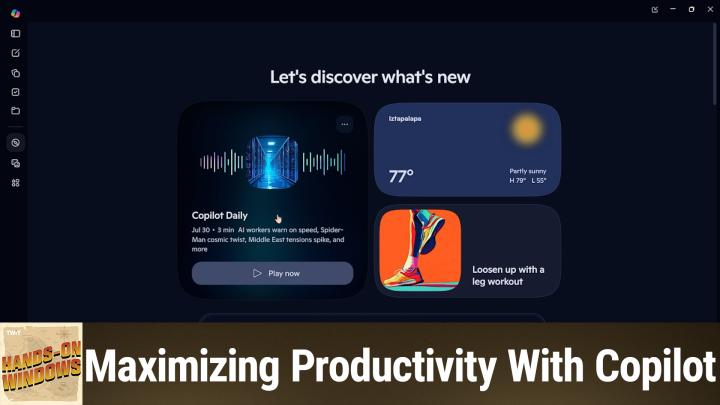
And I, I would never do this as a professional writer, but a lot of people who are not writers, um, You know, need help with this sort of thing, right? Just I just need help getting over the hump of getting the thing started. So I feel like this kind of capability is very helpful for a lot of people. All right, I'm just going to move over to the sidebar now and look at a couple of the other things that are going on. So Discover is a unique Copilot. I'm going to call it a set of features. Most of this is kind of garbage, frankly. So if you're familiar with Microsoft Edge and their default new tab page, if you're familiar with widgets and that discovery, well, they call it different things, but the Microsoft News Feed or News and Story Feed that appears, it's the same content. So if you scroll past the top, you're going to see all these things.
Paul Thurrott [00:14:23]:
It's terrible. Like most of this is pretty terrible. This stuff at the top is, it can be useful. You know, whether you're not going to come here to look at the weather per se, you can get it right down there in the taskbar, et cetera. They choose these different stories, you know, that they think are high quality to put up at the But the big thing here to me is the Copilot Daily. And this is just a 3 to 5 minute audio presentation of the day's news. And so you can see what it says is happening today as we record this at the end of July. And if you play it, it will play the audio.
Speaker B [00:14:56]:
It's Thursday, July 30th. On this day in 1965.
Paul Thurrott [00:15:01]:
So I won't go too far into that, but you get that. More than 1,000 employees from You can scroll through it, and as you do that, it will actually jump ahead in the in the in the timeline. So that's that's kind of interesting. I think that's kind of cool. Copilot Vision. I don't remember exactly the last time we looked at this, but I know we have looked at it. But I I will just go through this really quickly. So Copilot Vision does two things: it analyzes images or text.
Paul Thurrott [00:15:28]:
You share either the entire screen or or just a particular app window with it. And then you can go from there depending on what that thing is. And so I don't have anything good here for pictures, but let me find something here. So like this type of thing. This is a good option. I'll just open this in— actually, let me open it in the Photos app. That would be the typical app that would open in this case. And then we go back to Copilot and now I want to share.
Paul Thurrott [00:15:57]:
Right. And so it has, we have 2 screens here on this particular computer, but I'm actually going to go down just to that one app window.
Speaker B [00:16:03]:
Hi there, Paul.
Paul Thurrott [00:16:06]:
So as you can hear, I think hopefully this is an audio-based experience by default, meaning you're going to chat with it with your voice. You can use, you can go back to the standard text interface if you want, but I'll just keep it here for now. It's actually listening to me. So I'm sure what I'm saying is not making any sense to it. But you can tell around the highlight here of the window, you can tell which windows you're sharing. And now I'll ask it a question. Copilot, do you know where this is located?
Speaker B [00:16:35]:
That looks like a beach in a tropical spot with those green mountains in the background and that sea turtle cruising along. I'm inclined to say Hawaii. It might be somewhere like Kauai, which has those iconic—
Paul Thurrott [00:16:47]:
All right, I'm just going to stop that. If you ever switch out of it or just stop it like I did, you can go back to this text-based interface. In this case, this was indeterminate. This wasn't a famous building or monument or whatever. It didn't know exactly what it was. So I semi-enjoyed that it guessed a little bit there. So yeah, probably Hawaii. This is the type of reasoning I think almost any person could handle, but you get the idea there.
Paul Thurrott [00:17:11]:
And you can go from there and do different things. We're going to look at images next, actually, but there are also text-based actions you can do. So if you're looking at a screen of text, like you might be if it was a webpage or a document or whatever, you can have it select individual parts of the text and kind of go from there. You know, what is this text? Can you summarize it? Can you expand on it, et cetera, et cetera? All those things that you would expect. So one of the key use cases for AI, at least with individuals, consumers, is just to generate fun little images, right? And you can do that directly from here. You don't have to go into a special experience if you don't want to. You could say, I would like an image of whatever kind. And that's, that's fine.
Paul Thurrott [00:17:52]:
But they do have this Imagine experience that I actually kind of like. And this gives you a way to start from, I'm going to call these templates essentially, because what's really behind these things is pre-made prompts of whatever kind. So they have these restyle options at the top. And these vary from time to time. And then this Inspire Your Next Image is, I believe, an infinite scroll, but you can go through and find, you know, whatever style that you may like for whatever that— whatever it is that you're looking for, right? So this is just another way to stop— to start, rather. So I'll just go to one of the restyle options, and I will go back. Let's see if I can find that again. I'll find that same image if possible.
Paul Thurrott [00:18:34]:
Maybe that's not the best image, but let's see. Let's see what it does with that. All right. And so what it's going to do is using the style of that thumbnail that was there, it's going to recast that image in that style. And this is a conversation. It's like anything else. You can edit this. You can tell it later after it actually makes this image to restyle it again, et cetera, et cetera.
Paul Thurrott [00:18:59]:
But I'll just do the one pass because Because it does take a little while. This is happening up in the cloud. It's happening eventually. And boom. Okay. That's, geez, that's very creative. So, okay. I mean, you saw the original beach image.
Paul Thurrott [00:19:19]:
The turtle was the little guy in the corner there. So it kind of did that whole thing around there. So that's fun. Okay. That's good. A lot of stuff in there. I mean, a lot of different ways to do things. I like the visual nature of the Imagine page.
Paul Thurrott [00:19:31]:
I think this is kind of a fun interface. So that's good. There's, there are other things that are more advanced, and in many cases are available to people who are paying customers, right? Whether you're paying for Copilot directly or Microsoft 365 consumer subscription, etc. This library here is literally a library of the images, right? So you see the one I just created, but these are the previous images I created. Different styles, right? Like watercolor style, etc. And also pages. And pages are like collections of creations that can include one or more things that are basically study guides. So, there are quizzes, flashcards, all that kind of thing which I think is really, really cool.
Paul Thurrott [00:20:16]:
This has research reports here. That feature is actually Going away soon, unfortunately. But let me go to this project thing because this one is actually really neat. So I'm going to call— I've been doing dinosaur projects because, you know, I like dinosaurs, but I'll just call this one Dinosaurs 3: The Quickening. And then you can bring in files. Now you don't have to, but projects actually don't make any sense. Without files. So I will go back to my Documents folder.
Paul Thurrott [00:20:50]:
Uh, that's the wrong Documents folder. I will go to the correct Documents folder. And I tried this little guy last time, that didn't work out good. So let me try this one here. And it's going to analyze the PDF in this case because that's what it is. Create the project. And then it gives you this unique kind of 2-pane view. I'll get rid of that.
Paul Thurrott [00:21:09]:
And you can upload more files, right? Um, it's processing this As we talk. But the big thing here, once this is done processing, is where you go in here and make different creations. So you can see the actual things. Summary, which is what it sounds like. Podcasts, which sadly is going away. Study guide, which it could be a variety of study guide types. Quizzes, ditto. A lot of the quizzes are multiple choice, but they have different types of quizzes.
Paul Thurrott [00:21:33]:
And then flashcards, right? So these are all fairly obvious. Let me just make sure this is— yeah, it's taking a little while. So, oh.
Speaker B [00:21:39]:
It's done.
Paul Thurrott [00:21:39]:
Okay, so let's just make a quiz. Now you just click quiz, it just does it. It's— it has not asked me any questions, etc., etc., but you can kind of see what it comes up with and then take it from there. So if this is not exactly what you were looking for, at the end of this, whenever it's done— oh, here we go. Yeah, so you get some different— this is kind of a nice interactive quiz, right? So this is not a list of text, it's actually a little interface that you kind of go through step by step. So you probably get the basic idea of how these things work, other than the fact that you can go in here and edit this using a prompt or your voice, right? Say, well, this isn't exactly what I'm looking for, dot, dot, dot. But also generate these other types of study guides, which I think is really powerful. And when you have good source documentation, as you would when you're studying for something, so whether you're in school or whether it's a job-related thing, You can just step through all of these and use this as a really good tool to learn more about whatever topic.
Paul Thurrott [00:22:38]:
And you're not limited to just one of these, right? So I could go and just create a study guide. This is still the same project. And, you know, this will eventually happen over time. But when I open the sidebar here, you can see I've created 3 dinosaur projects, right? Fan of dinosaurs. But if you go into each one of these, you'll see all of the creations it made with you in there. So I'll just go back to this one since we're— you can see I made a study guide over here. There's a document briefing, which is a summary. And then in this one, I did a quiz in 2 pages.
Paul Thurrott [00:23:10]:
So you can look at the quiz here, which is actually in this case very similar to the one you just saw, but you get the idea. It's kind of a— I think this is a really good study tool for people. So worth looking at, if only for that reason. So there's more going on, but I think that's the high-level view of this. I suspect most of you have not looked at Copilot in a while. I actually haven't as well. I don't look at it that often, but going through it for the book and going through all the available options, a lot of it was familiar, but there's been a lot of additions over the past year or so as well. And honestly, I think the big deal is whether or not it's equal to ChatGPT or Claude or whatever it is you may be using, I, I do feel it's gotten there.
Paul Thurrott [00:23:51]:
I got— it's in the same, uh, basic area from a quality perspective, and it is free with Windows 11 to some degree. I mean, obviously at some point you're going to run into usage limits, but, um, it is— it's there, you know. And again, I think a lot of us— I do ignore the thing. And if you're doing that, um, you might want to take another look. Alrighty, well, thank you for watching. Um, we'll have a new episode of Hands on Windows every Thursday. You can find out more about the podcast at twit.tv/how. Um, again, thank you for watching.
Paul Thurrott [00:24:24]:
Thank you especially to our Club Twit members. We love you. If you're not a member, please consider it. Um, you can find out more about the program at twit.tv/clubtwit. Thank you. See you next week.