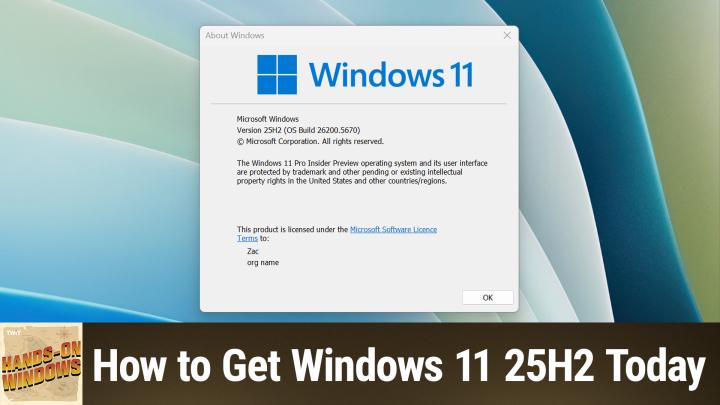
Hands-On Windows 162 transcript
Please be advised this transcript is AI-generated and may not be word for word. Time codes refer to the approximate times in the ad-supported version of the show.
Paul Thurrott [00:00:00]:
Coming up next on Hands on Windows, Microsoft has released Windows 11 version 25H2 for everybody, but not everybody right away. So here's how you can get it right away.
TWIT.tv [00:00:14]:
Podcasts you love from people you trust. This is twit.
Paul Thurrott [00:00:24]:
Hello everybody, and welcome back to Hands on Windows. I'm Paul Thurat and this week we're going to talk about how you can get Windows 11 version 25H2, which is actually available in stable for everybody. As I noted in the promo, they're not necessarily for everyone and certainly not right away. So they've completed the development of the initial release of this operating system. They're rolling it out on their own schedule. If you go through the normal method, you might not see it immediately. And so what we're going to talk about today is how you can make that happen if you want it to. And I think the most important thing to remember here is that from a functional perspective, look and feel, etc.
Paul Thurrott [00:01:06]:
Windows 11 version 25.2 H2 is identical to 24H2. There's the same thing. There's one number in the build number that's a little different, but as these things get updated side by side, and they will, they'll each get the same updates. So even if you're on 24H2, you don't actually have to do this, but you're watching the show, I think you want to do this, this. I certainly do. So let's take a look. The first thing to try, of course, is the traditional approach, which is to go into Windows Update and check to see if you have an update. So as I record this in early October, it's only been a couple of days since Microsoft announced this release.
Paul Thurrott [00:01:41]:
I don't have it, so it's not appearing. Sometimes you might actually see it under optional Updates, you'll see Windows 11 comma version 25H2, but no, so I don't have that. That's okay, because what I do have is the ability to get it in other ways. Right. So there's the traditional approach. And so if you Google or whatever search engine you're using, Download Windows 11, you will find this link very quickly. And this will probably be familiar to a lot of people. There's a lot of different options here, but you can create Windows 11 install media.
Paul Thurrott [00:02:19]:
If you're using a next 86 based PC, you can download the ISO. And that's true if you're using x86 or x64 or ARM. Right. You can go to this other link here for arm. And then you can actually just double click on that and use that setup from there to do that. This is an installation assistant. I wouldn't rely on that personally. I did download this ISO, and if I go to the download folder here, this is the ARM version.
Paul Thurrott [00:02:46]:
So I bet the X64 might be a little bigger, but it's about 7 gigabytes, as you can see there. So that's certainly possible. That's the traditional route. The interesting thing though is that a couple of days or maybe a week or so before they released this, Microsoft made available quietly on their download servers. These are links to actual. To a Microsoft server. They released the ISOs for Windows 11 version 25H2, but also something called the EKB. And that stands for entitlement package, it stands for enablement package.
Paul Thurrott [00:03:25]:
And the idea there is that this is a very minor update to 24H2. So if you're actually on the latest version of 24H2, you've gone to Windows Update, you're fully up to date, you can download this little file. So I'm going to click on this here and see how this goes. But you can see it went pretty quick. It's. Or it's going. It's still going, but it's very small, 171 kilobytes. And I believe I also have that in my notes or in my.
Paul Thurrott [00:03:52]:
Somewhere in here, I think I have this. I just downloaded it, but you can just run this. I don't need to do this. It's already been installed. But it's super quick. You reboot once and then you're in. And so that's actually. That's actually pretty cool.
Paul Thurrott [00:04:10]:
If you do decide to download the ISO, if you do want to make your own install media, meaning you're going to create a Windows 1125H2 setup disk on a USB key, you can use the media tool that Microsoft has if you want. Like I said, I keep trying to go back to this folder. I keep closing for some reason. But I recommend using Rufus. And if you're on ARM 64, you're going to have to use Rufus, because they don't actually make that available on ARM yet. So if you look at this tool, it's changed a little bit. I've already got a USB key in here. I can select the ISO and it will give me whatever options.
Paul Thurrott [00:04:49]:
You typically don't have to change any of this, but when you stop, you get this additional window and some of this will be familiar. If you've seen this before, there are options in here for removing some of the requirement blockers, you know, for Windows 11, I don't. I think we're at the point now where if you're trying to run Windows 11 on a system has 4 gigs of RAM or doesn't have secure booted TPM 2.0, we have to have a different conversation. But I don't really have a problem leaving those checked. It's okay. But there's new stuff in here, right? So creating a local account automatically, that's been there for a while. Regional options is kind of interesting. Disable data collection for skipping some of the Privacy stuff.
Paul Thurrott [00:05:29]:
Disable BitLocker automatic device encryption. Very strongly recommend not doing that and not checking that box. And then this is related to a certificate authority that expired at some point and most people are not going to have to worry about that. But I've already done this. I'm not going to make this thing here, of course, but I do have a bonus tip. Okay, that's a good spot for a break. We'll be back in a minute right after a message from a sponsor.
Leo Laporte [00:05:59]:
Hey, everybody, it's Leo laporte. You know about Mac Break Weekly, right? You don't? Oh, if you're a Macintosh fan or you just want to keep up what's going on with Apple, you this is the show for you. Every Tuesday, Andy Inaco, Alex Lindsay, Jason Snell and I get together and talk about the week's Apple news. It's an easy subscription. Just go to your favorite podcast client and search for Mac Break Weekly or visit our website, Twitter, TV mbw. You don't want to miss a week of Mac Break Weekly.
Paul Thurrott [00:06:27]:
There is on the web a tool called Vive Tool, which again you can just Google for. It's on GitHub. One of the co authors is actually a friend of mine, Rafael, and there are versions for AMD and Intel x64, x86 and then for x64, it's a command line tool, so it's not super easy to use. But the reason you might want to get this is that all of the new features that are coming would come to 24H2 as well. But to 25 and 24H2 are what Microsoft calls controlled feature releases. And what that means is you install the update maybe, or you run the enablement package and that is supposed to enable these new features, right? And then you get into Windows and you look around and you're thinking, wait a minute, nothing's changed. This looks exactly like it did before. And part of the Reason is that some of those features are rolling out randomly.
Paul Thurrott [00:07:17]:
Even though it's this controlled feature, the control is really just random. Right? And so you can get around that partially by using Vive Tool. The way to do that is, well, download it, unzip it, you know, make sure you understand where the folder is. Run a command prompt or Terminal. I'm going to use Terminal as an administrator and then you have to go to the place. So I've already. I actually make this bigger so you can actually see it. So I've already done that.
Paul Thurrott [00:07:48]:
I've unzipped it. I know where it is. It's in my Program Files folder. It's inside so I can look at that. And that's what's there. There's not much there to run a command that is in this folder on this in the terminal, unlike on the command prompt there, you would do something like this. So use a little dot slash, right? And then if I could spell V tool and that will give you the available options, right? I know that I want to enable features, so it stands to reason that what I want to do is something like this. But when I do that, it says enable.
Paul Thurrott [00:08:21]:
I'm sorry, I forgot the slash. It will tell you there's no feature. No feature was specified. And the reason is viptool uses a series of ID numbers which are, I think they're eight digit numeric codes that are tied to features that are in Windows 11 but maybe are not enabled yet. Right. Now, to do this for 25H2, to essentially make those features that are new to this release appear on your computer more quickly than they would otherwise, you can use the following command and we'll put this up on the screen so you can actually see it. And then when you run this, it will say that it has happened successfully. What it doesn't say is you need to reboot.
Paul Thurrott [00:09:05]:
You do need to reboot. The thing is, when you come back, you're probably going to notice nothing has changed again. It's like, what have I did? Why did I just do this? Right? And some of these things just take some time. Unfortunately, this should, I should say make it go a little more quickly. But one of the ones you can do and have it occur immediately is there's a more complex series of updates that all have to be enabled at once so you can get the new Start menu, right? And that's what this looks like. Again, we'll throw this up on the screen so you can actually see it and you run that and same thing it says successfully. It doesn't say reboot, but you do have to reboot. And the reason I know this works is because on this particular computer that I'm using, I didn't have the new Start menu, right? That's one of the strange things.
Paul Thurrott [00:09:49]:
Across several computers, I might have the new Start menu, which is a recent feature on three or four of them, and not have it on three or four of them. That's the way this goes. But when I open the Start menu here, you can see the new Start menu. And to compare that, let me go find my images here. This was in light mode here, but earlier today, same thing. So this is the old Start menu, right? Pinned and recommended sections. And when I move forward to the new Start menu, you get pin recommended and all. And this is the one where you can switch between three different views, right? Category, which will look very familiar if you have an iPhone, by the way, and then kind of a list view and a grid view, which are both pretty similar, frankly, but they're fine.
Paul Thurrott [00:10:29]:
So if you want that, there is a way to do that. There are individual commands for many, many new features. This is something that's been available for a few years now. It's a useful tool if you want to not just move forward, but actually have all the new features. And hopefully what this will do is help you get some.