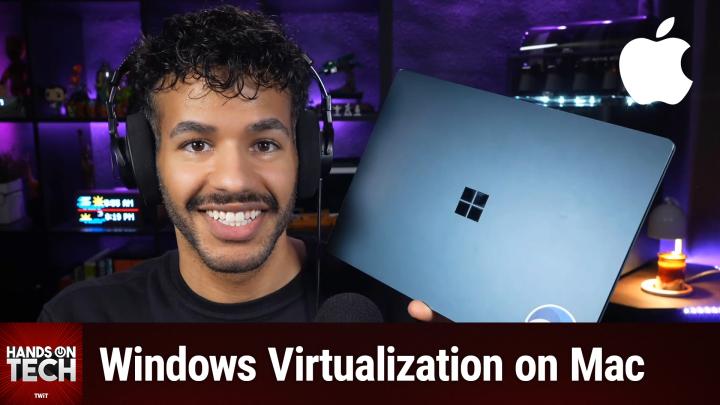
Hands-On Tech 265
Please be advised that this transcript is AI-generated and may not be word-for-word. Time codes refer to the approximate times in the ad-free version of the show.
Mikah Sargent [00:00:00]:
Coming up on Hands-On Tech. Let's talk about emulating Windows on a Mac. Stay tuned. Hello and welcome to Hands-On Tech. I am Mikah Sargent and today we've got questions that need to be answered. And that is what I like to do here on the show. Take your tech questions and do as I say.
Mikah Sargent [00:00:30]:
My diddly dad gum besting answer them. Today we are hearing from Lance, who has written in with, I think a really good question. In fact, so pleased with this question that Lance has pointed out that this could be a question that would help many people. Lance says, I have a guy. This is often how I start out, something to my therapist. Whenever I don't want to talk about myself, there's a guy I know who's definitely not me. Anyway, Lance says, I have a guy who has an M4 Pro Mac. He downloaded Windows 11 on ARM from Microsoft and installed it under UTM.
Mikah Sargent [00:01:07]:
Now, UTM is a tool that lets you essentially emulate Windows on ARM devices and so you can do so on Linux and on your Mac. So it's just a virtual machine app. But anyway, Lance goes on to say now he wants to activate it and needs to know how he can do so. I also would like to, and I'm sure many Mac users that lost Boot Camp and need to run Windows apps will want to know. So this is for all of them. Yes, as you may have learned and if you didn't know, well, I'm so sorry to be the one to tell you that ever since the transition to Apple Silicon Apple's Boot Camp option, the ability to dual boot into Windows or macOS was taken away. And now we have to go to third parties to do so. But there's something important to understand.
Mikah Sargent [00:02:06]:
So Lance was talking about how his friend downloaded the Windows 11 on ARM ISO from Microsoft, installed it, and is now trying to use it. That may be where you would go, okay, so then just put in the license code and start using it, right? No, because when it comes to using Windows on a virtual machine, you actually need to have the proper license, otherwise you may run into issues. So the short answer is you need to go to Windows directly, or, excuse me, to Microsoft directly. You can go to an authorized reseller. But don't play the guessing game because you'll go to an authorized reseller and then find out that they are a quote unquote authorized reseller and that it doesn't. Yeah, don't go to Microsoft, buy a Windows 11 license, and then enter the product key in Settings System activation. Microsoft, of course, sells its Windows 11 Home for $139, Windows 11 Pro for $199. And the reason why you need to do it this way is because Microsoft has very specific rules when it comes to Windows 11 on ARM.
Mikah Sargent [00:03:27]:
Okay, Windows 11 on ARM is licensed for use in virtual machines on Apple Silicon Macs it is so you can use Windows 11 on arms on Apple Silicon Macs. However, Microsoft has it only licensed through authorized solutions. What does that mean? Well, pretty much there's one company that has, well, there's one well known company that has this authorization and that's Parallels Desktop. I should say one, one solution that has this not company and that is Parallels Desktop. In fact, there's a page that is explains how Parallels Desktop is the authorized solution from Microsoft and it will give you the ability to run Windows 11 on ARM. So let me see, let me find it. It says run Windows 11 on Mac with a Microsoft authorized solution. The first Microsoft authorized solution for integrated Windows 11 Pro and Enterprise on Macs with M1, M2, M3 chips.
Mikah Sargent [00:04:31]:
So understand that you need to have that authorization to know for sure that you are running Windows 11 on ARM, on ARM, on Mac, on Apple Silicon in a way that Microsoft approves. Practically speaking, a retail Windows 11 license key purchase from Microsoft will activate in a UTM virtual machine. So again, that open source UTM tool. But just know that you do exist in a gray area as far as Microsoft's licensing terms go, which means that Microsoft could at any point change licensing behavior. So if you've struggled to get that version of Windows activated, it is because Microsoft is noticing that it's not an authorized version of Windows 11 on ARM and therefore it is not allowing you to do so. Of UTMost importance, there are many different solutions out there. Like I think it's, it's ebay that has one. I know I'm a little bit busy.
Mikah Sargent [00:05:43]:
Ebay that has one. It is there, there are other tools out there that all have these tools that will let you buy these, these licenses for Windows for, you know, 20 bucks or so. Crucially, crucially, these volume license keys, these, these, these discounted keys, do not buy them for this specific purpose. Now I have heard good stories. I think Leo, in fact was one person who purchased a Microsoft Windows license through one of these tool or one of these services and was able to get it working and it, and it went just fine. However, a lot of times volume license keys get revoked and so you could end up buying a key and then finding out that oh, Microsoft says No. So they work for a while and then they get deactivated. So you don't want to mess around with that.
Mikah Sargent [00:06:47]:
The best thing that you can do is go to Microsoft and buy a license there. If you sign into the VM with your Microsoft account after activating, understand that the license gets tied to that account. So activation becomes easier if you rebuild the VM later. So just bear that in mind. Buy a real version of Windows 11 on ARM. Excuse me, a Windows license on ARM. After you've bought it, plug it in, log in with your Microsoft account, everything just kind of falls into place. Let's talk about kind of the virtualization landscape when it comes to Apple Silicon.
Mikah Sargent [00:07:26]:
And as, as I mentioned, it's changed, right? Boot camp dead on Apple Silicon. Dead and not coming back. We've heard the complaints, the pitchforks have been raised. None of it makes any sense. Not not makes any sense. None of it is allowed, right? Boot camp completely dead. Apple Silicon. Macs cannot boot x86 Windows natively and so you are essentially running Windows 11 on ARM.
Mikah Sargent [00:07:53]:
And then Microsoft has a built in what's called Prism emulation layer that runs x86 and x64 Windows applications. So most apps are going to work some those that have kernel level anti cheat. So these are games as well as low level drivers or perhaps older 32 bit installers will not work with these emulators. But there are some options out there for you. The first one Parallels Desktop. It is the premium polished option and it's the only well known Microsoft authorized Solution. Now it's $99.99 a year for Standard, $119.99 a year for the more expensive version. Or you can also, I believe that there's a sort of in perpetuity license that's available that use.
Mikah Sargent [00:08:52]:
But the only thing to understand is that that perpetual version only supports the current macOS version. So it's tied to that macOS. So essentially you would either need to stay on that version of macOS or buy a new license going forward. So really they're pushing you towards that subscription service and makes a lot more sense that way. Now here are the pros right of doing it this way. Well, first and foremost it's got, I'd say the best version of macOS integration I have seen because it doesn't require the full dual boot if you don't want it to where you have to sort of leave macOS and hop into into Windows. There's a thing called coherence mode and what it does is that it kind of lets you run Windows apps as if they're Mac apps, and then you can drag and drop between the two OSs. You get a shared clipboard and then Windows 11 will download and install with one click.
Mikah Sargent [00:09:52]:
So it's all very easy. It's also important to understand that Parallels offers the best graphics performance. So it's, excuse me, it is going to be a step above the rest when it comes to really, truly working on macOS. And the weakness of course is that there's that subscription model. People don't like that the perpetual license is limited. People don't like that. So if you want something that just works and you don't mind paying the price for just works, then this is the choice for you because it just works and it's authorized by Microsoft. Another option, Interestingly enough, is VMware Fusion.
Mikah Sargent [00:10:40]:
I laugh. For those listening and wondering why he's laughing. Why am I laughing? It's because the chat is giving me, giving me crap and it's hilarious. So anyway, VMware Fusion is free for personal use now that broadcom has acquired VMware. And so that's something to bear in mind if you are using it in a personal way, which you lance would be then it's free. You do need a subscription for commercial use, frankly, when it comes to its strengths, free, hard to beat, solid mature virtualization platform like it's been around for a long time as well. Good performance. It's does support Windows 11 on ARM as far as if that changes, maybe.
Mikah Sargent [00:11:23]:
But for now, yes. Here's the other but here's the big problem is that setup is a lot more hands on than with Parallels. You have to Download the Windows 11 ARM ISO yourself. You have to configure things manually. MacOS integration features, they don't work the same as Parallels Broadcom, now that it owns VMware, people have complained about how Broadcom has taken care of, or perhaps not taken care of VMware in a way that it needs to be. And so whether it will continue to be A free and B supported and C updated and taken care of is very much a shruggy emoticon. The best thing that you can do is again Parallels, but then after that would be VMware Fusion as an option. For now, if you're comfortable with a bit more setup and you want a capable VM virtual machine without having to pay for it, then VMware Fusion is your go.
Mikah Sargent [00:12:28]:
In fact, perhaps if you're sort of price conscious, you could start with VMware Fusion and see if it's enough for you as that free option and then make that change to parallels if VMware doesn't work out for you. I believe Parallels also includes a nice trial, so you'll also get that option as well. Now, I'll be honest, I had not heard of UTM other than when we're talking about time. And so I had to learn a little bit about UTM. It's a free and open source virtualization tool. It's built on qemu. I assume that's emu but with a Q at the front. So I'm sure there's a way to pronounce that qmu, who knows? But anyway, that's UTM and it is free to download from the website.
Mikah Sargent [00:13:17]:
You can pay 10. Thank you. Really. Chem you. Are you lying? Paul? I'm being told in the chat that it's Qemu in any case, free from the website, 9.99 on the Mac App Store. And that's just to help support. That's the way to help support development of the app. And they are identical in both places.
Mikah Sargent [00:13:41]:
Free and open source. So if you do get it from its website, free and open source. And it doesn't just run Windows on ARM, but it'll also run x86 Windows via emulation. Incredibly slow, but it is possible. And it also runs a bunch of other operating systems as well. So it's not just for Windows. It's important to understand though, when it comes to its weaknesses, it is the slowest performance of the virtualization options for Windows also set up most technical. You gotta check out the guide.
Mikah Sargent [00:14:13]:
You check out this guide, you're going to see it is filled with stuff. It's filled with stuff. Limited macOS integration as well, not Microsoft authorized for Windows. And so be careful. It is best for the people who are tinkering for the hobbyists, for the people who run Windows occasionally for light tasks. But ultimately, not only are you going to run up against the need to tinker to get things right and the settings to get things right, but you're also then facing Microsoft's ability to pull the rug out from under you at any time because it's not an officially supported tool. There's one other tool that came forth when I was researching the answer to this question and it's a tool called Crossover. Crossover.
Mikah Sargent [00:15:09]:
$74 annually. $494 for a license in perpetuity across all versions, across it completely. You can have it forever as long as the company's still around and a free 14 day trial crossover is not a virtual machine. Crossover is instead a tool that provides a sort of compatibility layer. Now this is based on wine. Wine has been getting a lot of shout outs lately. And basically what it does is it says, I know the language that Windows speaks and the way to communicate with Windows via API. And so what I can do is I can be the translation between Windows and macOS.
Mikah Sargent [00:16:06]:
So it takes what you do on the Mac and translates it properly into Windows, which then, well, the way that Windows speaks and then interacts with whatever, whatever app you're trying to run. So how is that different? Well, it, I think it. Let's, let's try to give a metaphor here. Imagine French cuisine, right? Yeah, we'll go with that. And so you have this, let's say Escargot. You can go to France and have escargot, a restaurant in France. And that's equivalent to running a Windows app on Windows. And so you're basically paying for the plane ticket to go there.
Mikah Sargent [00:16:56]:
That's the subscription to Parallels to, to go to France and have Escargot there. Right? This is equivalent to, to knowing a little bit of French and directing a chef to make some escargot for you while you're in the US so you stay on macOS, everything's fine there. But this just knows the language that, that specific app that Escargot speaks and is able to then interact with it. So you don't have to install Windows, you don't have to fly to France to use this. There's no Windows installation at all. Instead you install the app, the.exe file and then Crossover will run them. So you don't need the Windows license, you don't need a virtual machine. They run in a window and then you are communicating with them as if it's just a Mac app that you're running.
Mikah Sargent [00:17:59]:
So it doesn't require as much resources. I've also heard that Crossover is pretty good for gaming. Surprisingly so. And so you can in some cases play games that you would. Well, that you could definitely do in virtualization, but would not necessarily be able to do otherwise. So really interesting thing that said, when it comes to weaknesses, it really is a hit or miss kind of thing. Some apps will run perfectly, others won't run at all. Many will, but they have little quirks.
Mikah Sargent [00:18:29]:
And so there is a great compatibility database from CodeWeavers, that's the company that makes this tool. Check out that compatibility database before you buy. Or, you know, just try the 14 day free trial, try to run your apps, see how that goes, then look up those apps in the compatibility database to see what notes are there about what you could do to improve it or not. So if you need to run one or two specific Windows apps and want to skip the whole VM situation entirely those virtual machines, then Crossover might be the tool for you. So let's summarize. For most people, Parallels is going to be the best option because yes, it's expensive, but it does a lot of hand holding for you and it really just works. Plus, something that's always important to me, to the best of my ability, I'm always going to choose the thing that is that has been given the go ahead right by a company. And so Parallels is the blessed Microsoft solution.
Mikah Sargent [00:19:38]:
And so if I can afford it, that's what I'm going to go with. If you're budget conscious, but you do want a full Windows experience, then VMware Fusion Best Value right now for as long as it's around. If you're a tinkerer and you only need Windows, occasionally UTM can do it. And if you only need one or two specific Windows apps, then go with Crossover first. If your apps are compatible, then you don't even have to worry about licensing. You don't have to worry about the resource overhead, you don't have to worry about all of that. So my suggestion is try Crossover first before anything else. Then go to.
Mikah Sargent [00:20:13]:
Since you're already playing around in UTM, I guess play around in UTM, but you're going to have to buy that Microsoft license directly from Microsoft and then from there I would honestly go Parallels. I don't think I would use VMware Fusion. I know it's free, but just I guess maybe I could use. You could use VMware Fusion for now and then eventually when Broadcom says okay, we're not doing this anymore, then make the switch to Parallels. But it's just Parallels is such a clever and clean solution that it's almost not, not worth it to mess around. But you know, ultimately it's up to you and we do have to be mindful of, you know, costs always. This is the case, the universal caveat. If your use case involves anti cheat protected games, specialized hardware that's going to need Windows drivers or x86 only enterprise software that has special kernel components, none of those solutions may work.
Mikah Sargent [00:21:12]:
And in that case my answer for you is you're just going to need to buy a cheap Windows PC. But it's been my experience that most people who are asking me this question. Are asking me this question because they want to play games that they could play on a Windows machine on their Mac. Secondarily, it is then folks who used to be on Windows and have a favorite app that they used on Windows that does not have a Mac counterpart. And so they hope to run that app, which is where crossover could come into play. So that is my answer for Lance on using windows on macOS in this modern world of no boot camp. All right, folks, that's going to bring us to the end of this episode of Hands-On Tech. Email me mikah@twit.tv.
Mikah Sargent [00:22:11]:
Or you can also email hot@twit.tv. That's the one I actually meant. hot@twit.tv is how you can get in touch to ask your question and have it answered on the show. Thank you so much. And I'll be back next week with another episode of Hands-On Tech. Bye Bye.