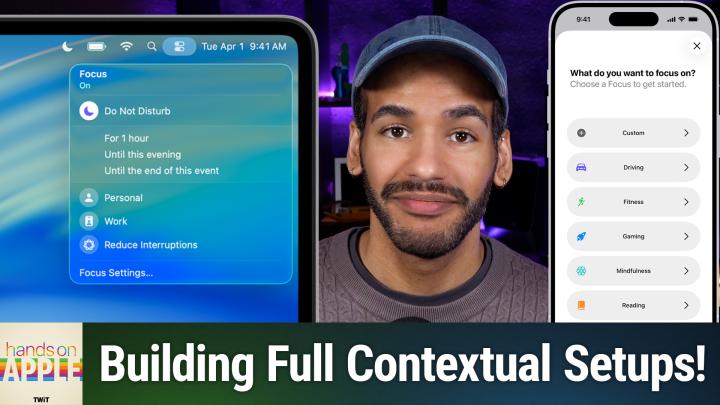
Hands-On Apple 228 transcript
Please be advised that this transcript is AI-generated and may not be word-for-word. Time codes refer to the approximate times in the ad-free version of the show.
Mikah Sargent [00:00:00]:
The hardest part of focus modes isn't the technology. It's actually knowing what you want to build. Apple gives you a pile of presets and a blank canvas and says, hey, let's see what you make of it. And most people either just use do not disturb and call it a day, or they build something incredibly elaborate once and then never actually touch it again. So today I want to show you three setups that are actually useful, explain the reasoning behind each decision, and then have a real conversation about where this whole system is, frankly, still kind of clunky. So let's get into it. Podcasts you love from people you trust. This is Twit.
Mikah Sargent [00:00:49]:
Welcome back to Hands On Apple. I am Micah Sargent, and today we are continuing on with our work regarding the focus modes that you have on your device. Now, if you've done your homework, then you've been following along this whole time, and by now you know not only what focus modes are, how to access focus modes, but also how to create them. And now in this final episode, we're going to take a look at three focus modes. And the first one that we're going to work on is called, well, work, because this is the one that most people will get, you know, use out of. So we'll start here and kind of dig into it. The idea with a work focus mode is to cut out those personal distractions, right? These opportunities during work hours where you might end up missing something important. And that is because you're distracted.
Mikah Sargent [00:01:41]:
But you also want to make sure that family and close contacts are still able to get in touch with you, you know, for emergencies or whatever it happens to be. The goal is to make the device look like it's in work mode as well, so that there's a visual cue every time you pick it up. It kind of puts you in work mode, and then it also lets you automate it so it runs without thinking about it. Now let's dig into how we to set this up. We're going to set it up today on the Mac, but remember that your iPhone and your iPad can also play the game. And in particular, with an iPhone and an iPad, you have the ability to, as we showed before, change the lock screen, for example, which does give that feel. So let's take a look over on macOS what this looks like. Let's take a look at what this looks like.
Mikah Sargent [00:02:23]:
Yes, we're going to launch the System Settings app and we are going to head down to Focus. Now, you'll note that the only focus mode this device has right now is do not disturb and reduce interruptions. Reduce Interruptions is a focus mode that uses Apple intelligence as we talked about, to create or to to activate and make sure that most stuff isn't getting through, but the important stuff does. But let's add a focus. We're going to call it work and it turns out that there's already a work focus mode sort of set up with a nice little icon and everything. And what we want to do is set things up based on the people who we do want to get through. So allowed people, who are these people going to be? Well for Micah Twit, these people will be this person's family. So their significant other plus their family members, which as you remember Micah Twit is this person's name.
Mikah Sargent [00:03:26]:
So of course their last names are Twit as well, save for their partner. So all I did was I clicked on the Silence notifications section where we have allowed people and remember that before we talked about how it can be an allow list or a block list. In this case it's an allow list. I'm choosing Contacts and then I'm using my categories here in Contacts to select family and then shift click to select all of these family members. That means that these people are able to get through. Now when it comes to what who we're allowing calls from, in this case I'm going to choose allowed people only. You could also very easily just choose family and so that will make it easy to have those selected options again. That also means that if you ever change who family is, it is a much easier thing.
Mikah Sargent [00:04:24]:
And then allow repeated calls. We talked about this as well. It means that a second call from the same person within three minutes will break through. So that's good. Allowed apps. Now with this we probably want the work communication tools, right? Like Slack. So Slack is not installed on this device because this is the Micah Twit device. So let's pretend if you will that the.
Mikah Sargent [00:04:49]:
Well let's go with this. The Tips app is your. Your Slack app, your whatever it happens to be. It could, you know, Microsoft Teams, what have you. We also want to get things from mail, we want to get notifications from reminders and we want to get notifications from calendar events. And do we want as well phone? Yes we do. Now these apps are allowed to send us notifications. We can also decide whether time sensitive notifications come through.
Mikah Sargent [00:05:25]:
This of course will depend on whether you are what apps you're choosing to allow you to send time sensitive notifications. And my recommendation there is that you head into that feature and you make sure that apps are being responsible and reasonable about those time sensitive notifications. And if an app is kind of cheating on that, then go ahead and say, no, I don't want that app to send me messages. So you can turn them off individually by going to settings, going to notifications and then turning them off that way. So now we've set up allowed people, we've set up allowed apps, we can then go in and set up our focus filters. Since this is a work focus. Remember that focus filters are a tool that tells certain apps how you want them to filter the content that they're displaying. So in this case with the calendar, we would want the twit recording schedule and we would also want our work calendar.
Mikah Sargent [00:06:32]:
We'll choose add. That means that when this focus mode is turned on, only my work calendars are going to display. And then for mail we will set up so that it only shows our work calendar or excuse me, our work mailbox. And then we can also set up one for messages that makes sure these are filtered and it does so by people list. So what that's going to do is it's only going to filter and show those notifications from the people that we have in the allow notifications section. Very cool to be able to say, hey, this is all I want you to have set up. Now the last category that we want to add to the filter list is Safari and we want to change the filter type from either profile or tab group. We've talked about profiles, we've talked about tab groups.
Mikah Sargent [00:07:37]:
We're going to choose profile in this case and we will choose our work profile. And so now when this work focus is turned on our people, our family, the apps that are allowed to contact us include our work apps and apps that also have special schedules or special sort of push through options. And then we've set up these focus filters as well. The next thing that we're going to do is set up a schedule. So we'll head into set a schedule, we'll choose add schedule. And let's base this around first time. So nine to five, let's say you work Monday to Friday. Nine to five.
Mikah Sargent [00:08:20]:
Yay. Dolly Parton would be proud. So now the work focus turns on on this device we can also set up another one that's sort of a backup if you want and it's a location option. Now I'm not going to do that. It'll pop up my location. But essentially what that will do is say either when it's 9 to 5 or I should say it's and because it will either of these will trigger the work focus. So you can say, hey, when you arrive at the office, turn this on. But also nine to five, turn this on.
Mikah Sargent [00:08:58]:
And so scheduling alone for me, as someone who works from home, and probably from many of you who also work from home, a a location based change is probably not the best. Now again, I have this focus mode set to turn on from nine to five. It is between nine and five, which means that if I launch Safari, in theory, it should automatically go and it does, to the work profile. That also means that if I launch the messages app, then it will only show messages from the people in my allowed people section. And because none of those people have sent me messages, I don't see any messages. If I head into mail, then I should have it. Aha. So personal is it shows the little sort of sleepy icon work is showing that they're all showing up.
Mikah Sargent [00:09:52]:
And so in the all inboxes section, it's actually only showing me my work mail. And these are fake work email messages that I created. So not actually real. And so that's filtered as well. So you've seen everything except for calendar. Here you can see that in my calendar, the only thing that's popping up right now are work schedule and twit recording schedule. Now if we head up into our menu bar whoops. And head into Control center, we can turn the work focus mode off.
Mikah Sargent [00:10:35]:
And you'll note that immediately all of our calendars reappear. We turn that back on and now we're back in our work focus. So this is doing what we were hoping it would do. It's helping us to cut down on what would otherwise be a distraction and make sure that we're only setting things up to play through for work. Now, again, on iOS iPadOS, you can also tie a home screen and a lock screen to this. So you could set something up that is perhaps kind of minimal. You know, a dark wallpaper, a dark lock screen, and your widgets, for example, could be like your next calendar event. Maybe it'll show you your reminders that are in your work list.
Mikah Sargent [00:11:26]:
Oh, that's another category that we could actually set up where we've got our work options in our in the reminders app as well. So just those work tags showing. You can also set it up so that the first page of your home screen just has your work apps like Slack and Mail and Calendars, that kind of thing. And keep those social media apps out of the way. So that's a look at what the work focus could be. Let's create another focus, this time called Wind Down. The idea here is that it's an evening transition. It's about telling your device, and frankly you as well, that the workday is over.
Mikah Sargent [00:12:06]:
So you want kind of this end of day transition. It's going to pull you out of work mode into rest mode. Maybe you're not going to get these late night notifications from work, but it's not full do not disturb. And then on your iOS iPodOS device you can also set it up so that you know you've got something sort of soothing. So let's see what this looks like. Well, we will take a look at Mac OS here. Add this focus. We'll call it, well, we'll choose custom and we'll call it Wind Down.
Mikah Sargent [00:12:34]:
And I want to find something that looks kind of chill which is a sun going down. And I think this purplish blue color, this sort of indigo color is a nice soothing color. So who is going to be able to get through? Well, I think we will do our family members once again and then we will also do our acquaintances. Will we allow calls? Yes, we'll allow them from favorites and we will allow repeated calls as well. The apps that we're going to allow, let's go with messages, let's go with phone and let's go with, let's go with. You know what, those are the only two we're going. Well, we'll allow FaceTime as well. And no, we're not going to do time sensitive notifications.
Mikah Sargent [00:13:49]:
We're trying to wind down for the day again. We're allowing repeated calls for emergency situations. But this is all about, you know, reducing urgency. So we're chilling out, right for our focus filters, we'll add a filter. We'll choose mail and we will set it so that only the personal mail gets through. For other categories. Oh, messages. Well, no, we will, we'll leave messages alone.
Mikah Sargent [00:14:22]:
So we're just adjusting the mail there. If you wanted to, you could turn off your work calendar and just do personal. That way you're not looking at these things and going oh goodness, what am I going to do? What's happening tomorrow? What's going on? This is also a great time on your iOS at our IPadOS device to also enable something like low power mode where those automations can actually be locked in for your device and are not just specific to those apps. Lock screen and home screen. Maybe you do something that's less blue. It's a warmer screen. Your lock screen widgets get cut back. Your weather perhaps for tomorrow, maybe some activity rings, but nothing productivity related.
Mikah Sargent [00:15:08]:
Right? Your home screen has those personal apps instead of the work apps. And that way you are just kind of chilling out. And this is going to be set on a schedule of 9 to 5 is work, let's say, oh, 8pm to 6am will be our wind down and there's no reason for this to not be set every day. So we'll do that. So now what happens is during wind down, it cuts back on the people who are allowed to push notifications through. You will still get these messages from other people, but the notifications won't come through, only notifications from the apps that we chose. It happens every day from 8pm to 6am and it will also limit the calendars that you can view and the inboxes that you can view after that specific time. This is separate from of course, the sleep focus, which will activate based on the settings that you have within your health app.
Mikah Sargent [00:16:18]:
So you will within your health app and within the clock app. So if you are looking to activate that as well, this can essentially hand off to the sleep focus at bedtime. And so wind down should end and your next one should pick up based on when you do your sleep focus. So you'd want to change the schedule based on that. So now we've gone ahead and locked in work. We've locked in wind down. What about something, something in between? Let's go with a focus for the weekend. A weekend at Bernie's, if you will.
Mikah Sargent [00:16:59]:
So we'll choose that. We'll create another custom one. We'll call it Weekend. We'll give it a nice orange color. And I think the weekend has. I'd love a sun, but I don't see a sun on here. So instead the weekend will just be a little person here. No, we'll go with an asterisk.
Mikah Sargent [00:17:25]:
No, we'll go with a star. Okay, we're locking in with star. Okay, now with this, we would choose, probably for me, I think for a weekend thing, I would perhaps choose to silence certain groups. So maybe I know that there are a couple of people at work who send messages on the weekend, but they can just wait until the week. And so we can choose to add them to the silence. And then maybe under apps we do the thing, we silence certain apps. So in this case we would silence notifications from. Oh, mail.
Mikah Sargent [00:18:11]:
We don't want to check our mail on the weekend. We can. We don't want to get notifications from our mail on the weekend, we can always check it. Remember, I don't want mail notifications and frankly, I don't want. Remember we're pretending that tips is slack. I don't want slack notifications. And we'll go ahead and still allow time sensitive, right? Then that gives us the ability to say, okay, these people are not sending us messages. It's the weekend.
Mikah Sargent [00:18:39]:
And these apps are not sending us messages notifications because it's the weekend. What can we do for filters? Well, we can set it up so that only the personal mail comes through. We can set it up so that only the personal and family calendars come through. And we can set it up so that the Safari group is. Excuse me, the Safari profile is set to personal. That keeps us from accessing our work stuff. It locks things in for a nice relaxing weekend. You could do something fun like a family photo, you know, having your activity rings in a photo widget on your lock screen, making it so that your sort of casual fun apps are on the home screen.
Mikah Sargent [00:19:31]:
And then of course we would want to set up a schedule based on time. This would be, whoops, Friday, Saturday, Sunday for example. And well, let's do Saturday and Sunday from, from. 12am to 11:59pm and then also Fridays. From 7:00pm to 11:59pm Boom. So now Friday, Saturday and Sunday we've got our weekend schedule added and these filters are locked in as well. So now let's look back. We've got the do not disturb filter which basically turns off everything.
Mikah Sargent [00:20:29]:
There is a schedule that is plugged in here that says from 10pm to 5am do not disturb me. No notifications, nothing coming through. Reduce interruptions, which is a special mode that uses intelligent breakthrough and silencing. So these are AI features, Apple intelligence features for determining what's important. Weekend, which we've set up so that a lot of people are blocked wind down where only some people are allowed through. And of course our work focus, which helps make it possible for us to get to work and not be distracted, but still know that if we need to get in touch or if someone needs to get in touch with us, we can. So three episodes in it's only honest to talk about the rough edges when it comes to focus modes, because they're real. First of all, you need to understand that even though there is that share across devices toggle cross device sync is inconsistent because focus settings are supposed to sync across your Apple devices via icloud, but it isn't always fast and it's not always reliable.
Mikah Sargent [00:21:33]:
Sometimes you will turn a focus mode on on your iPhone. Your Mac might take a few minutes to catch up. Sometimes it just doesn't catch up and it has gotten a lot better. I've noticed the sync has improved, but if you have struggles with that, I recommend turning off share across devices and just enabling them on your dev by hand. But give it a try first. It may work for you, in which case you won't have an issue. Also, as I mentioned during our last episode talking about focus filters, third party app support for focus filters in particular very limited. Apple's built in filters for mail, calendar, messages and Safari.
Mikah Sargent [00:22:11]:
They're great. But if you want focus filters for some other third party apps, the ones that you maybe use, not all of them support it. Luckily fantastical does. But developers have to build the support in and adoption has been slow. Sometimes apps do it but do it poorly and so that's also a notification or an issue. Now, allowed notifications can kind of be a little bit confusing and I want to make sure that you understand how this works because people think people go, okay, what is an allowed notification? Right? Because there's like confusion about whether silenced notifications are delivered immediately but quietly, or if they're held back and delivered later. They're delivered but they're not presented to you. So there's no sound, there's no banner, there's no badge.
Mikah Sargent [00:22:57]:
In most cases you will see them in Notification center and then of course you'll also see them when the focus ends. But it depends on the app it defend depends upon each developer's implementation, so it isn't always consistent. You may think that the notification is only appearing to you because you've switched from the focus mode. But the fact is the notification technically was sent when it was supposed to be, but whether it's presented to you is what changes based on the focus modes should also note the time sensitive notifications heavily abused by apps. This flag was supposed to be for like actual urgent stuff, but some apps will use it, you know, however they want to promotional pushes, engagement hooks, social updates. So it's important that you, you know that you can turn off time sensitive notifications per app. You head into settings, you go into notifications and then you go into the app that is offending and say no, you don't get to do time sensitive notifications. And then I also think it's important to understand that there's no way to quickly preview what will and won't get through.
Mikah Sargent [00:24:00]:
It'd be nice if there was like A test this focus feature where you could see, you know, simulated notifications like in Slack, where you can test the notifications before they come through. That way you know the gaps, the issues, the problems. And frankly, when it comes to setting up focus modes, we gotta say it out loud, the whole system is kind of a lot because there are multiple settings screens, each focus has its own configuration. There are some focuses that Apple provides for you, some that you add later. Lock screen pairing happens in a completely different space. Focus filters buried at the bottom of each focus automations live in yet another spot. Most people never touch any of it because the learning curve is real. And well, that's not your fault.
Mikah Sargent [00:24:43]:
It's a design challenge that Apple I think still hasn't fully solved. Also, schedules can be kind of rigid because recurring schedules do work well. But one off exceptions, not so great. If you want your work focus to not activate on a specific Monday because you just so happen to be taking that day off, your options are to manually turn it off each time or to temporarily disable the schedule. And frankly neither is elegant. So some sort of skip this focus would be nice as well. All right folks, over three episodes we've gone from focus modes are just fancy, do not disturb to actually building out full contextual setups that change how your device behaves, what it shows you and even what it looks like depending on what you're doing. So you've got some real examples to work from for work, for wind down for weekend, and you've got an honest take on where the system is still clunky so you're not caught off guard.
Mikah Sargent [00:25:39]:
The single best piece of advice I can leave you with is this. Don't try to build the perfect focus setup in one sitting. Instead, build something that you know is roughly accurate for what you think it's going to be. Live with it for a week. Pay attention to what gets through that shouldn't, what doesn't get through that should, and then make some adjustments because focus modes reward iteration. So the version that you're going to be using six months from now probably won't look exactly like the one that you built today. And frankly, that's exactly how it should work. Thank you so much for tuning in to this episode of Hands on Apple.
Mikah Sargent [00:26:17]:
Thank you so much for checking out my series on focus modes and of course I will catch you again next week for another episode of Hands on Apple. Bye bye.