Hands-On Apple 221 transcript
Please be advised this transcript is AI-generated and may not be word for word. Time codes refer to the approximate times in the ad-supported version of the show.
Mikah Sargent [00:00:00]:
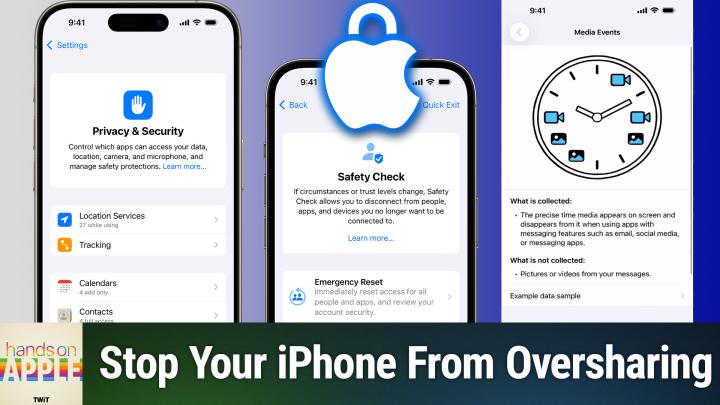
Coming up on Hands On Apple, let's take a look at our privacy and security settings on iOS. Stay tuned. Podcasts you love from people you trust. This is TWiT. Welcome back to Hands On Apple. I am Micah Sargent, and today we are taking a look at some very important settings that are available to you in your Settings app on iOS. Now, these settings are going to be similar to the ones that you would find on iPadOS. You can also find many of these settings in System Settings on the Mac, on macOS Tahoe, in the Privacy and Security section as well.
Mikah Sargent [00:00:49]:
And that's kind of the nice thing about this is that across different platforms, you can expect to be able to have control over many of the same settings. Settings. So let's head over to iOS in this case and take a look. All right, here we are on iOS, and as you can see, I am on my home screen. I'm going to launch the Settings app, and we'll go back to that main page of the Settings app, and we'll scroll down until we see Privacy and Security. It is in the section that includes Face ID and passcode and Emergency SOS. Tapping on Privacy and Security immediately brings up a page where we can take a look at what different, uh, Permissions we have given over time. Now, we've talked in the past about a lot of these.
Mikah Sargent [00:01:31]:
We've talked about what you need to do in terms of location services. So this is an app's ability to track you by your location. You can see that in iOS, it is showing that there are 10 apps that always have access to my location, 118 apps that have access to my location when I'm using them,, and then of course there are loads more. Now with location services, again, we won't go into detail this time, but you can go in there and toggle those on or off. And of course when you get a new app and you launch it and asks you for your location, that is where it is, uh, stored afterward, that ability to turn it off. The tracking section is a little different. This is apps, an app's ability to track you by your activity across other apps. So what this means is that When you use a specific app, say Facebook, it collects a little bit of information about you.
Mikah Sargent [00:02:33]:
And then because it has that information about you, when you go to another website that has some sort of Facebook code on it, so for example, a like button or a share button that comes from Facebook, that little bit of code can go, oh, I recognize that person. I know that that's a person who was on the Facebook site earlier today. And now they're here and I can understand that they visit this page, collect a little bit of information about you. So turning this off gives you the ability to say, no, I don't want you tracking me across other sites or other apps. It does not stop the app from tracking your activity within the app. That is a completely different thing. So up at the top, you'll notice that I have allow apps to request to track toggled off. That means that they're not able to ask me in the first place and therefore are essentially denied by default.
Mikah Sargent [00:03:26]:
Turning this on allows you to be tracked, and there may be reasons for you to want to have this on, although I can't think of many. But if you do like really personalized ads, for example, this is one way to make sure that you're able to do that. Now let's go through these other options here. Calendars gives the app the ability to view your calendar. What's great is that iOS actually breaks this up between full access, being able to both write and read from your calendar, so can see other appointments that you have, add, remove. And then there's an option that says add only. That means that the calendar, or that the app is not able to actually look at your calendar and see your events, but can only add events to it. This is great because turns out this is another way that different apps will try to track you is by looking at what's on your calendar and gaining information from your calendar, like the contacts that you have included in your calendar via your invites or location information that's included in your calendar by way of the location section.
Mikah Sargent [00:04:31]:
So there's lots of stuff that can be collected there and giving it only add access means it doesn't have the ability to read anything. Contacts, this gives you the ability to let an app actually access your contacts and this also has some different options so you can say, only certain contacts it's able to interface with, or, or full access, which of course gives it the ability to access everything. Files and folders gives an app the ability to access your files and folders in iCloud. Focus lets an app not only read what the current focus mode is, but interact with the focus mode. So for example, uh, Fantastical, my calendar app, knows when I'm in a specific focus mode so that it can change the calendar set that I have for that app. Health. Lots of stuff there. We've talked about health privacy settings before, so we won't go into detail, but essentially what apps are able to access some or all of your health data.
Mikah Sargent [00:05:33]:
Home, which gives an app the ability to see your smart home information, your specifically Apple smart home information, what accessories you have, control accessories, add accessories, remove accessories, read what an accessory is putting out. Media and Apple Music. This is a special feature where some apps give you the ability ability to access your Apple Music library. And in some apps, you can also interface with your Apple Music library, adding or editing playlists, changing albums, et cetera. Passkeys access for web browsers. What this does is it allows third-party web browsers like Chrome, like Firefox, to gain access to the Passkeys in your passwords app so that you can log in. Photos, which has full access, limited, and add-only limiters. So you can say only able to add photos to my library, but not able to look at photos in my library.
Mikah Sargent [00:06:32]:
Limited, which says this app has access to a certain number of a certain specific set of photos. And then full access, which allows an app to look at and interact with all of your photos. Again, a privacy feature. Your photos often contain location information. They may be tagged with specific people. There's lots of information they get It's added your devices, the specific devices that you took the photos with. Loads of reasons why you may not want your, an app to have more access than is necessary. Reminders lets an app interact with, change, delete, remove, update your reminders.
Mikah Sargent [00:07:07]:
And the Wallet option, which there are two sections in here. One that says whether an app is able to automatically add passes to Wallet. And in this case, I have NeatPass set up to do that. I've talked about NeatPass on iOS Today before, but this app essentially can create passes from a PDF and you can just choose to add them. And instead of having to go through the process of saying, yes, this pass looks good, add it, it will just do it automatically. And then some apps are able to access wallet information. And in order to do so, in order to access that financial information, they need to have this permission granted. Now, this next section is a lot of fun.
Mikah Sargent [00:07:48]:
The first one is accessories. With accessories, these are apps that are specifically able to access certain accessories. It's a new protocol that Apple has set up where a, a device can kind of do a more private means of connecting between you and the device. Because again, apps are able to collect a lot of information if they're able to look around and see the devices that you have in your home. And so with this protocol, it can be a simple pairing between the device and your phone without anything else being involved. Bluetooth is very similar. It gives you the ability to let an app look at the— use the Bluetooth radio to look around and see what's being broadcast, to pair, to do all sorts of stuff. Technically, a lot of apps don't need to have access to Bluetooth, and so it could be great to go in here and kind of say, no, there's no reason that you need Bluetooth access.
Mikah Sargent [00:08:44]:
You're just using that so that you can find out what devices I have and then match that up to other devices to learn more of the devices that I have and more of my behavior to create a profile of me. Camera, you can imagine there are loads of different camera apps and they all need permission to do that. Critical messages, this is a specific feature that allows an app to send time-sensitive critical messages that will push through kind of anything. So there are not too many apps that have this permission and you can of course toggle that off. Local network, again, another place where you want to be mindful. Not every app needs to know what devices are connected to your local Wi-Fi, but a lot of them use that. And that's one of the sort of original profiling techniques for advertisers was to use your computer or your phone or whatever device you have to look at the local network and see what devices were on the local network because It meant that you could build a profile around a family instead of just an individual person. If I can see what devices are all connected to the network, and then, you know, Larry, who also lives in the house, opens up their phone and their app looks and sees, oh, the local area network has the same devices for Larry as they do for Georgia.
Mikah Sargent [00:10:09]:
And so Larry and Georgia very likely live together.. And so the things that Larry is looking at and things that Georgia is looking at, we should advertise to both of them. So making changes to your local network and just really going in and kind of being mindful of, does this specific app, does, um, does Final Cut Camera need to have access to my local network? Yes, because that's how it connects, it finds and connects to an iPhone or an iPad. Uh, does the Control Center app need to have access to my local network? Yes, because it is the device or the app that's used to control lighting and it needs to have Wi-Fi access. But does the Netflix app need to have access to my local network? In this case, no, because I don't have any Google Chromecast devices and therefore I don't need it to know what is on my network in order to be able to broadcast to Chromecast. The next option is microphone, of course gives you— gives the app permission to listen to your microphone. Motion and fitness, which is a pretty cool app that rather, a setting that lets you kind of figure out the movement of your phone, but then also your fitness activity. So you'll notice that on my list, there is an app in here, Progressive, that you might be going, why is that in there? Well, Progressive has a feature that lets you automatically contact authorities if you're ever in an accident, but Progressive can also then collect your motion and fitness information, which is its own thing.
Mikah Sargent [00:11:44]:
Nearby interactions. This is a setting that uses both ultra-wideband and Bluetooth to kind of see how far away a device is from your iPhone. I have yet to come across many apps or services that allow for nearby interactions, but it is a feature that is available. So when people make an app and a device, more importantly, that does this, that is a permission that they would need. Paired devices. So what it does is it uses the iPhone, uh, a device that's nearby uses the iPhone, and kind of when the phone comes into, into close, uh, contact with this device, then it can automatically work with specific apps. Uh, research sensor and usage data. So in this case, it is using the different information on your devices, in this case both my phone and my watch together, to provide information to different apps and different studies.
Mikah Sargent [00:12:47]:
So in this case, it's specifically for studies, and the information that's being collected is my wrist temperature, when my watch is on my wrist, stride calculation, speech metrics, phone usage, pedometer, all of this stuff. I could go into media events and say, hey, actually I don't want you to share that information anymore, and then I to go back and say, "Oh, elevation? Yes, I'm okay with you having that." And then speech recognition, which is a built-in, well, it's a tool that is built into iOS that allows for an app to instead of sort of set up its own means of transcribing what you're saying, just use the system's means of transcribing what you're saying. And so it will, of course, send your recorded voice off to Apple's servers to transcribe and then give you, well, give the app an output of text. Now, next we have journaling suggestions, and this one's pretty cool because this is going to use, it's going to use the activities that you do on your device to inform a journal suggestion so that you are reminded, hey, you may want to talk about this or talk about that. And so you'll notice that I have suggestions turned on for each of these categories. Activity, so my workouts and my exercise. Media, the stuff that I look at. Contacts, the people that I'm messaging or calling.
Mikah Sargent [00:14:22]:
Photos, so photos added to my library. Significant locations, the places where I spend time. And then state of mind, when I'm logging my moods. All of this can be used to help inform the system on sending me prompts for new journals to type in. You can also set up reflection prompts. These are prompts that will, are about kind of gratitude that are about, you know, thinking back on good things. And then I love this with the proper setup with your contacts in place and with, you know, those contacts being shared between device, the iPhone will look for nearby contacts and then make it so that those suggestions are further up in the kind of prompts. So for example, if, what was it, Georgia and I don't remember who the other guy was, but Georgia and Billy are hanging out a lot.
Mikah Sargent [00:15:18]:
Then the next time that the journal goes to say, hey, you might want to do a prompt about this. It's going to say, you know, you and Billy hung out here. And you took these photos, tell us more about that. So it's a great way to kind of keep up with what's going on in your life and practice reflection. Next is blocked contacts. Yes, it is stored in this section. It's actually in other places as well, but it's a way for you to quickly go in and understand which contacts you have blocked. And then there's safety check.
Mikah Sargent [00:15:50]:
Now, this is a really cool feature that we've talked about in the past, but I want to remind everyone, if you are ever feeling like your information is being used in a way that you do not want, you might want to look into Safety Check first. Tapping into Safety Check allows you to do two things. You can hit Emergency Reset, which I'll talk about in a moment, or you can hit Manage Sharing and Access. Emergency Reset is going to immediately make it so that no apps and no people have access to your information. What does that mean? Well, it means that your location information and any other sort of shares that you've done, notes, shared notes, um, shared photos, all of that is going to be turned off. And then the apps also are not going to have access to that information. So if you are worried maybe that an app has been installed on your device that is tracking you, or you're worried that someone is using Find My to track your location or whatever it might be, hitting that emergency reset button will take care of resetting those permissions. Manage Sharing and Access allows you to browse by either person or information, like the type of information that's being shared, in order to say, I see that this person has access to my location, that I have shared notes with this person, that I have photos with this person, and you can go in and turn any or all of them off.
Mikah Sargent [00:17:28]:
So depending on how you want to, uh, like what changes you want to make, that will determine whether you should choose Emergency Reset or Manage Sharing and Access. We're going to take a look at the rest of these settings right after we take a quick break so I can tell you about this week's sponsor of Hands On Apple. This episode of Hands On Apple brought to you by DeleteMe. If you ever wonder how much of your personal data is out there on the internet for anyone to see, and you may have gone and looked and then you went, oh wow, that's a whole lot more than I thought. Your name, your contact information, your Social Security number, your home address, even information about your family members, all being compiled by data brokers and sold online. And anyone on the web can then go and buy those private details. This can lead to identity theft, to phishing attempts, to doxxing, to harassment. But now You can protect your privacy with Delete.me.
Mikah Sargent [00:18:22]:
You know, me as a tech insider, as a show host, I am very aware of just how little privacy we actually have online and how much personal information is out there that can compromise my safety and security. I mean, I talked, I just mentioned family members. Yeah, I was appalled at how much of the, how much information about my family members was online. And that's why I personally recommend and use Delete.me because it solves this problem for me and helps keep me protected. And it can do the same for you. Delete.me is a subscription service that removes your personal information from hundreds of data brokers. You can sign up, and then what you do, you just provide Delete.me with exactly the stuff that you want deleted. So none of the stuff you don't want deleted, but the stuff that you do want deleted, let them know, and then their experts take it from there.
Mikah Sargent [00:19:03]:
Delete.me is going to send you regular personalized privacy reports that will show you what information they found, where they found it, and then what they were able to remove. And again, not just a one-time service. That's important. Delete.me is always working for you, constantly monitoring, constantly removing the personal information you don't want on the internet. To put it simply, DeleteMe does all the hard work of wiping your and your family's personal information from data broker websites. So take control of your data. Keep your private life private by signing up for DeleteMe at a special discount for our listeners today. Get 20% off your DeleteMe plan when you go to joindelete.me.com/twit and use promo code TWIT at checkout.
Mikah Sargent [00:19:41]:
The only way to get 20% off is to go to joindelete.me.com/twit and enter code TWIT at checkout. That's joindelete.me.com/TWIT, code TWIT. And we thank DeleteMe for sponsoring this week's episode of Hands On Apple. All right, back from the break and heading back to iOS. We just finished up with the safety check. The next option is sensitive content warning. Now, what this will do, if you turn it on, is it will essentially add a tiny little system pause into your interactions. And so before you're able to view a photo or video that includes nude content, this sensitive content warning will warn you that someone has sent a photo that they have, that the system has detected has nude content in it.
Mikah Sargent [00:20:37]:
Now, Apple doesn't access these photos or videos. This is happening without their access. And again, it's essentially adds a little bit of like a, it goes, let me look at this first., and then I'm gonna tell you what's going on here, and then you can decide if you wanna see it. So this is a feature for, I, I mean, frankly, for anyone who might be sensitive to that kind of content and wants to make sure that they have the choice to consent to seeing it before it is shown to them. Analytics and improvements. This is a way to allow your use of your device to be shared with Apple or with developers. So you'll notice that I have share iPhone and watch analytics. That information is shared with Apple.
Mikah Sargent [00:21:19]:
Is getting sent to Apple, the way that I use my phone, and it's all done in a way that protects privacy. You can even go in and see the specific data if you want to. It's really confusing, but you can always delete it if you need to. Share iCloud analytics, so how I use iCloud. You'll notice I have share with app developers turned off. This is a feature or an option that says, yeah, I'm okay with sharing with Apple, but not those third-party developers. Improve Apple Pay, it will collect my information on how I use Apple Pay. Fitness Plus, same thing.
Mikah Sargent [00:21:53]:
Hand washing, that feature with the Apple Watch where it gives you notifications when you leave and come back to wash your hands, and then also will help time health and activity. Lots of information in here. Location, ECG classifications, activity, workout, health records. So specifically using the health records feature where you can log in and get your health records downloaded automatically. Safety, so those features like check-in, Siri and dictation. This is very important, or very specifically, the audio recordings and transcripts of your interactions with Siri, with dictation, and with Translate. So that may be something that you would want off if you're worried about that specific data being shared with Apple. Assistive voice features, if you do make use of assistive voice features, then your usage of them would be shared.
Mikah Sargent [00:22:45]:
Wheelchair mode, if you use that. And then last but not least, AR location accuracy, where it will use the stuff that you, when you're scanning, when you're using AR, when you're using the camera features along with Maps, then that information can also be shared with Apple. Apple advertising, you'll notice that I have personalized ads turned off. So Apple, when it serves ads, is not able to do it based on what it understands about me, but instead is just serving a general ad experience. And then we get to two really cool sections: Transparency Logs and Security. Let's start with Transparency Logs. With Transparency Logs, you are able to see how different apps are accessing different information on your device and also how they are contacting the network in different ways. So right now, I can see that 6 minutes ago, Fantastical, my calendar app, looked at my contacts and also looked at my location data.
Mikah Sargent [00:23:52]:
Makes sense. I want my calendar app to have that information. Instagram looked at my contacts, looked at my photos, and also looked at, uh, my location and my camera. Now it was 3 days ago that Instagram actually accessed my camera, 2 days ago that it accessed my contacts. 26 minutes ago that it accessed my location, and 16 minutes ago that it accessed my photos. Let's head over, over into Fantastical and see in the past 7 days, here are the times when this app was accessing my contacts. And that makes sense because I have been popping in different invites to different people, and therefore it needs to check my contacts. I can also see app network activity.
Mikah Sargent [00:24:39]:
So I can see that Instagram has contacted a lot of IPs, has contacted a lot of places online while the app is running. This domain specifically has been contacted, what does it say, 220 times. And so you can get an idea of what apps are contacting what servers and locations. And then I can also see it by website network activity, and domains. All of that information there is available, and you can at any point hit that share sheet button to export the app privacy report. It's just a good way to keep track of what apps are really chatty and with whom they're chatting. The Apple Intelligence report, which does require a scan, will let you see, uh, how you are using Apple Intelligence on your device. I bet if I hit that export activity button, it would be underwhelming because I don't make use of many of the Apple intelligence features.
Mikah Sargent [00:25:45]:
Last section, security. First and foremost, when are accessories allowed to connect to your iPhone? Do you always allow accessories to connect to your iPhone, meaning that when it's locked, no worries? Do you automatically allow accessories to connect when the phone is unlocked, meaning that if I have I have Face ID'd or typed in my passcode and I'm looking at the device, if I plug something in, whether it's a new accessory or an old one, is it okay if it connects? That's what this says. Yes. Ask for new accessories. That means that if it does not recognize that this device has been connected before, it will say, hey, is it okay if I connect or allow something to connect? That's what that feature will do. And then always ask says regardless of whether the device is something that I have recognized before, ask me first before I, before I go forth and allow something to connect. So I recommend automatically allow when unlocked or ask for new accessories. If you really want to be super safe, always ask.
Mikah Sargent [00:26:47]:
If you want to be super unsafe, always allow. The next section is background security improvements, and what this does is it allows your phone to automatically in the background install little security software updates when they become available. Keep this on. Do not turn this off. The next option is Stolen Device Protection, and we've done an episode on that before, so we won't go into much detail, but essentially you can say, I don't want my password to be easily changed if I'm not in a specific location. So when I'm at home and I want to change my password, please don't make me wait multiple hours for me to change my password. But if I'm out and about where it's more likely that my phone has been stolen and someone's trying to change my password, that's a way to handle that. And then the last one is Lockdown Mode, which we've also talked about before.
Mikah Sargent [00:27:42]:
So we won't go into detail about Lockdown Mode, but that is where you access it there on your phone. Now, this is just the set of features on your iPhone. Privacy and security features. Again, you can find all of these privacy and security features, or many of them, on your iPad in the same place, and then on your Mac in System Settings, Privacy and Security. Be sure to head there, check it out, make sure that you don't have permissions in place that you don't want to have in place. That's the most important thing. Audit that stuff and check in and make sure it's all good to go. Folks, thank you so much for tuning in to this week's episode of Hands On Apple.
Mikah Sargent [00:28:21]:
Always a pleasure to bring you this show. You can email me, Micah@twit.tv, to get in touch, ask me questions, and I'll be back again next week with another episode. Bye-bye. If you're looking for more Apple coverage, can I invite you to check out MacBreak Weekly? Every Tuesday, they dig into everything happening with the iPhone, with iPad, with Mac, and so much more.