Hands-On Apple 199 Transcript
Please be advised that this transcript is AI-generated and may not be word-for-word. Time codes refer to the approximate times in the ad-supported version of the show.
Mikah Sargent [00:00:00]:
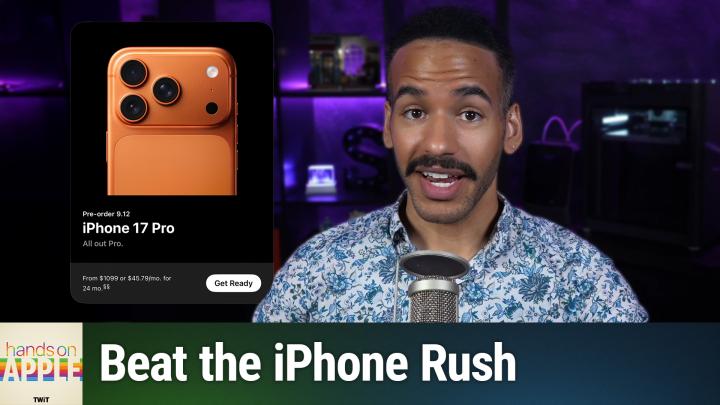
All right, Apple has announced new iPhones, and that means it's time to prepare for your order. Stay tuned. Podcasts you love from people you trust. This is twit. Hello and welcome to Hands on Apple. I am Mikah Sargent, and today I've got a quick one for you. This, of course, is a timely edition because Apple has announced that the iPhone is here. The whole new set of iPhones, in fact, We've got the iPhone 17 Pro and Pro Max, we've got the iPhone air, and we've got the iPhone 17.
Mikah Sargent [00:00:48]:
So with that in mind, tomorrow as you're watching this episode, hopefully on Thursday the pre orders will open for the new iPhone. And I thought it'd be a great time to talk about the process for setting up a pre order ahead of time so that when it comes time to order your iPhone, you know you can get it on day one. There are a lot of new colorways, a lot of new fun stuff to be able to check out. And so if you want to make sure you get the one that you want, this is the way to go about doing it. Now, I also want to recommend that you go and watch Leo and my coverage of the live apple news event that we did earlier in the week. But let's head over to iOS and take a look. So you can do this on iOS or iPados, but I would recommend doing it from a mobile Device and again, iOS iPadOS as opposed to using the website on your Mac. What we'll do is we will go to the Apple store app.
Mikah Sargent [00:01:42]:
Now, if you don't have the Apple store app, go ahead and head to the app store, download the Apple store app, and you will see on the main page that it doesn't have much information here, but if we tap on products, you can see that the iPhone pops up as one of the options and you can see a button that says get ready. Now, whether you're wanting to buy the iPhone 17, the iPhone Air, the iPhone 17 Pro, that will determine which version you choose. I want to buy the iPhone 17 Pro. So I'm going to choose get ready with this. From here, we need to choose the model that we want. So iPhone 17 Pro, Max, I want mine in deep Blue. I want 512 gigabytes. You're choosing your different storage spaces.
Mikah Sargent [00:02:26]:
So your first your model, then your finish, then your storage space, then you decide if you have a trade in or not. I do have a trade in. I have an iPhone 16 that I'm holding in my hands. I'll tap on that and it Says that the trade in value is up to $700. I say yes, the trade in is in good condition. And then I say whether I would like to buy or finance the device. I'm going to buy it outright and this is great. If you do it on the phone it can determine hey, I know this phone works on your AT&T account and therefore I am able to tap on yes, replace this on my existing device and then you can add Apple care be it AppleCare One, no AppleCare coverage or AppleCare plus with theft and loss.
Mikah Sargent [00:03:10]:
Now AppleCare plus with theft and loss is that standard Apple Care product that has been around for a while with theft and loss. Of course it helps if you lose your phone or if it's stolen. AppleCare One is the subscription service 1999amonth that gives you multiple product coverage. And then of course you can choose no Apple Care. I'm going to choose AppleCare plus with theft and loss. If you do the monthly coverage it's 1399amonth or $140 a if you go that way. And then we can choose. Now get ready for pre order.
Mikah Sargent [00:03:44]:
Up will pop some options including browsing for iPhone accessories. I've already pre ordered my case or ordered my case as they're available now. But this is where you would go to add these if you'd like them. If you don't need one of these you can simply click skip and then you choose a payment method. So during this process it did do a quick face check for me face ID unlock and now what we'll do is we can choose a credit or debit card option or we can choose Apple Pay if we'd like to pay with Apple Pay. So I'm going to switch away for a moment while I type in this information. Once I have that information I'll be shown a screen that has all of the stuff I need to confirm what I plan to do to pay for it, the summary of how much it's going to cost, the fact that I'm going to be using the theft and loss protection that I'm going to be doing a trade in that I've decided to have AppleCare plus and then if you do tie it to a cellular plan that you agree to those terms and if you agree to the trade in terms afterwards we click save your pre order info. And then sometimes you'll get this option which requires you to type in the security code for your card and this is just a confirmation of that as well.
Mikah Sargent [00:05:08]:
So I'll type that in and choose okay. And once that information is saved, then it shows for me. 5am on Friday 9 12, I have to use the app to complete my order. I am going to choose to add my pre order to my calendar, allow full access and then add this event. You can see it automatically populates with alerts at 5 minutes before and 15 minutes before. And so that way I've got that saved. On 912 I will be able to come back to this app and I will have my pre order option here on this screen. So from that point on in the for you section right there at the top, it shows that I'm ready for my iPhone Pre order on 9 12.
Mikah Sargent [00:05:58]:
So as soon as the Apple Store opens up on, in my case, 5am on Friday, boom. I'll be able to hop in here, tap on that and make my pre order. Now, depending on what color option you choose to get, what storage size you choose to get, you may not run into issues with plenty of iPhones being available to you. But this tends to be the case if you go for a more unique model like the orange one for example, or some of the higher or in some cases lower storage space options. You may struggle to get an iPhone if you don't get it the morning of when pre order becomes available. So this is in particular the reason to go about making sure that you're ready for your pre order. Now. Couple of other things.
Mikah Sargent [00:06:51]:
If I am having trouble getting into the store, if it seems to be taking a really long time to load, sometimes I will open up the store app on a second device. So I'll have an iPad nearby. I'll have my iPhone. I start with the iPhone iPad nearby by loading the store and go between those two. Some people will have multiple websites open. Multiple. It seems like Apple has gotten better over time to make that less of a requirement. And I have found, knock on wood, iPhone pre orders to be relatively peaceful things at five in the morning as is the case for me.
Mikah Sargent [00:07:28]:
So I wish you all the best of luck in getting the iPhone that you're after and of course look forward to being back with you next week for another episode of Hands on Apple. Bye bye.
TWiT.tv [00:07:38]:
Hey, thanks for tuning in to Twit, your tech hub for intelligent, thoughtful conversations. If you want to take your experience to the next level and support what we do here at Twit, say goodbye to ads and say hello to Club Twit. With Club Twit, you unlock all our shows ad free. You also get exclusive members only content. We do a lot of great programming just for the club members. You also get behind the scenes access which with our Twit Plus Bonus feed and live video streams while we're recording. And don't forget the fantastic Members Only Discord. It's where passionate tech fans like you and me hang out, swap ideas, and connect directly with all of our hosts.
TWiT.tv [00:08:17]:
It's my favorite social network. I think you'll like it too. Club Twit. It's not just a subscription, it's how you support what we do and become part of the Twit family. Your membership directly supports the network, helping us stay independent and keep making the shows you love. If you're ready to upgrade your tech podcast experience, head to TWiT TV club TWiT and join us today. Thanks for being here and I'll see you in the club.