What Specs to Look for in a Laptop for Photography and Video Editing?
AI-generated, human-reviewed.
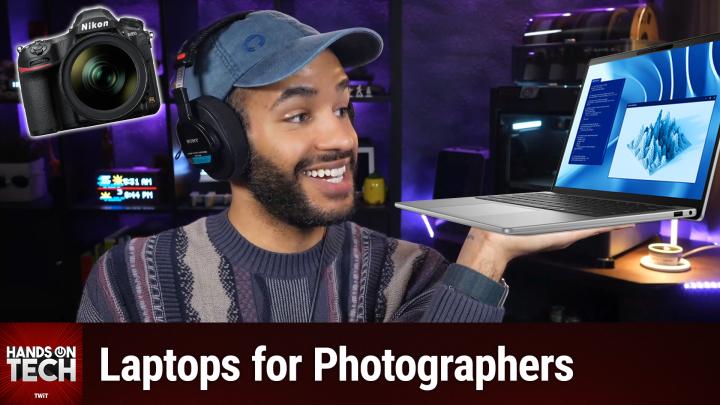
The right laptop can transform your workflow if you handle thousands of photos and demanding video processing. On Hands-On Tech, Mikah Sargent broke down current laptop recommendations for serious photography and video work—pinpointing the features, components, and pitfalls to watch for when buying your next machine.
Quick Summary: Why Laptops for Editing Need Special Specs
Photo and video editing software—like Lightroom, Photoshop, and especially Topaz Video AI—make big demands on both CPU and GPU. Not all laptops are built to handle these, and choosing the wrong GPU or not enough RAM leads to slowdowns, throttling, or even lost work.
Mikah Sargent found that most guides underestimate the GPU requirements for modern AI-driven apps, highlighting that you should focus on three main areas:
- Powerful, modern GPU with enough VRAM: Crucial for AI features in Topaz Video AI and Photo AI
- High-end CPU: Still critical for apps like Lightroom and Photoshop, which remain CPU-intensive
- Abundant RAM and fast storage: Smooths out multitasking and large file workflows
Essential Hardware Specs for Photo and Video Editing Laptops
The Ideal GPU and VRAM
- Discrete Nvidia RTX GPUs (not integrated): The gold standard for creative work, thanks to CUDA and Tensor RT support. AMD and Intel GPUs may work but are less reliable for these apps.
- Minimum VRAM:
- Topaz Video AI: Requires at least 10 GB; 16 GB is recommended for smooth, high-quality processing
- Topaz Photo AI: Recommends at least 8 GB, but performance increases with more VRAM
- Which Nvidia GPUs to consider?
- RTX 4070/5070 and up (laptop class): 12 GB VRAM, suitable for most users
- RTX 4080/5090: 16+ GB VRAM, best for those seeking longer-term performance and heavy 4K workloads
- RTX 4090/5090 (24 GB): Overkill for photos, but gives maximum future proofing for video work
Tip: Avoid laptops with only integrated graphics or lower-series Nvidia cards, as these lack required VRAM and CUDA capabilities.
CPU, RAM, and Storage Recommendations
- CPU:
- Intel Core Ultra 9 or AMD Ryzen 9 (HX class) is essential for heavy multitasking and CPU-centric tasks in Lightroom and Photoshop.
- RAM:
- 32 GB minimum; 64 GB recommended for best multitasking and large project responsiveness.
- Storage:
- 2 TB NVMe SSD or larger, ensuring operating system, catalogs, and models for AI features all run at optimal speed.
Don’t rely on external hard drives for active work—internal NVMe drives deliver much better speed for editing.
Screen Size and Laptop Class
- 16-inch or larger “Creator” or “Workstation” class laptops
- Not just for the big screen but for superior cooling systems.
- These sustain high performance during long export or processing sessions, preventing thermal throttling.
- Avoid “thin and light” or ultrabooks:
- They can’t deliver enough sustained power or keep heavy CPUs/GPUs cool under extended loads.
Do You Need a MacBook Pro or Windows Workstation?
Mikah Sargent clarified that both platforms have powerful options, but details matter:
- Windows is the easiest path for Topaz Video AI due to better Nvidia CUDA support and fewer compatibility headaches.
- MacBook Pro (M4 Pro/Max) handles most photo applications natively with almost no throttling and strong unified memory architecture—but certain Topaz features (like Starlight Sharp model) may still lack full support.
Warning: Avoid Snapdragon laptops for creative work, as they lack discrete Nvidia GPUs and rely on emulation layers that won’t support high-end editing workflows.
Avoiding Data Migration Nightmares
If you’re moving from Windows to Mac:
- Use apps like Mylio Photos to manage the migration—don’t manually drag photo folders, which leads to permissions issues and duplicates.
- Use Apple’s Migration Assistant or dedicated sync tools like Syncthing.
- After migration, run cleanup tools (e.g., Gemini 2, Photo Sweeper) to identify and delete duplicates.
Key Takeaways
- Prioritize a discrete Nvidia RTX GPU with at least 12-16 GB VRAM, a high-end CPU, 64 GB RAM, and fast internal NVMe storage
- Choose 16-inch “creator” or “workstation” class laptops for reliable cooling and sustained performance
- Windows is generally preferred for full Topaz Video AI support
- Use migration tools to avoid data loss and duplicated photos when switching platforms
The Bottom Line
If photo and video editing are core tasks, don’t cut corners—even if it adds to the price. A Windows creator laptop with RTX 4080/5070 (or higher), Core Ultra 9/Ryzen 9, and at least 64 GB RAM gives you the best overall experience with apps like Lightroom, Photoshop, and Topaz Video AI. MacBook Pro (M4 Max) is a strong alternative, but double-check app compatibility for your workflow.
Subscribe to Hands-On Tech for more tech buying advice:
https://twit.tv/shows/hands-on-tech/episodes/268