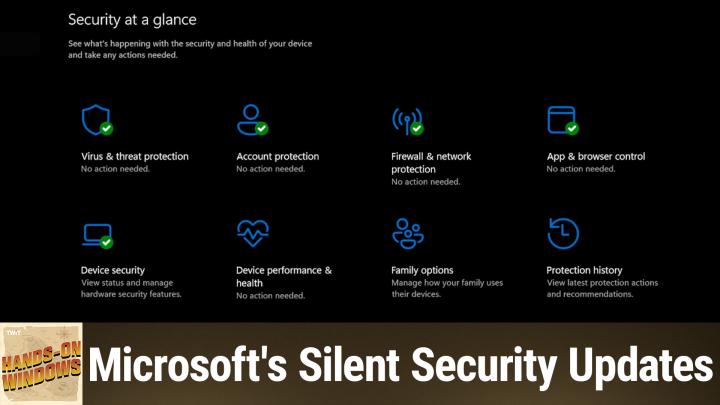
Top Windows 11 Security Features You Should Enable Today
AI-created, human-edited.
The latest Hands-On Windows episode spotlighted key Windows 11 security features that are off by default but can provide extra protection when enabled. If you want to make your PC safer with a few simple changes, these expert-backed tips from Paul Thurrott can help.
Windows 11 offers strong security out of the box, but several important features remain disabled unless you turn them on. Smart App Control, Ransomware Protection via Controlled Folder Access, and the new Administrative Protection are among the standout options. Enabling these settings can help protect against malware, ransomware attacks, and unauthorized system changes.
Many users assume that Windows 11’s security is fully active from setup, but that's not the case. On Hands-On Windows, Paul Thurrott highlighted three main features:
Smart App Control
- What it does: Blocks untrusted or unsigned apps from running, which helps prevent the execution of malicious software.
- Where to find it: In the Security app under App & Browser Control.
- How it works: Originally set to "evaluation" mode for new installs, monitoring app activity in the background. If you install suspicious apps, it activates protection; if not, it eventually disables itself.
- Common issues: If turned off, you may need advanced steps like editing the Windows registry to reactivate it.
Ransomware Protection (Controlled Folder Access)
- What it does: Protects your files and folders from unauthorized changes or encryption by ransomware.
- Where to find it: Under Virus & Threat Protection > Ransomware Protection (scroll to the bottom).
- Additional details: Works alongside OneDrive backup for Microsoft account users, but Controlled Folder Access extends that protection locally to selected folders.
- Notable insight: Microsoft leaves this off by default, possibly due to privacy concerns, but turning it on rarely causes issues and prevents ransomware damage.
Administrative Protection (New Feature)
- What it does: Adds a stricter authentication step when performing admin tasks, using Windows Hello instead of the traditional User Account Control prompt.
- Where to find it: In Account Protection (down the settings menu).
- Rollout: Only available in the latest Windows 11 updates (24H2 and 25H2). Currently off by default; likely to become standard soon.
- Heads-up for developers: This feature may interfere with software development or frequent admin tasks, making it less ideal for power users right now.
Bonus Security Enhancements
Hands-On Windows also shared a couple of lesser-known but practical security tips:
Improve Windows Hello reliability: Enroll your face or fingerprint more than once (with and without glasses, from multiple angles) for a more accurate and secure login experience.
Use Phone Link for OTP Codes: When paired with your Android or iPhone, incoming SMS verification codes appear instantly on your PC, allowing for quick copying and pasting—no need to reach for your phone.
How to Apply This
- Open Windows Security: Click the shield icon in your system tray or search the Start menu for "Windows Security."
- Explore Feature Settings:
- Go to App & Browser Control for Smart App Control.
- Visit Virus & Threat Protection and scroll down for Ransomware Protection.
- Check Account Protection for new admin features if updated.
- Enable as Needed: Follow prompts to turn on these settings. For Smart App Control reactivation, you may need to edit the registry (look for Microsoft documentation or guides).
- Enhance Biometrics: Go to Settings > Accounts > Sign-in Options to improve facial or fingerprint recognition.
- Connect Phone Link: Use the Phone Link app for seamless one-time passcode transfers.
Key Takeaways
Many critical security settings in Windows 11 are disabled by default—enabling them can significantly raise your protection level.
Smart App Control and Controlled Folder Access defend against unsafe apps and ransomware, while new administrative protections limit unauthorized system changes.
Most of these features are easy to turn on and don’t impact everyday PC use.
What This Means for You
Taking a few minutes to review and switch on these features can help you avoid major security headaches like data loss or malware infections. Even if you’re not a tech expert, Windows 11 makes it simple to increase your PC’s defenses with just a few clicks.
If you want to get the most from Windows 11’s built-in security, don't just rely on the defaults. By enabling these overlooked features, you make your device noticeably more resilient to common threats—no third-party software needed.
Subscribe for more hands-on Windows security insights: https://twit.tv/shows/hands-on-windows/episodes/159