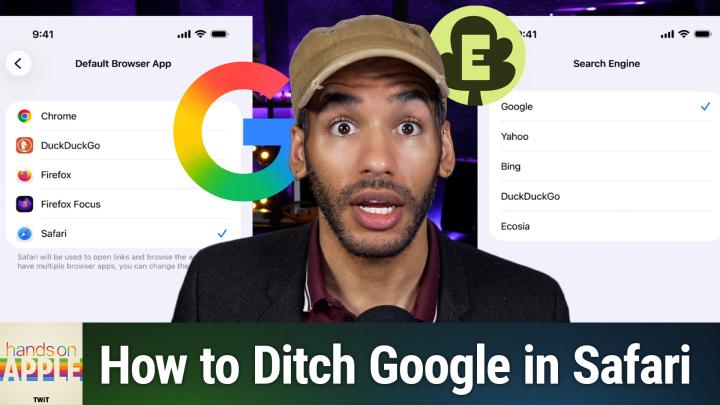
Tired of AI in Google Search? Switch Your Safari Search Engine with These Easy Apple Settings
AI-generated, human-reviewed.
With Google search introducing more AI-generated answers and overlays, many users feel overwhelmed by automated responses instead of direct results. On Hands-On Apple, Mikah Sargent walks you through the immediate steps to set a new default search engine, like DuckDuckGo or Ecosia, in Safari on your Apple devices, giving you faster, more privacy-focused results.
Why Change Your Safari Search Engine?
Recent changes to Google have brought AI-generated summaries and "AI overviews" that often push helpful website links further down the page. If you’d prefer search results without the extra AI noise, or you want a more privacy-friendly experience, switching your Safari search engine is a quick solution with no software installation required, and you can always revert the change.
Changing this setting means most of your web searches—those you perform in the Safari address bar—will now use your chosen provider. For privacy and speed, DuckDuckGo has seen a huge boost in popularity, and Ecosia redirects ad revenue to planting trees.
Quick Summary: What Can You Change?
- You can choose between Google, Yahoo, Bing, DuckDuckGo, or Ecosia as your default Safari search.
- The change affects searches in Safari (not Siri, Spotlight, or all web results).
- The process is fast (just a few taps or clicks) and fully reversible.
How to Change Your Default Search Engine in Safari
On iPhone or iPad:
- Open the Settings app.
- Tap Apps, then scroll to Safari.
- Tap Search Engine.
- Choose your preferred provider from Google, Yahoo, Bing, DuckDuckGo, or Ecosia.
- Note: Availability may vary by region and device version.
- Optionally, set a different search engine for Private Browsing for more privacy.
On Mac:
- Open Safari.
- Go to Safari > Settings (or Preferences).
- Click the Search tab.
- Select your preferred search engine from the list.
After changing this setting, all Safari searches use your chosen provider. If you want to experiment (try DuckDuckGo for a week) just follow the same steps to switch back.
What Else Can You Control?
Mikah Sargent highlighted a few additional privacy options in Safari’s search settings:
- Disable Search Engine Suggestions to limit leaks of your keystrokes to the provider.
- Limit Safari Suggestions—Apple’s attempt to provide its own hints.
- Show Recent Searches—toggle as preferred.
- Preload Top Hit—turn off if you don’t want Safari preloading the top search result in the background.
- Quick Website Search—lets you search site-specific directly from Safari’s address bar.
Each of these settings provides more granular control over your browsing privacy and speed.
What About More Search Engine Choices?
Currently, Safari does not let you set alternative engines like StartPage, Brave Search, or Kagi directly. If you want these as defaults, consider switching to a different browser (such as Brave, DuckDuckGo, or Firefox), or use a Safari extension that redirects your searches.
Your Engine Tune-up
- Switching search engines in Safari is simple and can reduce AI content in your results.
- DuckDuckGo and Ecosia offer privacy and eco-friendly alternatives.
- You can set different defaults for private and standard browsing.
- For more engine choices, explore Safari extensions or alternative browsers.
If Google’s AI features feel intrusive or you want more control over your web searches on iPhone, iPad, or Mac, these quick Safari settings put choice back in your hands. While you can’t yet fully remove Google from Apple’s system-wide web results (Siri, Spotlight), customizing Safari covers the vast majority of daily searches.
Changing your default search engine in Safari is fast, easy, and customizable. Privacy-conscious Apple users—and anyone tired of AI-generated answers—can switch in seconds for a browsing experience that matches their needs.
Subscribe to Hands-On Apple for more weekly Apple tips and deep dives:
https://twit.tv/shows/hands-on-apple/episodes/234