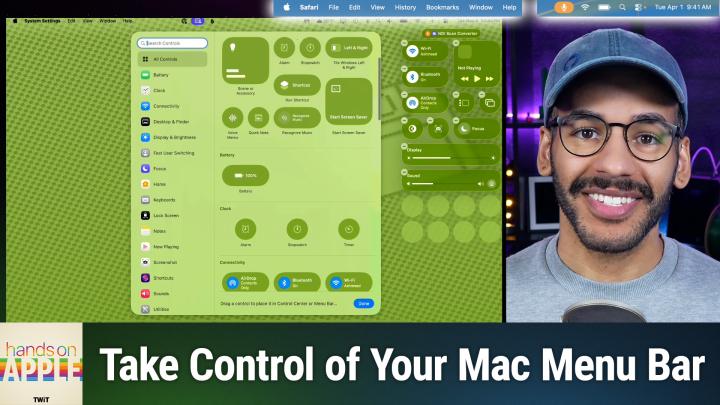
Take Full Control of Your macOS Tahoe Menu Bar
AI-generated, human-reviewed.
The release of macOS Tahoe has brought long-awaited improvements to menu bar and Control Center management, finally letting users customize these elements without relying on third-party apps. On Hands-On Apple, Mikah Sargent demonstrated how the new tools make organizing, hiding, and personalizing your menu bar easier than ever.
Why This Update Matters
Previously, macOS users had to install apps like Bartender or Ice to move, hide, or customize which items appeared in their menu bar. Now, macOS Tahoe offers these controls natively, making tweaks safer, simpler, and integrated right into System Settings. If your menu bar feels cluttered or you want to streamline your workspace, these new tools are must-know updates.
Quick Summary: What’s New
- Hide, show, and rearrange menu bar icons using System Settings—no external apps required.
- Control Center customization is similar to iOS, with the ability to add, remove, or move controls.
- Option to toggle the visual style: choose the classic opaque menu bar or the new transparent look.
- Manage individual app icons, including system and third-party apps, to declutter your menu bar.
How to Use the New Menu Bar Features in macOS Tahoe
Access Menu Bar Settings:
- Open the System Settings app.
- Go to the Menu Bar section.
Customize Visibility:
- Use the “Automatically hide and show the menu bar” option to set when it hides: always, only on desktop, in full screen, or never.
- Toggle “Show Menu Bar Background” to switch between the old blurred look and the new transparent style.
Add, Remove, and Rearrange Icons:
- Under Menu Bar Controls, check or uncheck system icons like Spotlight, WiFi, Bluetooth, Battery, and Focus.
- For third-party apps, use the “Allow in the menu bar” section to decide which should appear.
- Hold down the Command key and drag icons directly in the menu bar to reorder them on the fly.
Personalize Display Options:
- Adjust clock settings to show date, day, digital/analog format, and even announce the time.
- Choose how battery information is displayed, including charge percentage and energy modes.
Control Center Updates:
- Add or remove controls for fast access, mirroring customization options seen on iOS.
Practical Tips in Summary
- Declutter Easily: Remove or hide rarely-used app icons directly from System Settings, freeing up space for essentials.
- Balance Function and Style: Experiment with the transparent menu bar since some users find it makes the workspace feel larger, but you can always switch back if you prefer the classic look.
- Quick Rearrangement: Command-drag icons for instant rearrangement without needing any additional apps, great for organizing frequently-accessed tools.
- Personalize for Productivity: Show only the controls and information that matter to you, such as VPN, battery status, or calendar events.
For many Mac users, staying organized and focused means keeping the menu bar tidy and functional. With macOS Tahoe, these native controls offer more flexibility and a sleeker interface, reducing dependency on third-party utilities. Whether you’re a power user or just want a cleaner look, these updates save time and simplify your daily workflow.
Overall, macOS Tahoe’s new menu bar and Control Center management features are game-changers for Mac customization. Take a few minutes to explore these settings. Most users can now tailor the menu bar to perfectly match their preferences, no extra software needed. If you are tempted to seek third-party apps for menu bar tweaks, it’s worth checking if the built-in options meet your needs.
Subscribe for more practical Mac tips:
https://twit.tv/shows/hands-on-apple/episodes/207