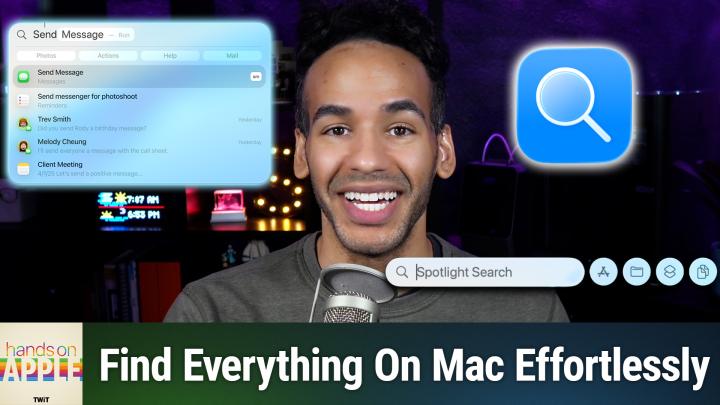
Spotlight Search in macOS Tahoe: What’s New
AI-generated, human-reviewed.
The latest macOS Tahoe (version 26) delivers major improvements to Spotlight Search—Apple's all-in-one search tool for files, apps, and much more. On Hands-On Apple, Mikah Sargent highlighted what's new, practical tips, and why these changes can save you time.
Why Spotlight Search Matters Now
As Macs fill up with documents, apps, cloud files, and browser tabs, finding what you need can be tough. Spotlight Search in macOS Tahoe is now smarter at surfacing what you actually want, ranked by what you use most, with new filters and direct access to browser tabs and cloud files.
Whether you rely on your Mac for work, research, or everyday tasks, refining your search workflow can seriously speed up your productivity.
What's New in Spotlight Search on macOS Tahoe
macOS 26 brings a suite of updates to Spotlight, focusing on faster results and better relevance:
- Unified, Ranked Search Results: Spotlight ranks items by how often or recently you've used them. Apps, files, and folders you rely on most show up at the top.
- Tabbed Results and Filters: Quickly filter results by application (like Photos or Notes), file type, or cloud service for more targeted results.
- Browse Open Browser Tabs and Windows: Spotlight can now find content from open Safari windows and tabs—not just saved files.
- Cloud Storage Integration: Files from services like Dropbox or Google Drive appear in search, even if they're not downloaded to your Mac.
- Search History Access: Review past searches and actions by pressing the up arrow—perfect if you often look up the same things.
- Quick Website Searches: Type site names (example: "Amazon" or "YouTube") and hit Tab to perform searches directly, saving you multiple clicks.
- Ask Siri or ChatGPT from Spotlight: Submit direct questions (like "When was the last total eclipse?") and get AI-powered answers from Siri or, if logged in, ChatGPT.
How to Use the New Spotlight Search
Getting started is simple:
- Open Spotlight with Command + Spacebar or click the magnifying glass in the menu bar.
- Type your search: Spotlight immediately suggests ranked results based on relevance.
- Filter results using tabs under the search box or by specifying file types (e.g., "PNG" or "PDF").
- Search open tabs and windows by typing keywords from browser sessions or Finder windows.
- Use the up arrow to revisit recent searches.
- Search specific websites: type an app or site name, press Tab, and enter your query.
- Ask direct questions or use AI integration for fast answers.
Spotlight will also display results from third-party cloud storage if you have these services installed.
Top Spotlight Search Tips
- Return to Center: If you've moved the search bar, hold Control and click Spotlight in the menu bar to reset its position.
- Search Open Sessions: Find what's open in Safari or Finder, not just saved content.
- Filter by Source: Limit searches to apps, file types, providers, or folders for quick narrowing.
- Cloud Ready: See Google Drive or Dropbox files, locally or in the cloud, without opening those apps.
Key Takeaways
- Faster Access: Instantly find recent or frequently used files, apps, and open pages.
- More Powerful Filtering: Drill down to the content you care about using application, type, or provider filters.
- Search Beyond Files: Directly search open browser tabs and even your cloud drives.
- AI-Ready: Ask fast questions and get AI-generated answers from Siri or ChatGPT right from Spotlight.
The enhanced Spotlight Search in macOS Tahoe focuses on your actual workflow, making it easier than ever to find documents, apps, tabs, or even web results—no matter where they live. These new features can help every Mac user, from students to professionals, become more efficient and organized. Ready to see the improvements in action? Explore more tips and tricks on the latest episode.
Subscribe to Hands-On Apple for detailed walkthroughs and the latest Apple insights:
https://twit.tv/shows/hands-on-apple/episodes/202