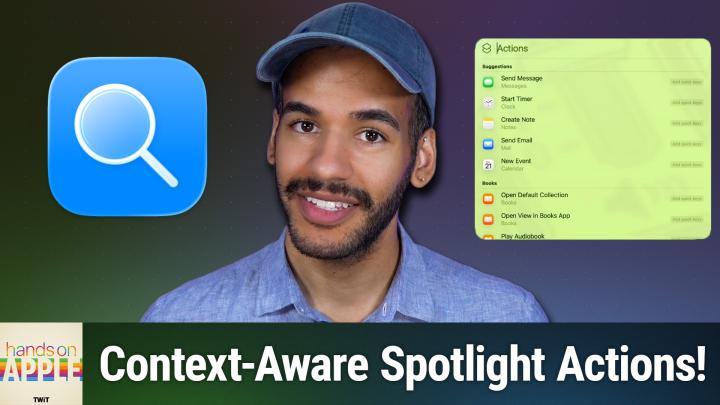
Mastering Spotlight Actions in macOS Tahoe
AI-generated, human-reviewed.
The newest Spotlight Actions in macOS Tahoe offer a faster, more context-aware way to get things done on your Mac, whether it's sending emails, starting timers, creating notes, or controlling third-party apps. On Hands-On Apple, Mikah Sargent demonstrated how this upgraded tool can save time and streamline your daily routine.
What Are Spotlight Actions in macOS Tahoe?
Spotlight, long known for searching files and launching apps, now features an Actions section that suggests quick tasks, automations, and integrations across both Apple and third-party apps. Users access Spotlight via Command + Spacebar, with Actions available through navigation or the shortcut Command + 3. This new functionality is personalized, contextually aware, and deeply integrated with your current app and clipboard.
How to Access and Use Spotlight Actions
- Open Spotlight: Press Command + Spacebar.
- Navigate to Actions: Use the right arrow key to select the “Actions” tab (usually third), or jump directly by holding Command and pressing 3.
- Explore Suggested Actions: Depending on your recent app usage, you’ll find options like Send Message, Start Timer, Create Note, Send Email, or various third-party actions.
- Context-Sensitive: The actions adapt to the active app and what you have copied. For instance, Spotlight can suggest Hide functions while you’re in Photos, or create a calendar event if you’ve copied a date.
Quick Summary of Features
- Personalized Suggestions: Frequently used app actions appear first.
- Third-Party Support: Actions from installed apps (such as Microsoft Word, Drafts, or Do) are automatically included.
- Menu Bar Integration: Spotlight can search the menu bar of the active app, helping you find hard-to-locate functions.
- Clipboard Awareness: Actions adapt based on copied text or content, offering relevant shortcuts.
- Quick Keys: Assign your own letter-based shortcuts (like “se” for Send Email or “pd” for Print Document), launching them even faster through Spotlight.
How to Apply This With Practical Examples
- Send an Email Instantly: Assign a quick key like “se” to Send Email. Type it in Spotlight, hit Return, and compose your message without switching apps.
- App-Specific Actions: If you're in Photos and want to hide face names, just type part of the action ("hide") in Spotlight’s Actions pane! No need to remember menu locations.
- Print Documents in Seconds: Attach a quick key to Print Document, select your PDF or file, and send it directly to your printer via Spotlight.
- Automate Third-Party Tasks: Integrate favorite third-party app actions, from creating drafts to formatting text, accessed through familiar Spotlight controls.
Why This Matters Now
Many macOS users often juggle multiple workflows and apps. The new Spotlight Actions deliver a proactive way to execute tasks with fewer clicks and interruptions. By leveraging context, clipboard, and app awareness, Spotlight now helps you move faster without memorizing specific menu paths or shortcut keys.
Ready to Take Action?
- Spotlight Actions introduce a new way to automate and shortcut daily tasks for both power users and beginners.
- The experience is tailored and becomes increasingly intuitive the more you use your Mac.
- Quick Keys let you assign memorable, ultra-fast shortcuts to favorite actions.
- Integration across native and supported third-party apps extends Spotlight’s role far beyond searching.
If you’re on macOS Tahoe or planning to upgrade, take a few minutes to set up and experiment with Spotlight Actions. You’ll find yourself replacing repetitive mouse clicks with keyboard-driven productivity, freeing up focus for your actual work.
Try these features and unlock a faster way to manage email, notes, calendars, printing, and more right from your Spotlight search.
Subscribe for more macOS tips and deep dives: https://twit.tv/shows/hands-on-apple/episodes/205