Local AI on RTX Spark: How to Choose and Run the Best Models on Windows 11
AI-generated, human-reviewed.
Unlocking Local AI on RTX Spark: How to Set Up, Choose Models, and Get Results
The latest wave of high-end Windows PCs—featuring NVIDIA’s RTX Spark GPU—are built for advanced local AI workloads. On this episode of Hands-On Windows, Paul Thurrott explores what it takes to actually run local AI assistants on these powerful machines, which apps and models to use, and where to start if you want to leverage your investment.
What Is RTX Spark and Why Does It Matter?
RTX Spark refers to laptops and desktops that pair a modern ARM CPU with NVIDIA’s latest GPUs—offering up to 6,144 graphics cores and unified memory from 24 to 120 GB. These machines represent the top-tier of “AI PC” hardware and are positioned as an evolution beyond the current Copilot+ PC spec.
Paul Thurrott points out that RTX Spark platforms—like the ASUS ProArt P16 used in testing—come at a premium price (3,000–7,000) but promise unparalleled local AI performance, especially for creators, engineers, and heavy data users. Unlike Copilot+ PCs, however, RTX Spark machines don’t ship with many AI features enabled out of the box.
Getting Started with Local AI: Apps, Runtimes, and Models
To use local AI, you need three components:
- An AI assistant app (like LM Studio/Bionic, Hermes Agent, or Perplexity)
- An AI runtime (software platform that executes AI models; usually bundled with the app)
- AI models (the brains—downloadable files specific to your use case, such as coding, chat, image or video generation)
Paul Thurrott details how the Get Started app in Windows 11 now lets you install a few curated AI assistants. These assistants support "agentic" functionality—they can run background processes, not just respond to direct prompts, but their functionality varies.
A key insight: The right combination of app and model depends heavily on your hardware and desired use case. RTX Spark systems can handle much larger models than mainstream devices, but finding optimal ones is challenging due to the sheer number of choices and technical variables (size, memory allocation, model weights, etc.).
Which Local AI Models Can You Run? Use CanIRun.AI
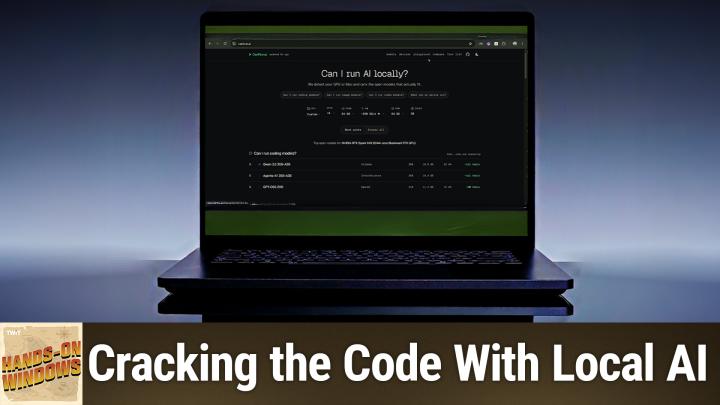
Model compatibility is complex. To simplify this, Paul Thurrott recommends using canirun.ai, a website that scans your system for memory, VRAM, and bandwidth, and suggests compatible AI models for workloads like coding, image generation, or video processing.
- High RAM and GPU power: RTX Spark can often run models 11–35 GB in size, supporting demanding creative and developer tasks.
- Mainstream and Mac laptops: Far fewer options (and smaller models), especially for image/video processing.
- Model selection: Filter models by type, size, and compatible runtime to avoid time-consuming downloads that may not work.
Practical Local AI Apps and Use Cases
Two standout local AI assistants covered:
- LM Studio / Bionic: The most popular option, supporting multiple large language models (LLMs) for chat, coding, or creative projects. Offers a user-friendly interface and model-picker.
- Ollama (CLI tool): A command-line interface for AI that’s particularly useful for developers; supports rapid model testing and scripting.
Real-world use cases explored by Paul Thurrott:
- Generating full Windows 11 apps (with mixed success)
- Coding assistance via Claude Code integration
- Text and data processing workflows
- Example prompts for both simple queries (trip itineraries) and complex tasks (building Notepad clones)
Note: Running large models requires care. You shouldn’t run multiple heavy models or apps at once—memory constraints can stall your system.
Troubleshooting: Common Pitfalls and Solutions
- Model loading errors often relate to mismatched context window sizes or outdated assistant versions; adjusting these settings or updating your tools can resolve many issues
- Model availability: Models are often tied to their parent app/runtimes—downloading for one tool doesn’t make them visible to others
- Functionality gaps: Many agent-based assistants are still maturing—features like persistent background processing may not work if your laptop sleeps or the app is closed
Key Takeaways
- RTX Spark PCs unlock access to local AI models and agents that are impossible or impractical to run on less powerful hardware
- Use tools like canirun.ai and LM Studio to match models to your hardware and use case
- Expect a learning curve: not all features are available yet, terminology can be confusing, and results may require iteration and troubleshooting
The Bottom Line
If you’ve invested in a high-end RTX Spark PC, setting up local AI is a hands-on process but delivers unique productivity and privacy benefits. Use practical tools to identify compatible models, start simple with lighter workloads, and be prepared for some trial and error. As support for hybrid intelligence and better orchestration develops in Windows 11, these capabilities will only expand.
Listen or subscribe to future episodes:
https://twit.tv/shows/hands-on-windows/episodes/216