Local AI Explained: How to Run AI Models on Your PC
AI-generated, human-reviewed.
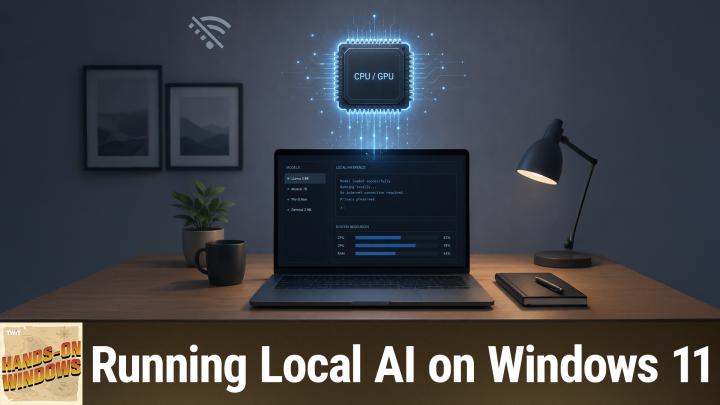
Running artificial intelligence directly on your Windows PC—without relying on the cloud—offers privacy, cost savings, and offline convenience. On Hands-On Windows Speaker A explored setting up LM Studio to run small, efficient AI models like Gemma, perfect for chatting, summarizing documents, and more, all without internet access.
Why Run AI Locally?
Cloud-based AI tools (like ChatGPT or Copilot) are powerful, but they have limitations:
- Require a strong internet connection
- Often charge per use, especially for advanced models
- Can raise privacy concerns since your data is processed outside your device
Local AI uses small language models (SLMs) that run entirely on your PC, offering:
- Offline functionality (works on a plane or without Wi-Fi)
- No ongoing costs
- More control over privacy and data
Recent advances make local models more capable, shrinking the performance gap with large cloud-based AI.
Quick Summary: What You Need to Get Started
Speaker A recommends LM Studio, a free, cross-platform app compatible with Windows, Mac, and Linux.
Basic requirements:
- A modern Windows PC (performance is best with a recent CPU, GPU, or NPU)
- Enough RAM and storage to accommodate models (models typically range from a few GB up)
- Optional: A discrete GPU or AI-enabled processor for faster results
LM Studio guides you through downloading and setting up your chosen AI model. In the episode, Speaker A used Gemma 4E4B, a 4-billion-parameter model designed for efficient local use.
How LM Studio and Local AI Models Work
- Model Selection: Upon first launch, LM Studio recommends a starting model—Gemma, a small, multimodal AI derived from Google’s larger Gemini models.
- Model Capabilities: Gemma can understand both text and images (input)—but outputs only text.
- Processing Power: Depending on your hardware, models may run using your CPU, GPU, or NPU. Using a GPU speeds things up.
- Privacy and Cost: Everything runs locally—no internet connection or payments are required after installation.
Practical Uses for Local AI
Speaker A demonstrated these tasks:
- Answering technical or general knowledge questions (like Windows usage stats or literary recommendations)
- Assisting with programming concepts (“What is a singleton in programming?”)
- Summarizing documents or chapters (though success may vary based on file type and hardware)
- Reasoning steps visible: You can see the AI's “thought process” as it builds answers
While local models may be slower or less accurate than cloud-based giants, they're very useful for everyday queries, coding help, or offline research.
Pros & Cons
Pros
- Works offline—no dependence on servers or cloud
- Free to use after setup
- More control over your data and privacy
- Good for basic research, writing, or coding tasks
Cons
- Lower power and slower response compared to cloud AI
- May not handle large documents or generate images (depends on model)
- Requires a more powerful PC for best results (especially if using GPU/NPU features)
- Model setup can involve technical steps for advanced features
Who Should Use Local AI Models?
- Writers, students, and coders who want fast, private assistance without cloud restrictions
- Frequent travelers needing AI access without Wi-Fi
- Anyone seeking to experiment with latest AI locally, without recurring costs
Key Takeaways
- Local AI tools like LM Studio let you run capable AI models on your PC for free and offline.
- Ideal for privacy, cost-consciousness, and when you need AI without the internet.
- Small language models are advancing quickly, bringing more complex AI within reach for everyday Windows users.
The Bottom Line
If you want quick AI-powered assistance (writing, coding, summarizing) at no cost and with maximum privacy, setting up LM Studio with a model like Gemma is a smart move. For bigger or more complex needs, you can always switch to cloud AI—but starting local gives you flexibility and control.
Try it out or learn more by catching the episode:
Subscribe: https://twit.tv/shows/hands-on-windows/episodes/189