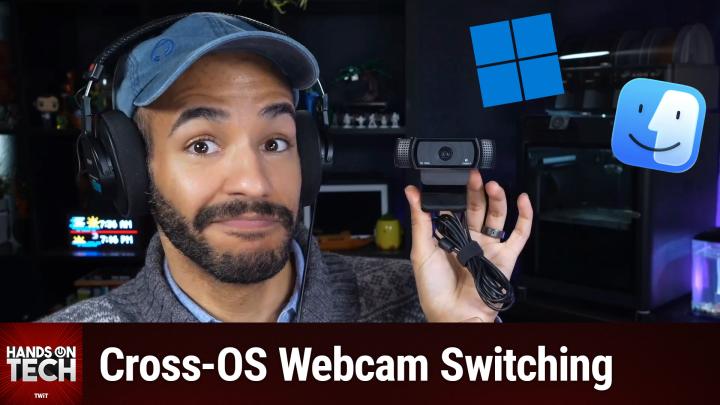
How to Share a Webcam Between macOS and Windows
AI-generated, human-reviewed.
Managing a single webcam across a shared Windows and macOS setup can be frustrating—especially when your camera works fine on one computer but won’t show up on the other. On Hands-On Tech, Mikah Sargent addressed why this problem happens and offered step-by-step solutions that actually work.
Why Your Webcam Isn’t Detected on macOS After Switching
If you’re using an HDMI/USB KVM (keyboard, video, mouse) switch to share a webcam between a Windows laptop and a MacBook, you might notice the camera works perfectly on Windows but disappears on macOS. This happens because macOS handles USB device "enumeration" more strictly—it doesn’t always re-detect devices when switched, unlike Windows which is constantly scanning for new hardware.
Bottom line: Your webcam isn’t broken—the switch or hub setup isn’t signaling the Mac to check for new devices.
Solutions That Actually Work
1. Try a Powered USB Hub
A powered USB hub (around $15–$20) can act as a "smarter" intermediary, helping your Mac recognize the webcam after switching. Plug the webcam into the powered hub, the hub into your KVM switch, and try switching between computers.
This often solves detection problems because powered hubs can better signal device changes to macOS.
2. Choose a macOS-Compatible KVM Switch
Not all KVM switches work well with Mac. Cheaper or generic switches may lack the hardware/software cues that tell macOS to look for “new” devices.
Mikah recommends:
- Ugreen KVM switches – Well-reviewed for macOS compatibility.
- CKL KVM switches – Designed to handle proper USB enumeration on Mac.
Look for switches that specifically mention macOS support.
3. Consider a Dedicated Docking Station
Premium docking stations like the CalDigit TS4/TS5 ($350-$400) or the OWC Thunderbolt Dock are highly reliable with macOS, offering multiple USB-A ports, power delivery, and Thunderbolt support.
Keep in mind: If your webcam is connected through the KVM switch, adding a dock might NOT fix enumeration issues. These docks are only a solution if you remove the KVM and connect your webcam and other peripherals through the dock directly. This usually means assigning your webcam to one machine.
4. Use Separate Webcams for Each Device
Despite desire for minimal setups, sometimes buying a second, affordable webcam for the Mac (like another Logitech C920) is simpler, saves time, and may cost less than a premium KVM or dock.
5. Consider Using Your iPhone as a Continuity Camera
If you own an iPhone, macOS’s Continuity Camera lets you use your phone as a webcam—for much better video quality than most USB webcams. Keep your phone near your desk with a MagSafe stand for instant access when you need a camera.
Key Takeaways
- macOS may not detect shared webcams via cheap KVMs because of how it scans USB devices.
- A powered USB hub in between the switch and webcam solves the issue for many.
- If your switch is still problematic, invest in a KVM switch built for macOS like ones from Ugreen or CKL.
- Premium docks are reliable but only help if connecting the webcam directly to them (which reduces sharing ability).
- Sometimes, the simplest fix is using two webcams—one for each device.
- For the best image quality, using your iPhone as a webcam is a surprisingly robust solution on Mac.
The Bottom Line
Don’t waste time fighting with unreliable hardware if your webcam won’t switch between Windows and Mac. Start by adding a powered USB hub (the cheapest fix). If that fails, upgrade to a reputable macOS-friendly KVM switch. Advanced docking stations give you more features, but only help if you’re willing to stop sharing the camera between PCs. For fast, easy meetings, just use your iPhone’s camera with a MagSafe stand.
Get more tech tips, product guides, and hands-on advice by subscribing to Hands-On Tech:
https://twit.tv/shows/hands-on-tech/episodes/259