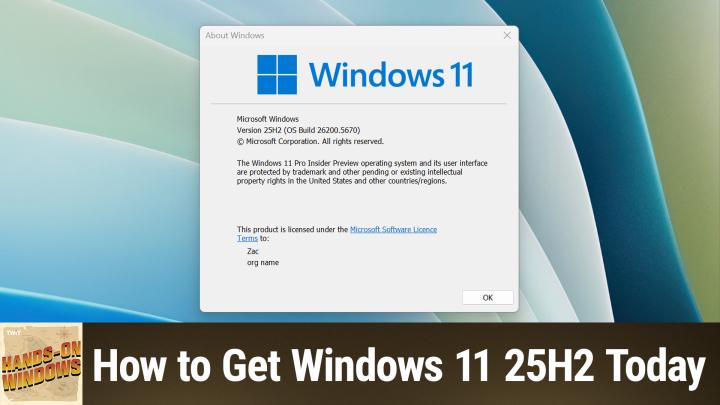
How to Get Windows 11 Version 25H2 Right Now: Step-by-Step Guide
AI-generated, human-reviewed.
How to Get Windows 11 Version 25H2 Immediately: Practical Tips from Hands-On Windows
If you’re eager to try the latest features in Windows 11 version 25H2, you don’t need to wait for Microsoft’s gradual rollout. On Hands-On Windows, Paul Thurrott demonstrated quick, effective ways to upgrade your PC right away—even if the update isn’t available in Windows Update yet. Here’s exactly how to access this release and what you need to know before installing.
Quick Summary
Windows 11 25H2 has officially launched, but most users won’t see the update right away. Microsoft is releasing it in stages. That means your device might not show the upgrade in Settings > Windows Update—even if it’s eligible.
Paul Thurrott recommends several methods to access 25H2 immediately, letting you skip the wait and take advantage of the latest enhancements.
Why Update to Windows 11 25H2 Now?
While Windows 11 25H2 is functionally nearly identical to 24H2, enthusiasts might want immediate access to the new build number, enablement package, or latest Start menu changes. Early adopters, IT pros, and anyone troubleshooting compatibility also benefit from updating sooner.
How to Get Windows 11 25H2 Fast
1. Check Windows Update First
Go to Settings > Windows Update and check for updates. Sometimes, version 25H2 appears under “Optional Updates.” If it’s there, install as normal.
2. Download Windows 11 ISO Directly
If Windows Update doesn’t offer 25H2, head to Microsoft’s official download page by searching “Download Windows 11.” You’ll find ISOs for:
- x86/x64 (traditional and most desktop/laptops)
- ARM (for ARM-based PCs, like Surface Pro X)
Download the correct ISO for your hardware. The file size is about 7GB for ARM; expect similar for x64.
3. Use the Enablement Package (EKB)
If your device is up to date on Windows 11 24H2, you can download the small enablement package (EKB) for 25H2. This file is only about 171KB and updates your system after a quick reboot, upgrading your build number instantly. It’s ideal for users on 24H2 who want to move to 25H2 with minimal fuss.
4. Create Installation Media
If you want a fresh install or need to update multiple PCs, use tools like the Media Creation Tool or third-party utility Rufus (especially for ARM devices and advanced features). Rufus allows bypassing hardware requirements and controlling account setup, privacy settings, and encryption options.
5. Enable New Features with Vive Tool
Some 25H2 features (like the redesigned Start menu) roll out randomly—even after you upgrade. Paul recommends using the Vive Tool on GitHub, a command-line utility that enables new features instantly. You’ll need to run it with admin privileges and follow instructions for feature IDs.
What’s New or Unique in 25H2?
- Same look and feel as 24H2, with minor build updates
- New features like an updated Start menu with customizable views (grid, list, category) can be enabled via Vive Tool.
- Additional privacy and regional setup options during installation.
- Controlled feature release: new features appear at random unless manually enabled.
Key Takeaways
- You don’t need to wait for Microsoft’s staged rollout—download the ISO or EKB to update now.
- The 25H2 update is safe and nearly identical to 24H2; only minor build changes and select features differentiate them.
- Use Rufus for custom install media, especially on ARM.
- Enable hidden features with Vive Tool if you want the full 25H2 experience immediately.
What This Means for You
- Early access: Get new Windows features before the crowd.
- Control: Choose when and how to update, and which features to activate.
- Troubleshooting: Apply the latest patches if you’re having issues with 24H2.
The Bottom Line
Upgrading to Windows 11 25H2 is straightforward if you follow expert tips from Hands-On Windows. Use official ISOs, the EKB, or advanced tools like Rufus and Vive Tool for instant access and more control. These approaches are safe, quick, and let you explore everything Windows 11 currently offers.
Ready to stay ahead? Listen and subscribe now: https://twit.tv/shows/hands-on-windows/episodes/162