How to Fix iPhone Auto-Correct: Expert Tips to Control and Improve Typing
AI-generated, human-reviewed.
Auto-correct on iPhone and iPad can be a persistent source of frustration, but simple changes can make all the difference. On Hands-On Apple, Mikah Sargent highlighted how iOS 17’s improved auto-correct and often-overlooked settings let you finally control your typing experience.
Quick Summary
Apple’s auto-correct system has evolved with iOS 17, now using an advanced on-device language model that considers full sentence context. However, many users still struggle with unwanted corrections, especially for names, slang, or technical terms.
Mikah Sargent explained that auto-correct learns from your typing habits locally but needs clear, intentional feedback to improve. Manual settings and features like text replacement allow for significant customization and less frustration.
How Auto-Correct Works on Modern iPhones
- Built-in dictionary plus personal history: auto-correct combines Apple's native word list with your personal vocabulary learned over time.
- iOS 17 upgrade: The modern transformer language model increases contextual accuracy, aiming to predict the “right” word based on your entire sentence, not just isolated words.
- Local learning: Corrections and vocabulary additions happen per device, not via iCloud sync.
Essential Steps to Improve Auto-Correct
1. Use the “X” to Reject Bad Suggestions
- Rejecting an auto-correct suggestion by tapping the small “X” sends a strong signal to your device about your preference.
- Simply backspacing and retyping is less effective—consistent use of the “X” helps the system learn faster.
2. Customize Keyboard Settings for Smarter Typing
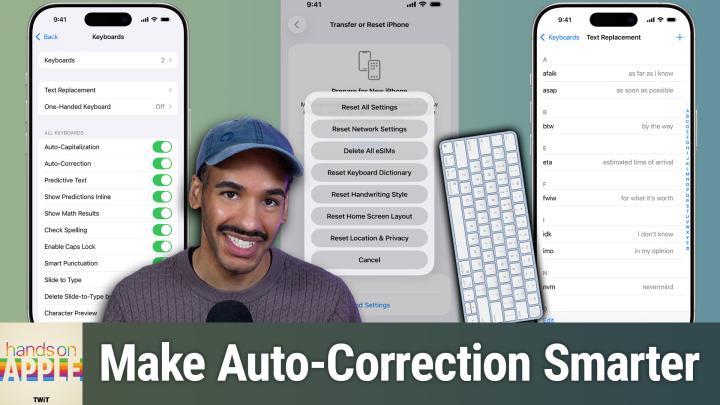
- Visit Settings > General > Keyboard to toggle options like auto-correction, Predictive Text, Show Predictions Inline, Smart Punctuation, and Slide to Type.
- Adjust features to match your typing habits, such as turning off inline predictions if you find them distracting or enabling double-space period shortcuts for faster writing.
3. Reset Keyboard Dictionary as a Last Resort
- If auto-correct has learned too many mistakes, go to Settings > General > Transfer or Reset iPhone > Reset > Reset Keyboard Dictionary.
- This wipes all custom learned words and starts your keyboard fresh. Note: You can’t selectively remove words so resetting is all-or-nothing.
4. Create and Use Text Replacements
- Text Replacement lets you set up personal typing shortcuts essential for phrases, names, or jargon auto-correct gets wrong.
- Go to Settings > General > Keyboard > Text Replacement and add entries. For example, “omw” becomes “On my way!” or typing a lowercase version of your name stops auto-correct from capitalizing it.
- Unlike local device learning, text replacements sync across iPhone, iPad, and Mac via iCloud.
Limitations and Workarounds
- No manual “Add to Dictionary”: Unlike some word processors, you can't add words directly to the iOS dictionary. Persistent rejection or text replacements are your two options.
- Multilingual challenges: auto-correct may struggle with mid-sentence language switches. Add multiple keyboards and switch via the globe icon when typing in different languages.
- No per-word unlearning: You can’t selectively delete a single learned word—resetting wipes everything!
Key(board) Takeaways
- Effective auto-correct control comes down to active management: use explicit rejection, tweak keyboard options, and leverage text replacements for common trouble spots.
- Regularly review and update text replacements for the fastest results, and don’t hesitate to reset your dictionary if auto-correct feels beyond repair.
- These methods work best with iOS 17 or later, where auto-correct accuracy has improved thanks to better on-device learning.
With a few intentional changes, you can transform iPhone auto-correct from a nuisance into a helpful tool. Mikah Sargent's advice empowers you to take control, especially if you use technical terms, slang, or non-standard capitalization. Invest a few minutes to set up your preferences and text replacements, and auto-correct will support your writing style, rather than fight it.
iOS auto-correct is vastly more manageable than ever with the right approach. Review settings, use rejection tools, and set text replacements for a smoother, less frustrating typing experience. Ready to take back control of your iPhone or iPad keyboard? Tweak these settings today for a smarter, faster texting experience.
Subscribe for more Apple tips and hands-on advice: https://twit.tv/shows/hands-on-apple/episodes/225