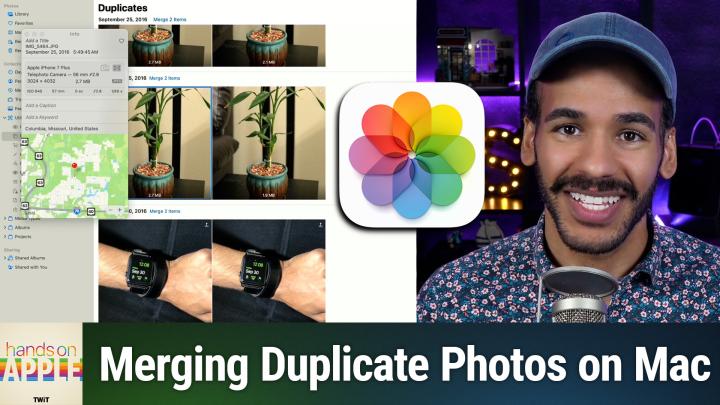
Easily Clean up Duplicate Photos on Your Mac
AI-generated, human-reviewed.
Freeing up storage and getting a more organized photo library doesn’t have to be complicated—or costly. macOS comes with a built-in utility in the Photos app that makes finding and merging duplicate photos quick and straightforward. Here’s what you need to know to make the most of this handy tool.
Why Use the Built-In Duplicate Finder?
Many Mac users struggle with cluttered photo libraries filled with accidental repeats, burst shots, or imported duplicates. While there are powerful third-party tools out there, the Photos app in macOS now includes a Duplicates feature that’s simple, effective for most needs, and totally free for anyone with a Mac.
On Hands-On Apple, Mikah Sargent walked through this feature, highlighting how it lets you clean up your photo collection directly from the Photos app—no downloads required! If you want a quick way to tidy things up without extra software, this built-in tool is a great place to start.
How the Mac Photos Duplicates Tool Works
After you open the Photos app on your Mac, the tool automatically scans your photo library for duplicates. Here’s how you access it:
- Open Photos from your Applications folder or Dock.
- In the sidebar, scroll to the Collections section.
- Click on Utilities.
- Look for and select Duplicates.
You’ll see a list of photos that macOS has flagged as potential duplicates. Keep in mind: the scan might take some time, especially if you have a large library, and new duplicates may appear as your library continues to update.
What Counts as a Duplicate?
According to the episode, Photos detects:
- Exact duplicates: Identical images that might have different metadata (like location tags or camera info).
- Near-duplicates: Images that look nearly the same but may vary slightly in size, resolution, or file format (JPEG vs PNG, for example).
Merging Duplicates: What Happens?
When you select duplicate images and click Merge, Photos will:
- Keep a single version that blends the highest quality and combines all relevant metadata.
- Move any extras to the Recently Deleted album, in case you want to review or recover them.
This process ensures you don’t lose important data, like image location, edits, or album assignments, while still clearing out unnecessary copies.
Limitations: Is the Built-In Tool Enough?
While the Photos Duplicates feature gets the basics right, Mikah pointed out some limitations for advanced users:
- It doesn’t catch “fuzzy duplicates” (e.g., several similar shots from a burst or images with small visual differences).
- If you need deeper scanning (like detecting variations from burst modes, edits, or screenshots) you’ll need a third-party app.
- Gemini by MacPaw is recommended as an option for more robust duplicate detection, offering fine-grained control and broader results.
Zooming Out
- macOS Photos now has a dedicated Duplicates tool, and it’s free and easy to access for all Mac users.
- It’s great for regular maintenance and works automatically, with no configuration required.
- For deeper deduplication (like fuzzy matches or bulk actions across complex libraries), consider exploring paid tools like Gemini 2.
If you want the fastest, zero-cost way to clear up obvious duplicate images from your Mac, start with the Photos app’s built-in Duplicates option. It streamlines the decluttering process, helps you reclaim storage, and requires no extra apps. For pro-level library management, third-party solutions can fill in the gaps, but for most users, macOS’s native tool gets the job done.
Catch the full walkthrough and more Apple tips on Hands-On Apple episode 198: https://twit.tv/shows/hands-on-apple/episodes/198