Hands-On Apple 219 transcript
Please be advised this transcript is AI-generated and may not be word for word. Time codes refer to the approximate times in the ad-supported version of the show.
Mikah Sargent [00:00:00]:
Coming up on Hands on Apple, let's take a look at what we need to do if we want to save a webpage. Stay tuned. Podcasts you love from people you trust. This is Twit. Welcome back to Hands on Apple. I am Micah Sargent, and today I am back to answering a question that has come up for me that I have heard someone ask. Someone was browsing the web and they needed to keep a web page after the fact, and they thought that the way to go about that was to print the web page. And that is certainly one way to do it, but I want to talk about the different ways that Safari makes it easy on macOS to keep track of a web page and to have it in different forms.
Mikah Sargent [00:01:01]:
So let's head over to macOS and take a look. All right, here we are on macOS, and as you can see, I've got the Safari browser open, and let's go to my recent episode of Hands-On Tech. Let's say that I was on this page and I wanted to save it for whatever reason. Okay, there's one easy way to go about doing so, which is to hold down the Command key hit the P key and up pops the printer option. Now, this is where the person said, oh, I would print out the page. Well, if you can see on the left, that's 4 pages that would be printed out and that's not really necessary. There are easier ways to go about this. So what I would actually recommend is down here in the printer functionality, there's an option that says PDF.
Mikah Sargent [00:01:52]:
If you click on the disclosure triangle to the right of PDF, you can choose save as PDF. And I'm going to click open and preview just so you can see what this would look like. So here is that page, and you can see that the video thumbnail didn't load, that the text is kind of all over the place, and the links are even farther down, and there's a fourth page that's just kind of odd, right? If we close out of that and we choose File, and remember, we're not doing Command+P this time, we're going to File, and we're choosing export as PDF, then we will save this as Hot Page. And now let's take a look at what Safari generated. I will click on the Hot Page on the desktop, hit the spacebar to bring up the Quick Look, and you can see that for one, the thumbnail is showing for the video and the rest of the page loads like an actual webpage. So there is a difference between choosing the print functionality and choosing that Export as PDF functionality. Now, that's one way to go about it, but there are two more options that Safari gives you. If we go up to File and we choose Save As, underneath the format option here, we have three different ways.
Mikah Sargent [00:03:13]:
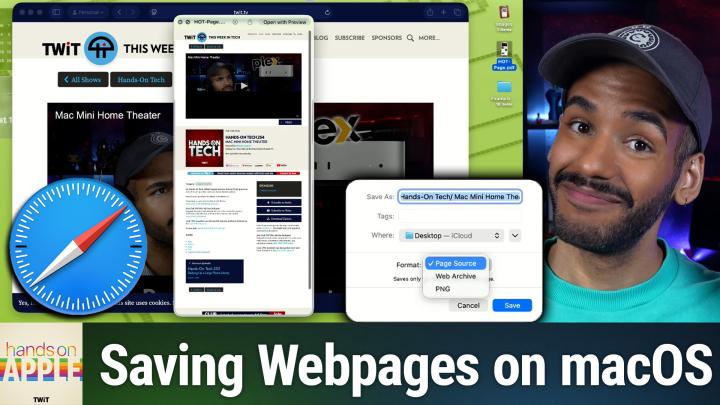
First is PNG. That's going to save the entire page in much the way we saw that PDF, but instead as a PNG file, a PNG file, uh, that's an image. And we have two other options, Page Source and Web Archive. Page Source, let's show you what that looks like. You can actually see that when you go to save it, the file extension is.html. That is because what Safari is doing is grabbing all of the HTML on this page and saving it out. So now if I select hotpage.html and hit the spacebar, up pops just the HTML for the page. Now, the important thing to understand is that it is just the HTML.
Mikah Sargent [00:03:58]:
So if you're not familiar with these kind of terms, HTML is sort of like the bones of a, oh, let's go with human, a skeleton. It is the skeleton that says, here's where I need you to layer on the muscle, the fat, and all of the other components. This is the basic structure, but you need things like CSS and JavaScript. CSS is sort of the then skin that gets layered on top, how it looks, and the JavaScript, I suppose, is kind of like a little bit like the brain or sort of the autonomous functionality of the brain that gives the page the ability to do things on its own. So all of those are needed to properly display the page and look like it does if you go to the browser. But there is one more option for you if you're using Safari. So again, just the skeleton, a PDF of the full page, a PNG of the full page. Now between those, a PDF is probably going to be better because you'll be able to select the text on the page.
Mikah Sargent [00:05:06]:
Sometimes many of the links will come through with it as well. And so I do find that to be a better method, but the last method. Save As, if we choose Web Archive and call this Hot Page and save it, this is a proprietary format for Safari that actually saves out not just the HTML, but all of the code, all of the different files that make up that specific page. And so, we can easily then see the entire page within the Safari browser stored locally. This episode of Hands On Apple is brought to you by Melissa, the trusted data quality expert since 1985. Forward-thinking businesses are using AI in all kinds of new ways. We see it all the time, but AI is only as good as the data you feed it. So you can have the most sophisticated AI tools in the world, but frankly, if your customer data is incomplete, duplicated, or just plain wrong, you're training your AI to make expensive mistakes.
Mikah Sargent [00:06:14]:
That is where Melissa comes in. For 41 years, Melissa has been the data quality partner that helps businesses get their data clean, complete, and current. Here's what Melissa does for you: global address verification and autocomplete. You'll get real-time validation for addresses anywhere in the world, so your deliveries actually arrive and your customer experience starts strong. You'll also get mobile identity verification. You can connect customers to their mobile number, reduce fraud, reach people on the devices they actually use. Also, change of address tracking. You can automatically update records when customers move, ensuring you don't lose revenue due to outdated information.
Mikah Sargent [00:06:51]:
Smart deduplication is also there. On average, a database contains 8-10% duplicate records, and Melissa's powerful matchup technology can identify non-exact matching duplicate records. There's also data enrichment. You can append demographic data, property information, and geographic insights to turn base basic contact records into marketing gold. The new Melissa Alert Service monitors and automatically updates your customer data for moves, address changes, property transactions, hazard risks, and more. Whether you're a small business just getting started or an enterprise managing millions of records, Melissa scales with you. Melissa has easy-to-use apps for Salesforce, Dynamics CRM, Shopify, Stripe, Microsoft Office, Google Docs, and more. Melissa's APIs integrate seamlessly into your existing workflows or custom builds.
Mikah Sargent [00:07:41]:
And Melissa's solutions and services are GDPR and CCPA compliant, FedRAMP and ISO 27001 certified, and meet SOC 2 and HIPAA high-trust standards for information security management. Clean data leads to better marketing ROI, higher customer lifetime value, and AI that works as intended. Get started today with 1,000 records cleaned for free at melissa.com/twit. That's Melissa .com/twit. Now it's important to understand that this is somewhat equivalent to going to the web page, and it does have all of the necessary components— the images, the CSS, the JavaScript— all there in the, in the actual file. So if we look at the size of this hotpage.webarchive, you can see This is 6.6 megabytes versus our option here. Actually, let me save it. We will go back and we will choose File and we will choose Save As because we have not saved out the PNG, hot-page.png.
Mikah Sargent [00:08:52]:
And now we can see the file size for that is, is 4.2 megabytes, still large, but that's because we're working with a huge webpage. Page. And then let's look at the PDF to see the size of that. And so we'll choose Get Info on the PDF, and that's 3.3, so also smaller. And then of course, you can imagine that the HTML file is going to be even smaller at 55 kilobytes because it does not include the images. So when should you use which? Most of the time, choosing File If you're trying to save a webpage and going to Export as PDF is going to give you what you want. If you are specifically looking for the sort of trimmed-down printer version of a page, that's when you'd want to use the Print dialog, File, Print, or Command+P to pull up a printer-friendly version that you can then save out as a PDF, but it may be missing some of the images. When would you want the HTML? Probably not a lot, but if you know what you're doing, there may be a reason why you're wanting to look at the HTML.
Mikah Sargent [00:10:03]:
Maybe you see something that the person has done on the site that looks cool and you want to see if you can replicate that. That could be a reason why. And then Web Archive is if you're mainly a Safari user and you want to be able to save out and reaccess locally different web pages. So that is the answer for how to save out the entirety of a web page rather than than simply just taking a screenshot or printing out what ends up being not the entirety of the webpage. Folks, that's going to bring us to the end of this episode of Hands on Apple. As always, I invite you to email me, hoa@twit.tv, or you can reach me, Micah@twit.tv. Love bringing you the show every week. I'll be back again next week with another episode, but until then, goodbye.