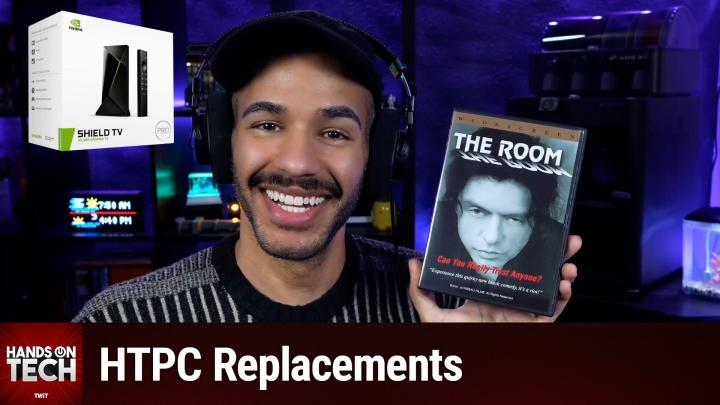
Replacing Your Home Theater PC: Best Devices for Playing Ripped DVDs and ISOs
AI-written, human-edited.
Upgrading your home media setup doesn't mean you need to build or buy a bulky PC anymore. Mikah Sargent breaks down the best, most practical devices for watching your ripped DVDs and ISO files directly on your TV, including essential pros, cons, and setup guidance.
Why Consider Replacing Your Home Theater PC?
Traditional Home Theater PCs (HTPCs) require significant time, technical know-how, and space. With streaming-centric set-top boxes becoming more powerful, you can now enjoy your personal media library without a dedicated computer. This shift is ideal for families who want easy access to home movies or old DVDs, especially as streaming services regularly drop titles.
On Hands-On Tech, Mikah Sargent highlighted that media streaming devices have matured, making HTPCs less essential for most use cases—including playback of DVD ISOs and home video files.
Top Recommendations for HTPC Replacements
1. Nvidia Shield TV Pro
Best Overall Replacement
- Android TV device with robust hardware
- Native support for Kodi and VLC apps, both of which can play DVD ISOs (including menus)
- Sits around $200 (subject to sales/availability)
- Compact and connects via HDMI directly to your TV
Why it stands out:
The Shield TV Pro is practically purpose-built for personal media playback. Mikah Sargent emphasized that it flawlessly supports DVD menus through Kodi/VLC, functioning much like a traditional DVD player for digital files.
2. Amazon Fire TV Stick 4K Max (and Fire TV Cube)
Budget-Friendly Option
- Priced well below the Shield TV Pro
- Runs both Kodi (requires sideloading) and VLC, though with less power for demanding tasks
- Ideal for standard-definition/DVD quality, not Blu-Ray level files
Setup Note:
Kodi must be manually installed (sideloaded), which may be a mild technical hurdle. Mikah Sargent pointed out they perform acceptably for DVD-quality playback, making them good choices for most home users.
3. Game Consoles (Xbox, PlayStation)
Not Recommended for ISOs Directly
- Neither system natively plays ISO files.
- Can act as network streaming clients via Plex or Jellyfin if you still run a server elsewhere.
Mikah Sargent explained that without a backend server (like an HTPC or NAS running Plex/Jellyfin), consoles alone aren’t a streamlined solution.
Streaming Your Files: How to Set Up
For Nvidia Shield TV Pro or Fire TV:
- Install Kodi or VLC from the app store.
- Point the app to your storage location (external drive, NAS, or local).
- Play your ISOs—on Shield TV Pro, you'll even get full DVD menus.
For Fire TV Devices:
- Kodi must be sideloaded;
Mikah Sargent
mentioned a guide link is available in the show notes to walk you through the process.
Network Storage Tips:
- You can store files on a NAS (Network Attached Storage) and stream to these boxes.
- If you transcode the files to regular video formats, they can be viewed from a USB stick plugged into your TV.
Key Takeaways
- The Nvidia Shield TV Pro is the most hassle-free, full-featured alternative to a homemade HTPC, especially for DVD ISO playback.
- The Fire TV Stick 4K Max or Fire TV Cube offers a cheaper route if you’re comfortable sideloading and only need DVD-level performance.
- Using a game console requires extra hardware (like a running server), so it's not as direct.
- Kodi and VLC remain essential apps for custom media playback.
The Bottom Line
For most users wanting to replace an aging or cumbersome HTPC and smoothly play ripped DVDs or family videos, the Nvidia Shield TV Pro is the best balance of simplicity, power, and long-term support. If you're on a budget, Fire TV devices are a decent compromise, but may require a bit more setup and deliver slightly lower performance.
Stay updated and never miss an episode by subscribing at:
https://twit.tv/shows/hands-on-tech/episodes/248