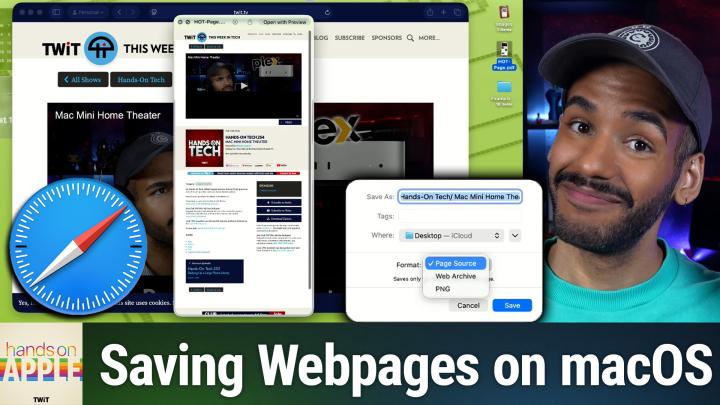
The Best Ways to Save Webpages on Mac
AI-generated, human-reviewed.
If you’ve ever needed to keep a webpage for reference, work, or archiving, Safari on macOS offers several built-in ways to save content—each with its own advantages. On Hands-On Apple, Mikah Sargent showed how to choose the best method (PDF, PNG, HTML, or Web Archive) depending on what you want to keep and why it matters.
Quick Summary
Safari for Mac provides four main options to save a webpage:
- Print to PDF: Quick snapshot, but may lose formatting.
- Export as PDF: Preserves layout and interactive content more accurately.
- Save as PNG: Creates an image of the entire page as seen.
- HTML or Web Archive: Keeps code or a complete, interactive offline copy.
Understanding these options ensures you have access to saved content exactly as you need it—text, images, links, or full functionality.
Saving Webpages in Safari
1. Print to PDF—Good for Simplicity
- Use Command + P to bring up the print dialog, then select "Save as PDF."
- Useful if you just need the text or a basic static representation.
- May lose images, formatting, or interactive elements.
2. Export as PDF—Better Layout Preservation
- Select File > Export as PDF from Safari’s menu.
- Keeps thumbnail images, most layout and content intact.
- Easier to read and browse as text remains selectable and clickable.
3. Save as PNG—Capture the Visuals
- Use File > Save As > Format: PNG to get a screenshot-like image.
- Good choice for visual records (e.g., exact ad placement, page layouts).
- The resulting file can be quite large if it’s a lengthy page.
4. Save as HTML or Web Archive—For Technical or Offline Use
- Page Source (.html): Bare-bones, saves the page's HTML code only. Images and scripts are not included. Best for developers who want to examine or reuse code.
- Web Archive (.webarchive): Safari’s proprietary format. Saves the entire page, including images, CSS, and scripts—viewable offline and in Safari.
- File sizes: Web Archive files are typically larger as they pack all assets.
Mikah Sargent demonstrated how each option works and explained what you gain (or lose)—for example, "Export as PDF" showed embedded videos and correct page flow, unlike "Print to PDF," which sometimes left out images or pushed content to extra pages.
How to Choose the Best Method
- PDF (Export as PDF): Choose this for most uses—study materials, research, records, or sharing full text and structure.
- PNG: Pick when visual fidelity or proof-of-layout is critical.
- Web Archive: Use for sites you want to interact with completely offline or plan to revisit in Safari.
- HTML: Developers or web learners may find value in the page source.
Key Takeaways
- Not all "Save as PDF" methods are equal: using Safari’s Export as PDF keeps more of the original webpage layout and assets.
- Web Archive is powerful for true offline access, but is best opened again in Safari.
- Simpler HTML or PNG files have their place but suit narrower use cases.
- Instead of just printing or taking incomplete screenshots, Safari’s tools let you keep exactly what you need.
- Picking the right format protects you from missing information or broken layouts in the future.
- These tricks are built right into macOS—no extra apps required.
For most users, "Export as PDF" is the top recommendation as it’s reliable, works with long-form content, and keeps the page looking right. Consider Web Archive if you need full offline interactivity. Whenever documentation or evidence is required, don’t settle for incomplete prints. Use the method that makes sense for your end goal.
Watch the full breakdown and more tips on Hands-On Apple:
Subscribe here: https://twit.tv/shows/hands-on-apple/episodes/219